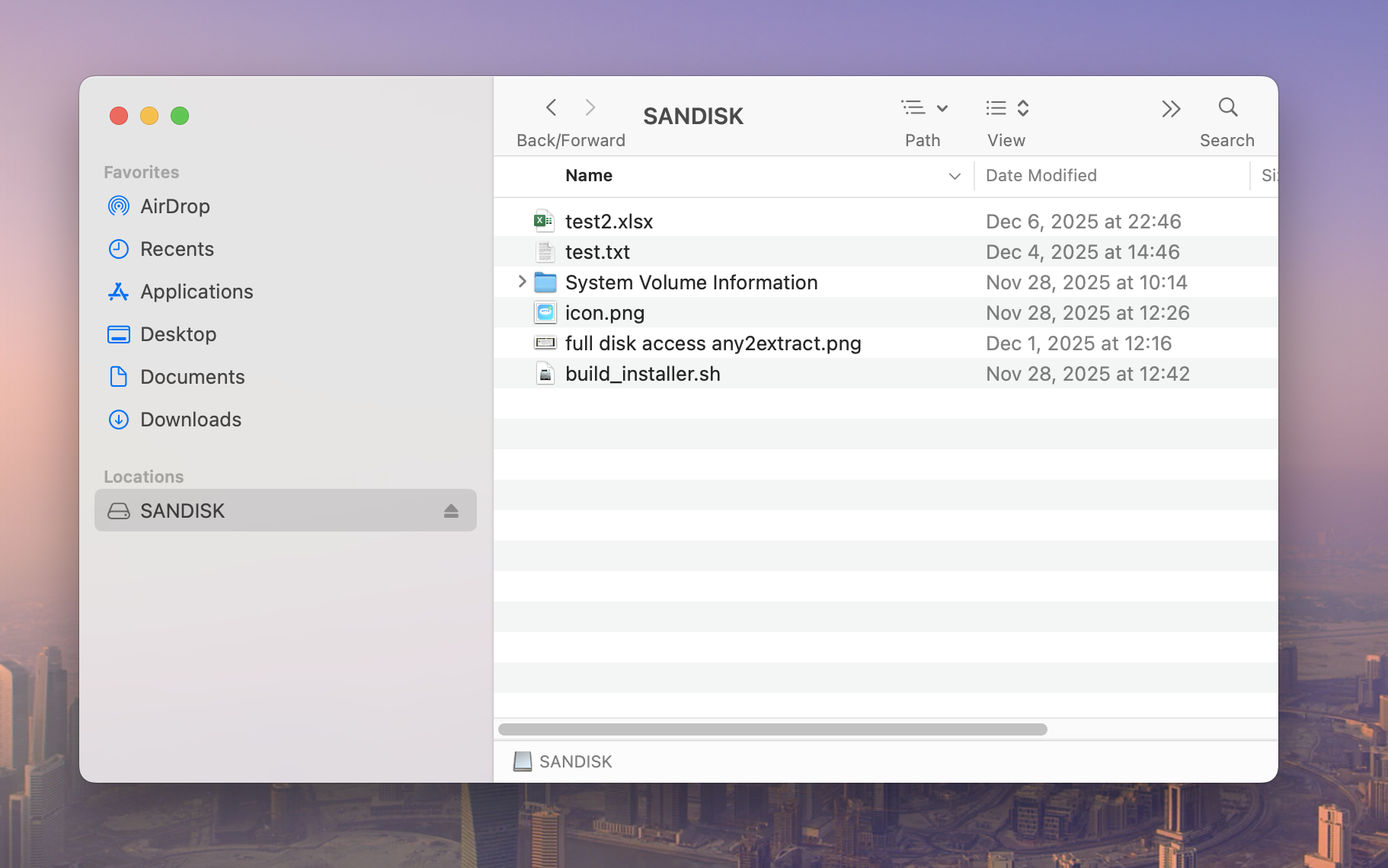
macOS can usually read NTFS drives, but write/edit/delete is restricted by default. SYSGeeker NTFS for Mac works around that by mounting your NTFS disk in read-write mode, so you can use it like a normal Mac drive.
This guide focuses on Intel-based Macs. For Apple Silicon Macs (M1/M2/M3/M4), see the Intel tutorial here.
Step 1: Download SYSGeeker NTFS for Mac and install it (open the PKG and follow the installer) on your inteal-based Mac. Launch the app once after installation.
Step 2. Connect the NTFS USB / SSD / HDD to your Mac. Plug your NTFS USB drive / SSD / HDD into your Mac. The tool will detect it automatically, and you’ll see the drive listed in the app with the status "Read-only" .
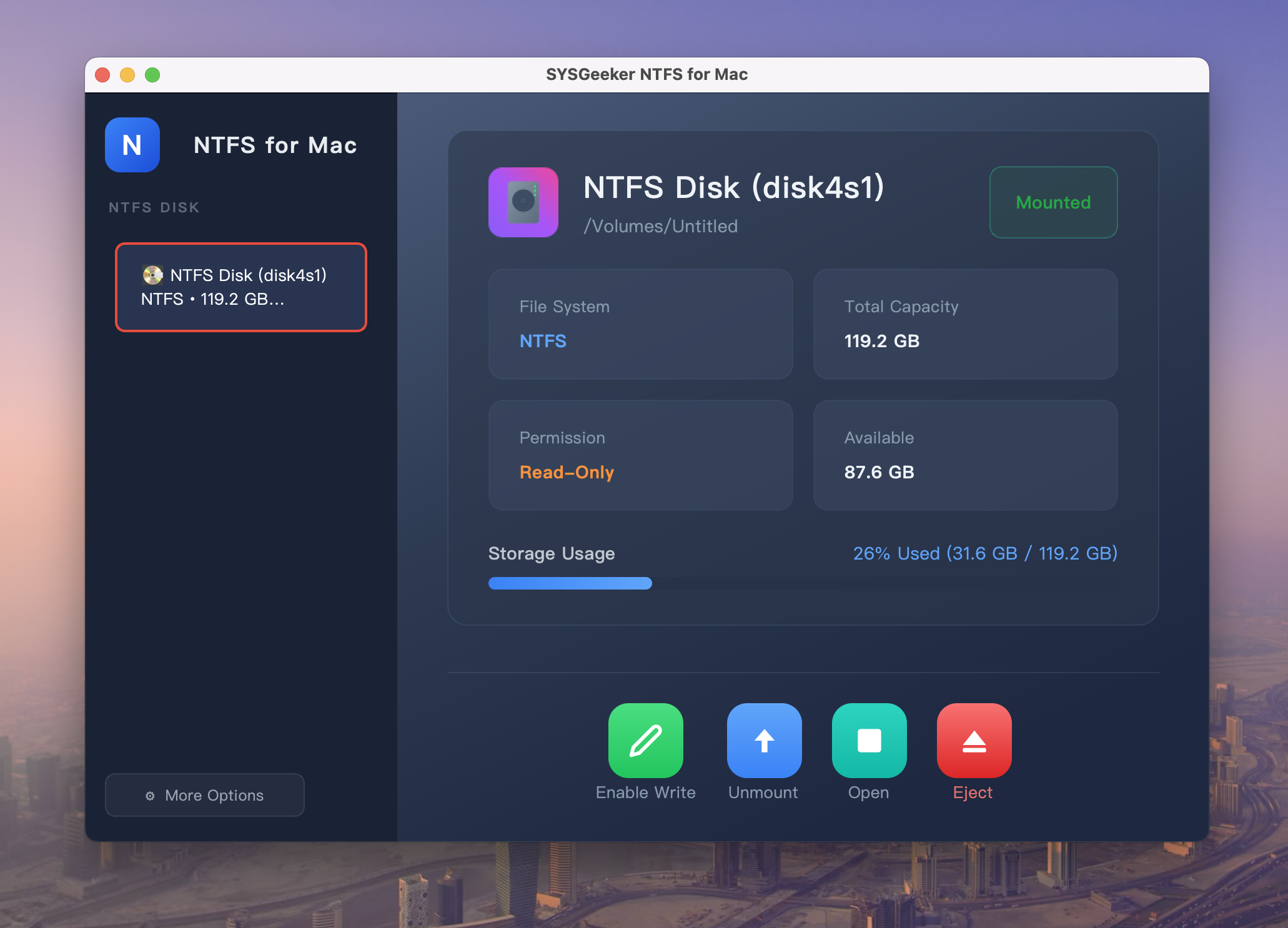
Step 3. Click "Enable Write" at the bottom of the app. A "First Time: 2 Steps Required" window will pop up, guiding you to complete "Full Disk Access" and "Enable System Extension" .
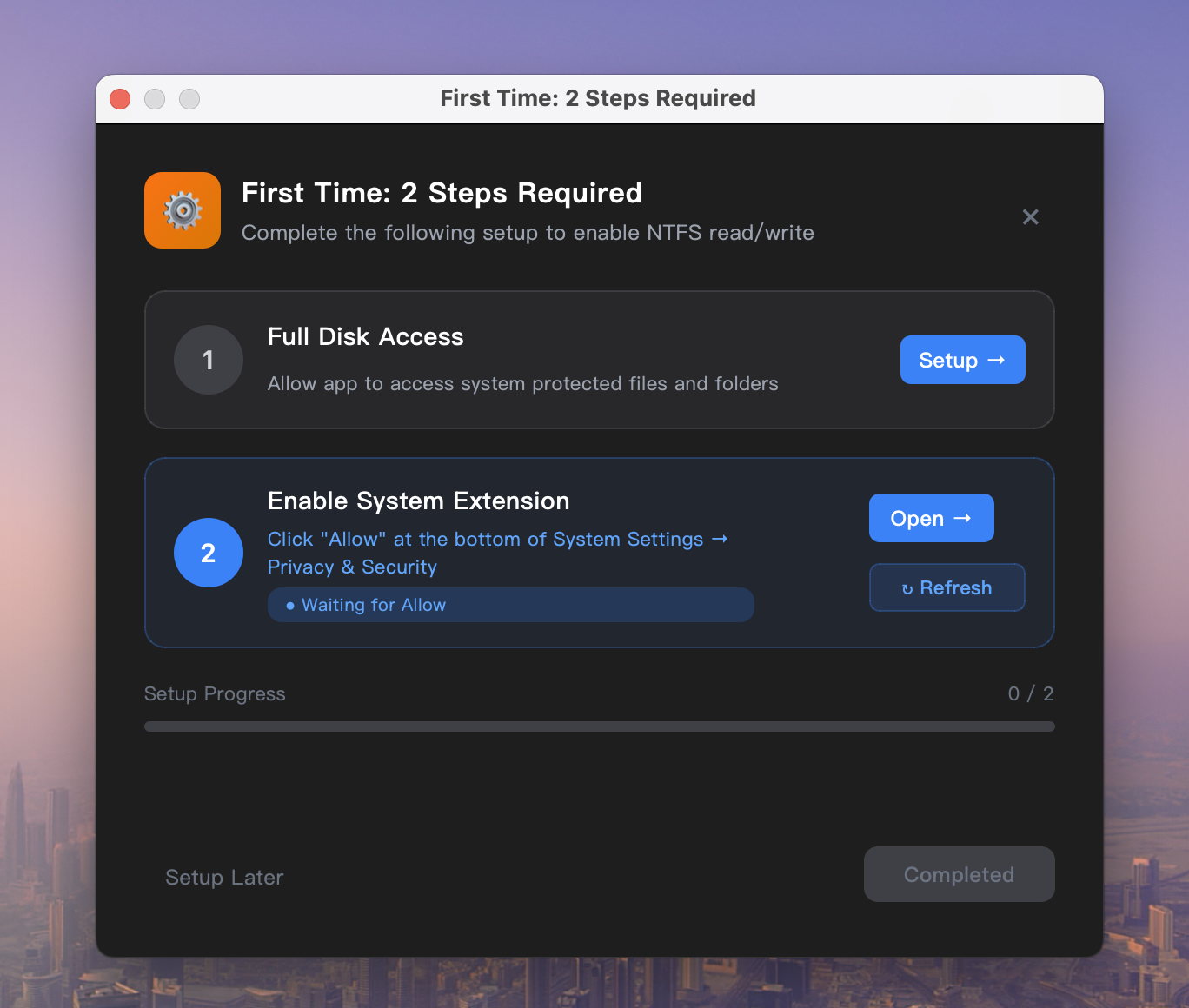
You can click the Setup button to view the step-by-step illustrated guide.
| NOTE: Full Disk Access Required | Guide |
|---|---|
| How to Give App Full Disk Access | - > Check tutorial |
Step 4. Once Full Disk Access is enabled, the Full Disk Access status will change to Configured. Next, you still need to allow the kernel extension to load—click Recheck to continue with the system extension setup.
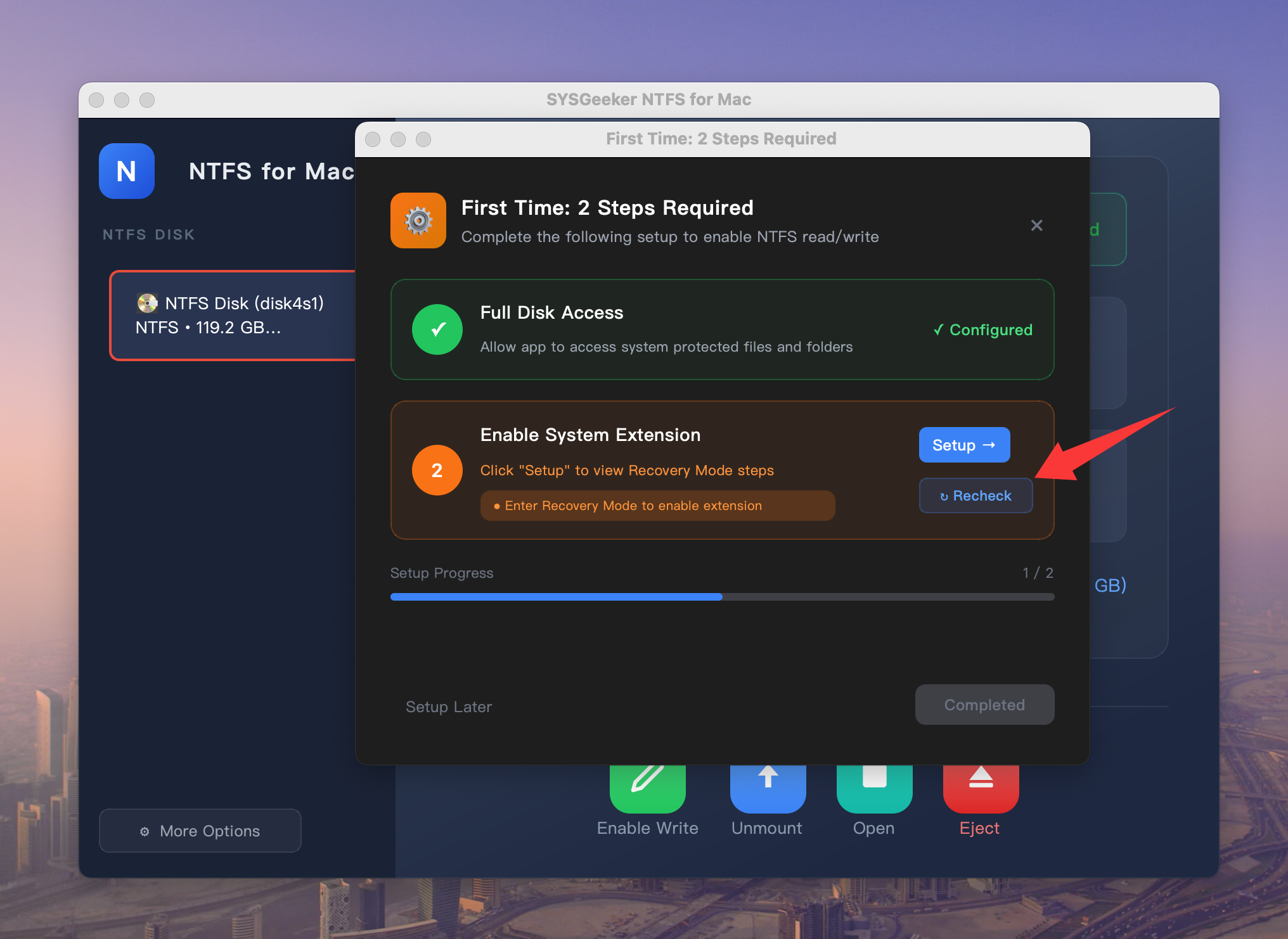
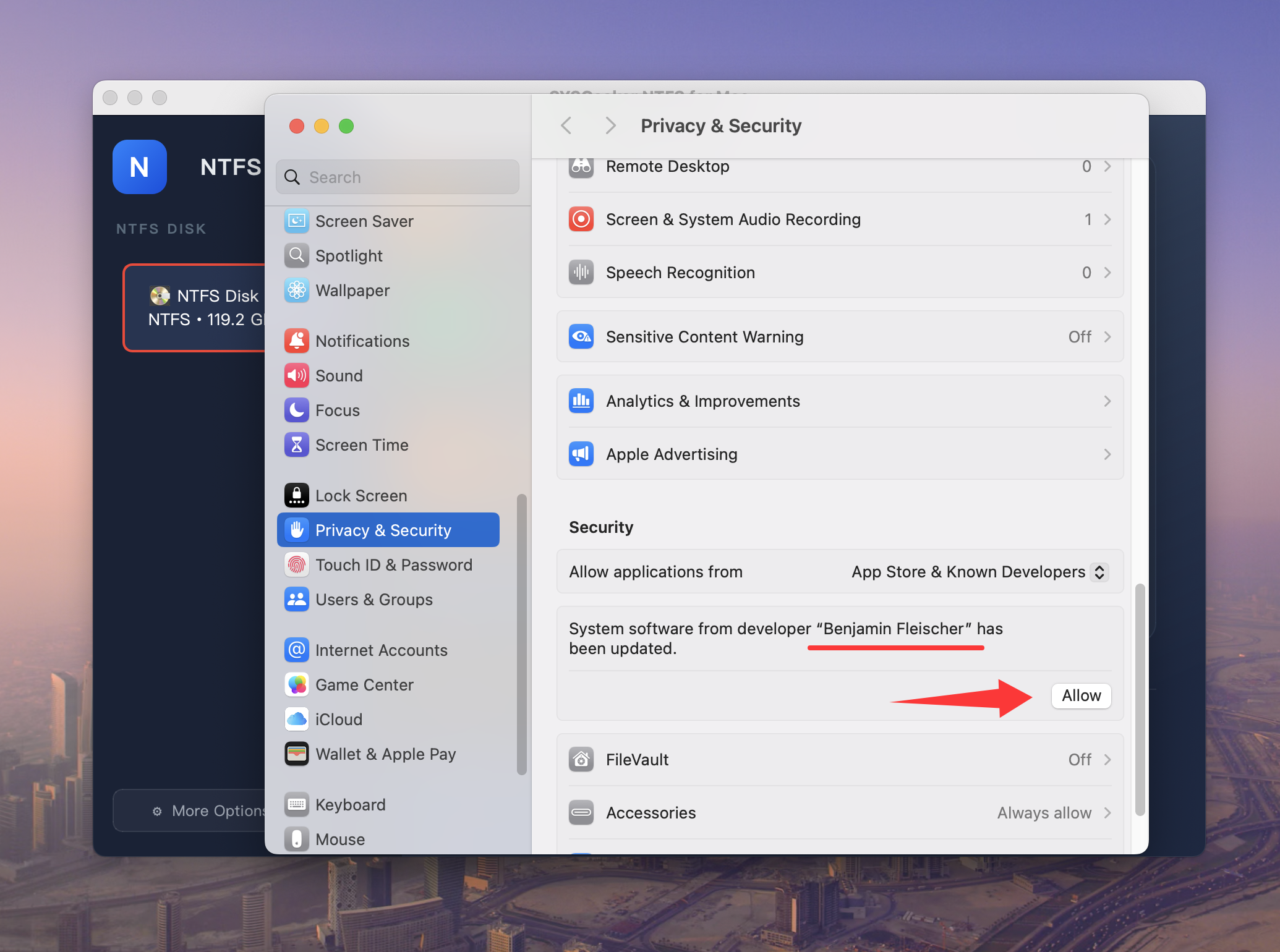
Step 5. When you click Recheck, the app will open System Settings → Privacy & Security automatically. Scroll to the Security section, Click Allow to approve the system software from developer "Benjamin Fleischer".
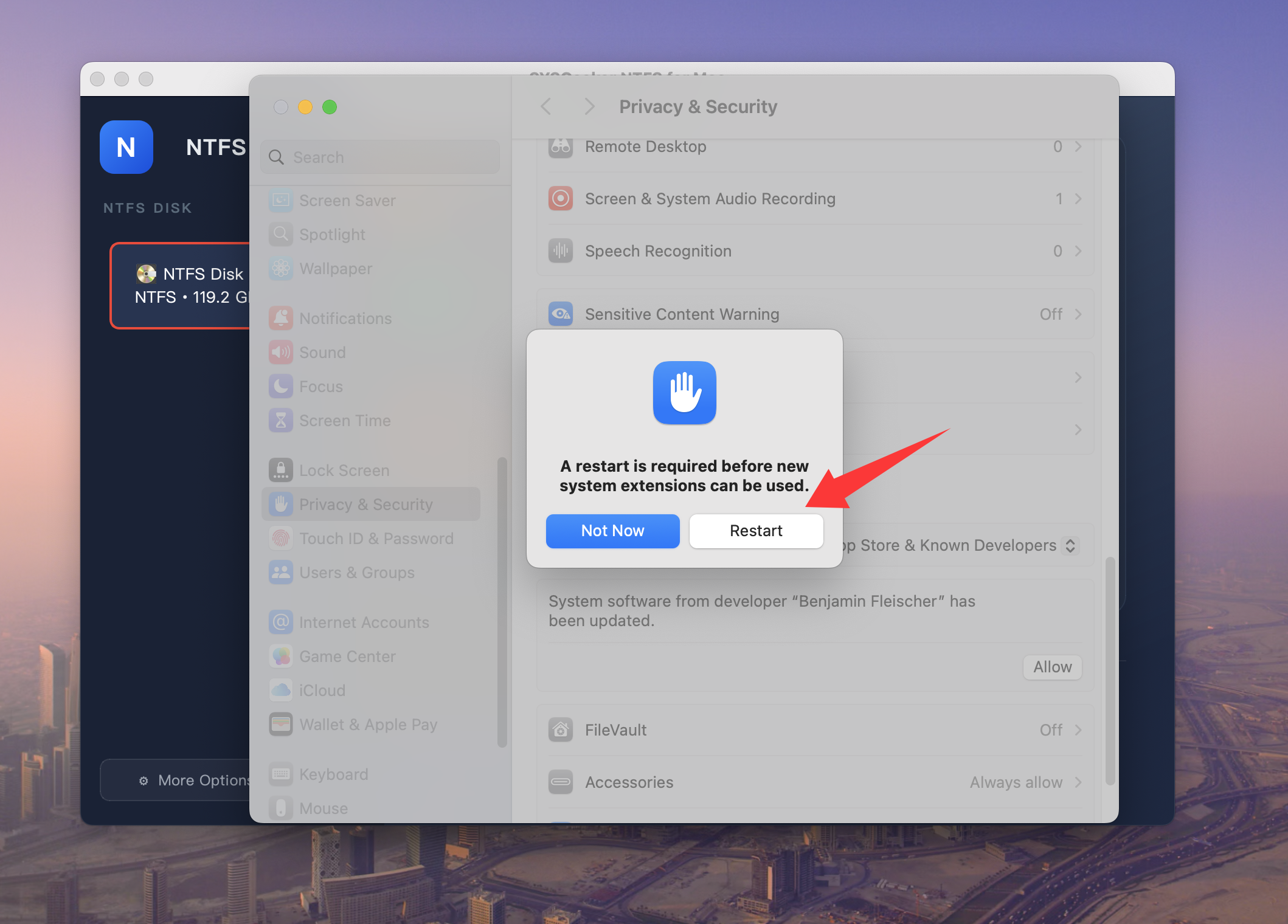
Step 6. Enter your administrator password, then click "Restart" in the pop-up dialog to apply the changes.
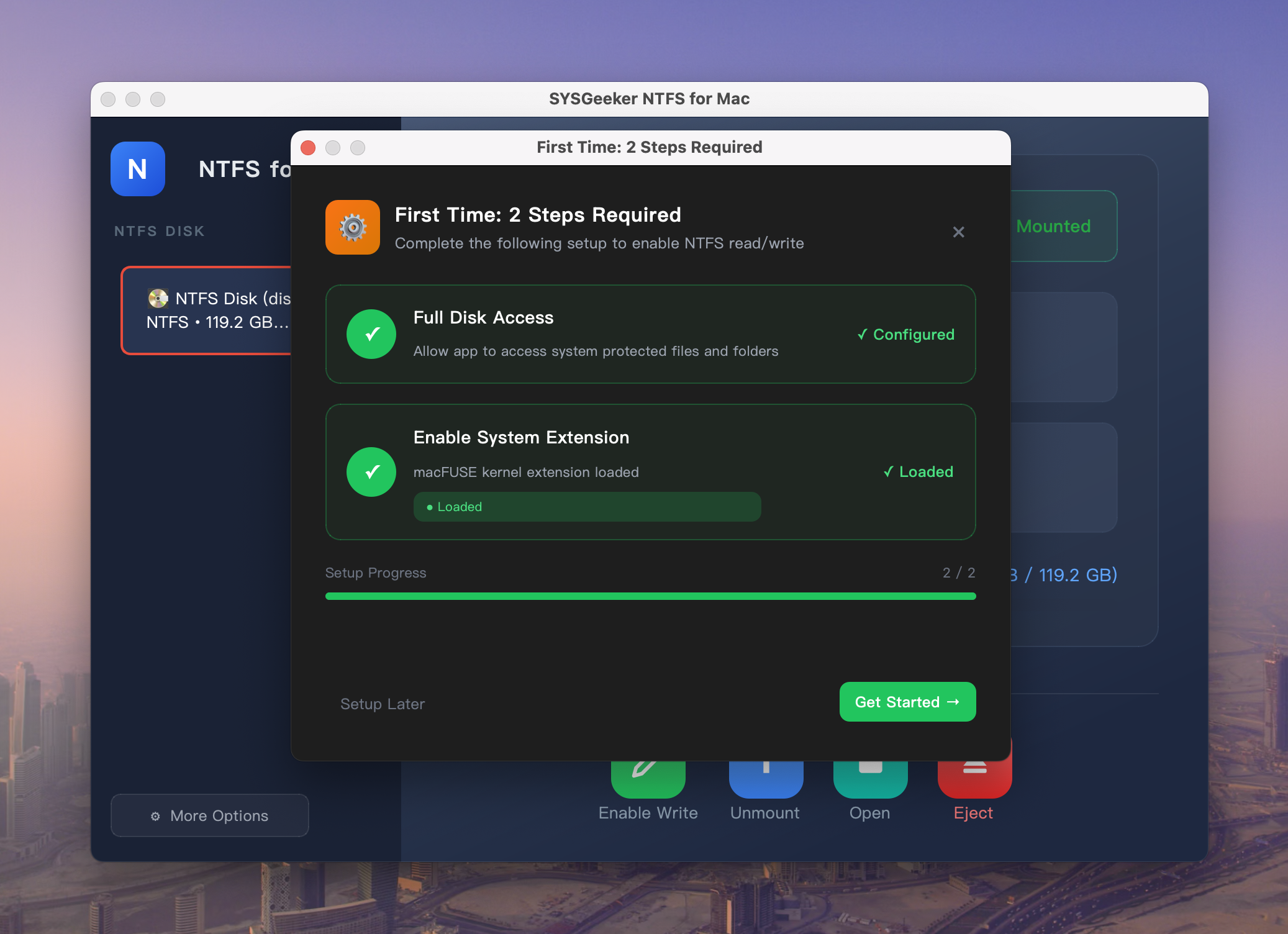
Step 7. After restarting, open the app and click Recheck again. This time, the system extension should show as successfully loaded. Once you see both items marked as "Configured" and "Loaded" (like in the screenshot), setup is complete—this is a one-time setup, and you won’t need to do it again.
Step 8. Once both steps are completed, the app will start mounting your NTFS drive in "read/write" mode.
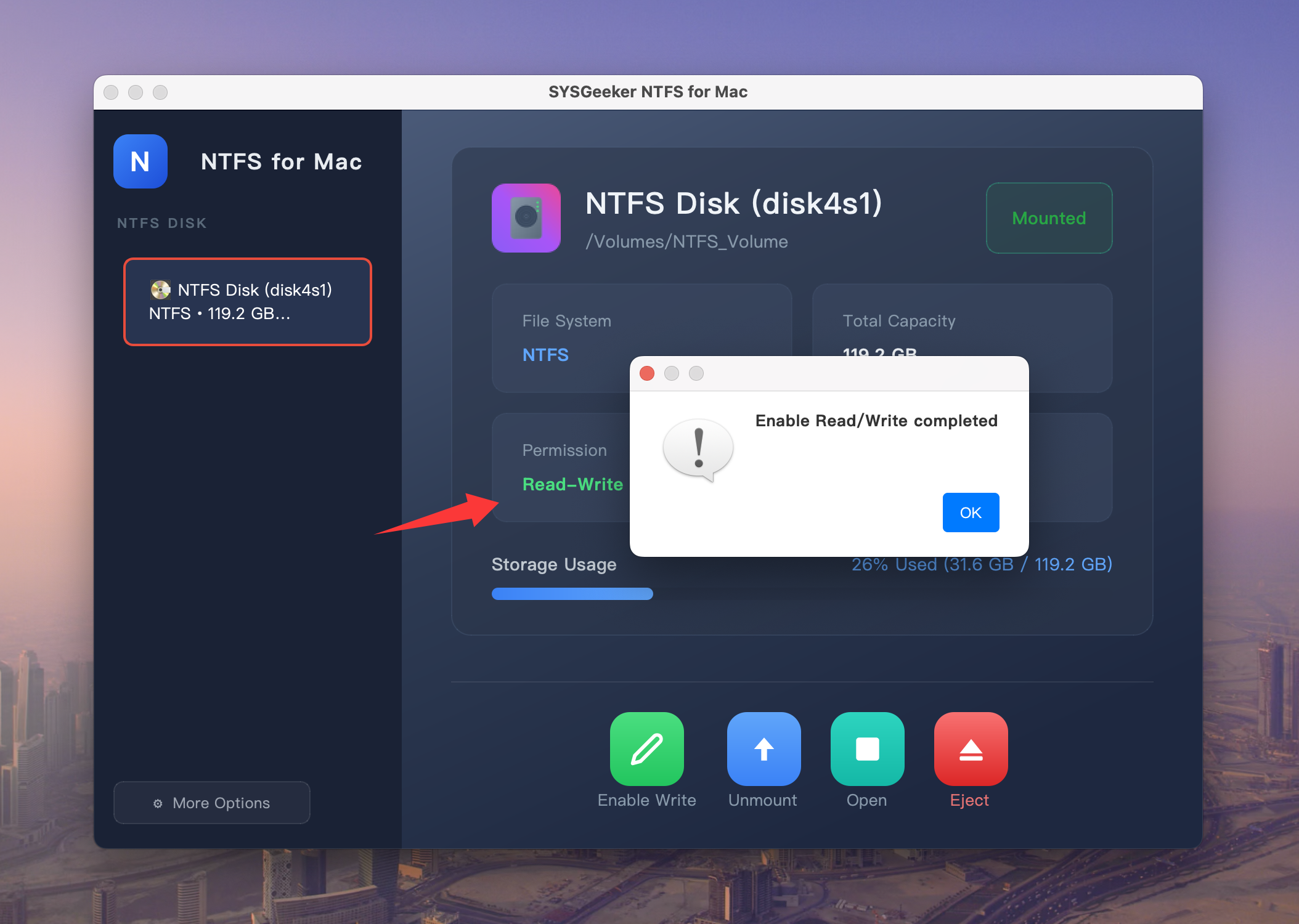
Step 9. When you see this dialog box, it means the drive has been successfully mounted in "read/write" mode. You can open the external drive from the Finder sidebar, or simply click "Open" to access it.
Now you can start copying files to the drive from your Mac. Simply drag and drop the files you want to copy to the NTFS drive or use the Finder to copy and paste files to the drive.