How to Give App (NTFS for Mac) Full Disk Access
SYSGeeker NTFS for Mac needs Full Disk Access to properly detect, mount, and manage your NTFS drives in read/write mode. Without this permission, macOS may block disk-level operations and the app may stay in read-only status.
Here are two ways to grant Full Disk Access to SYSGeeker NTFS for Mac.
2 Ways to Grant App Full Disk Access
Method 1: Enable it from macOS Settings (Manual)
- 1Apple menu → System Settings
- 2Go to Privacy & Security
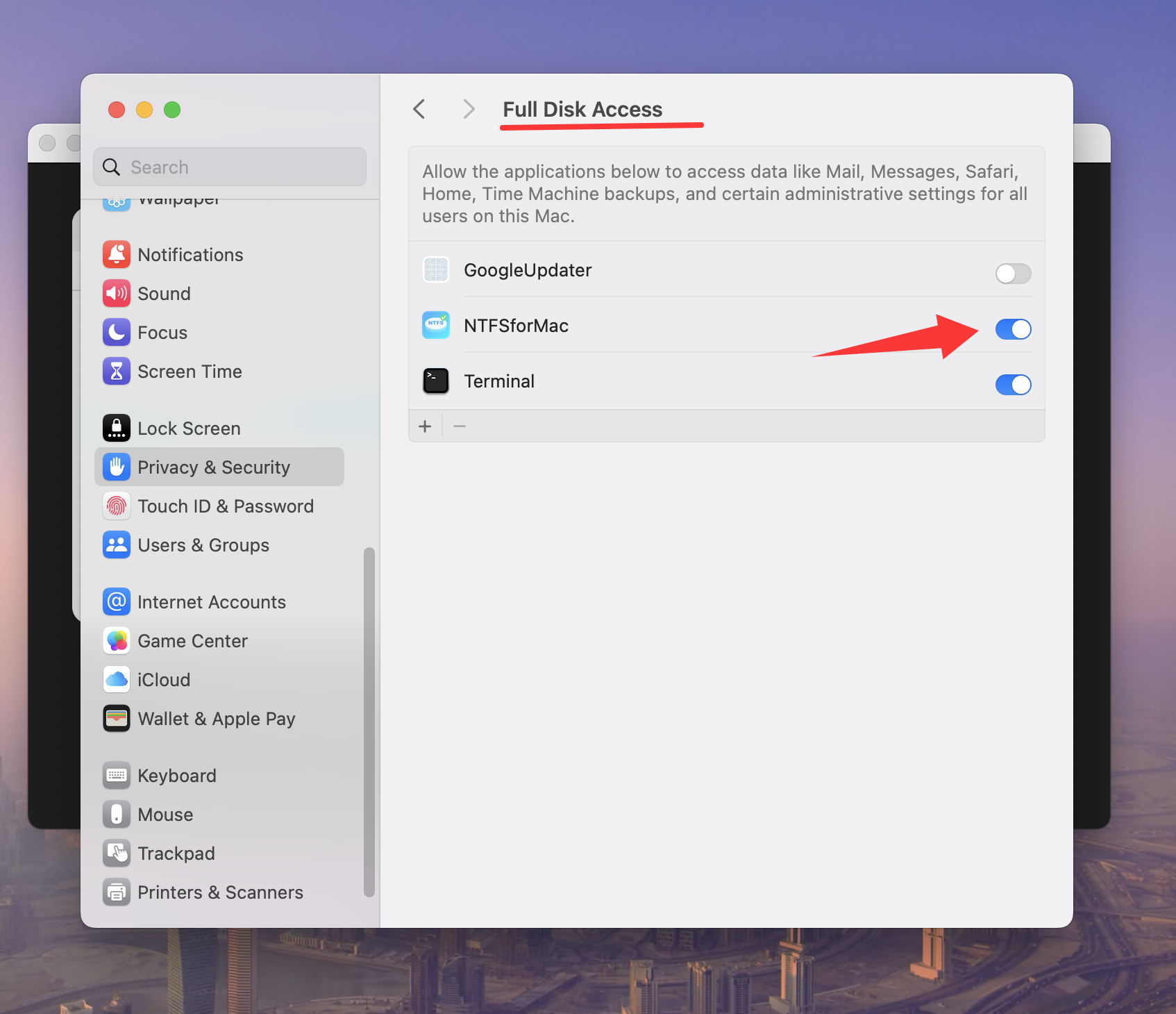
- 3Scroll down → Full Disk Access
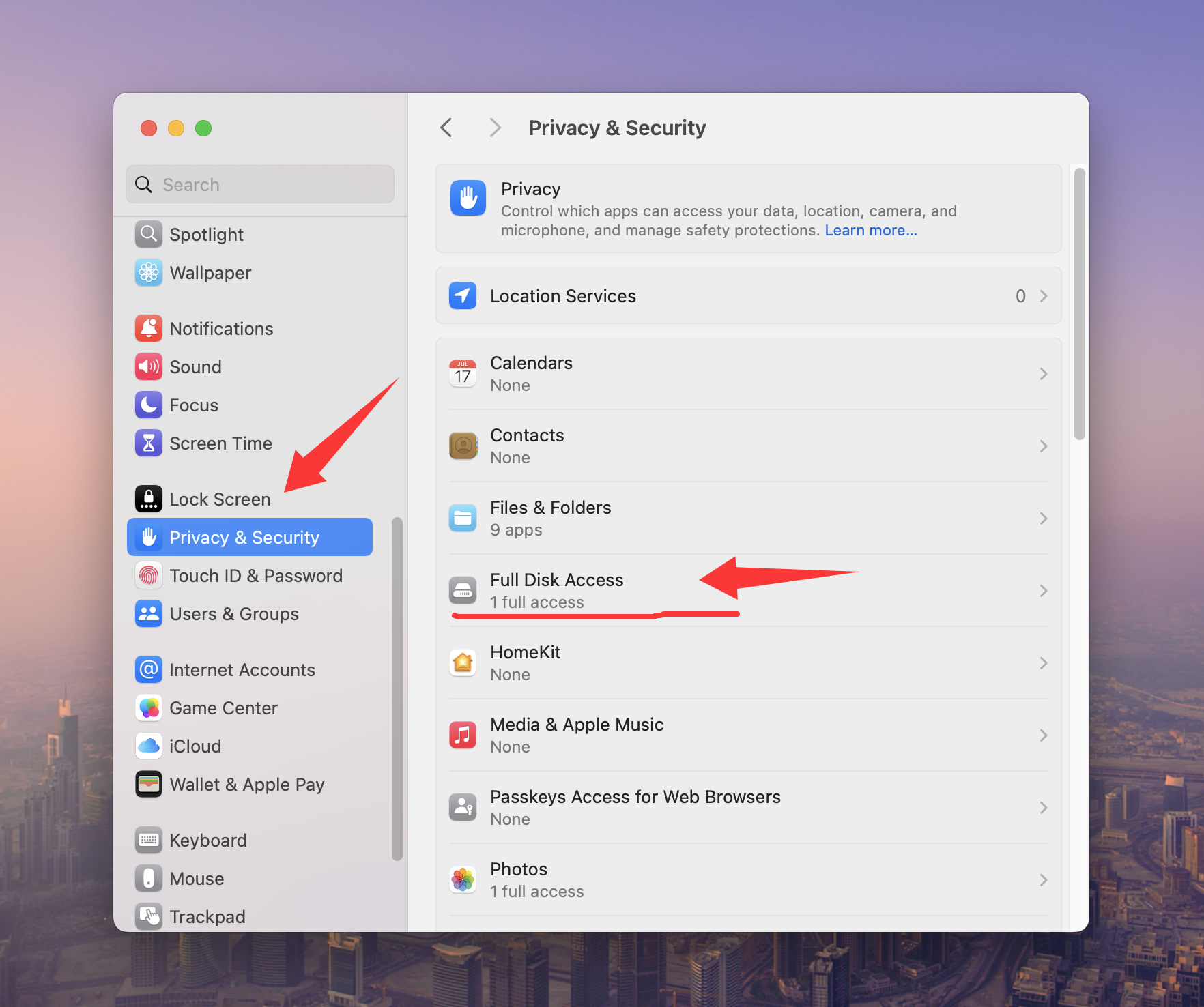
- 4Turn on SYSGeeker NTFS for Mac (or click + to add it from Applications)
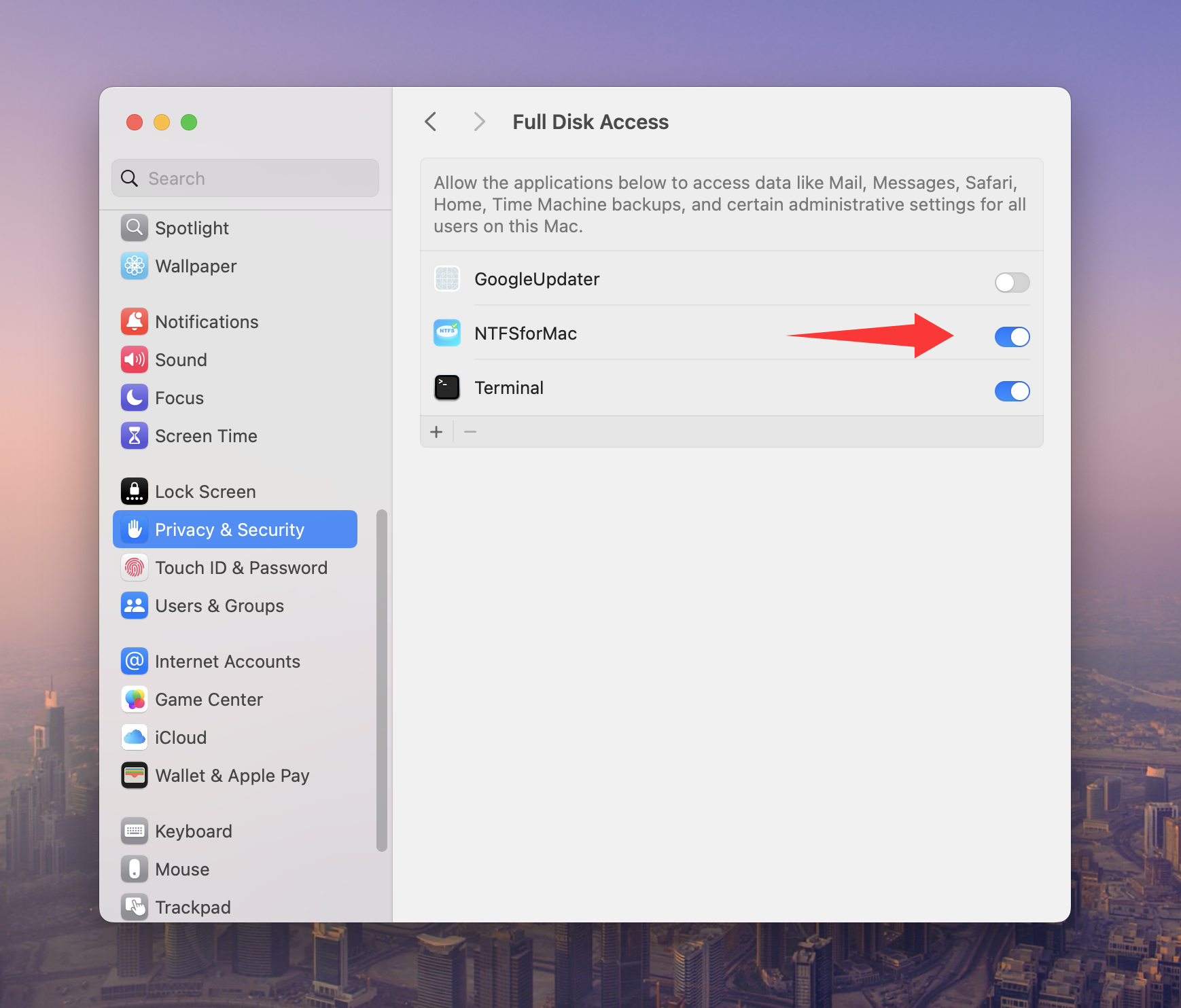
- 5Quit and reopen the app
Method 2: Open it from NTFS for Mac (Recommended)
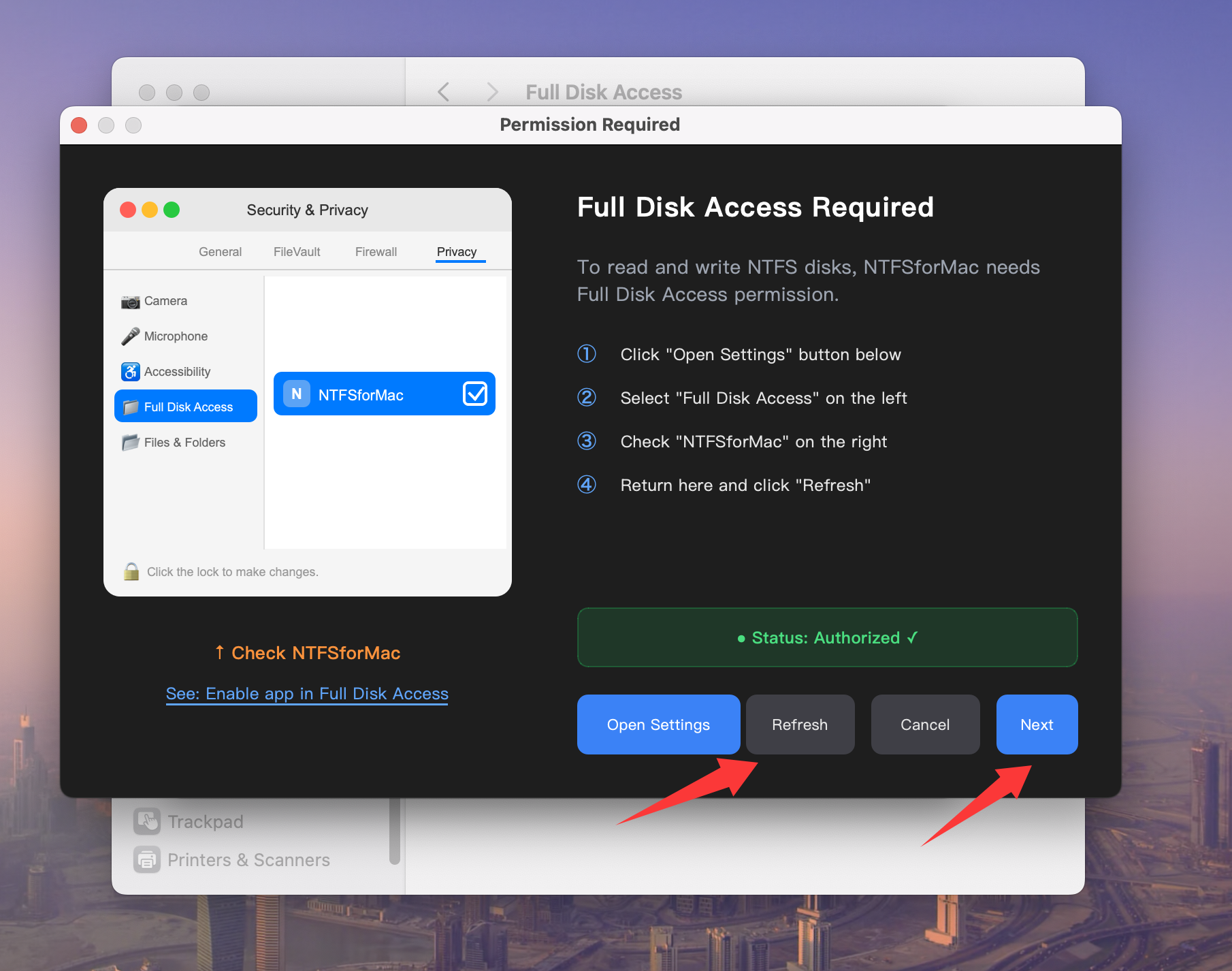
- 1In SYSGeeker NTFS for Mac, find Full Disk Access and click Setup
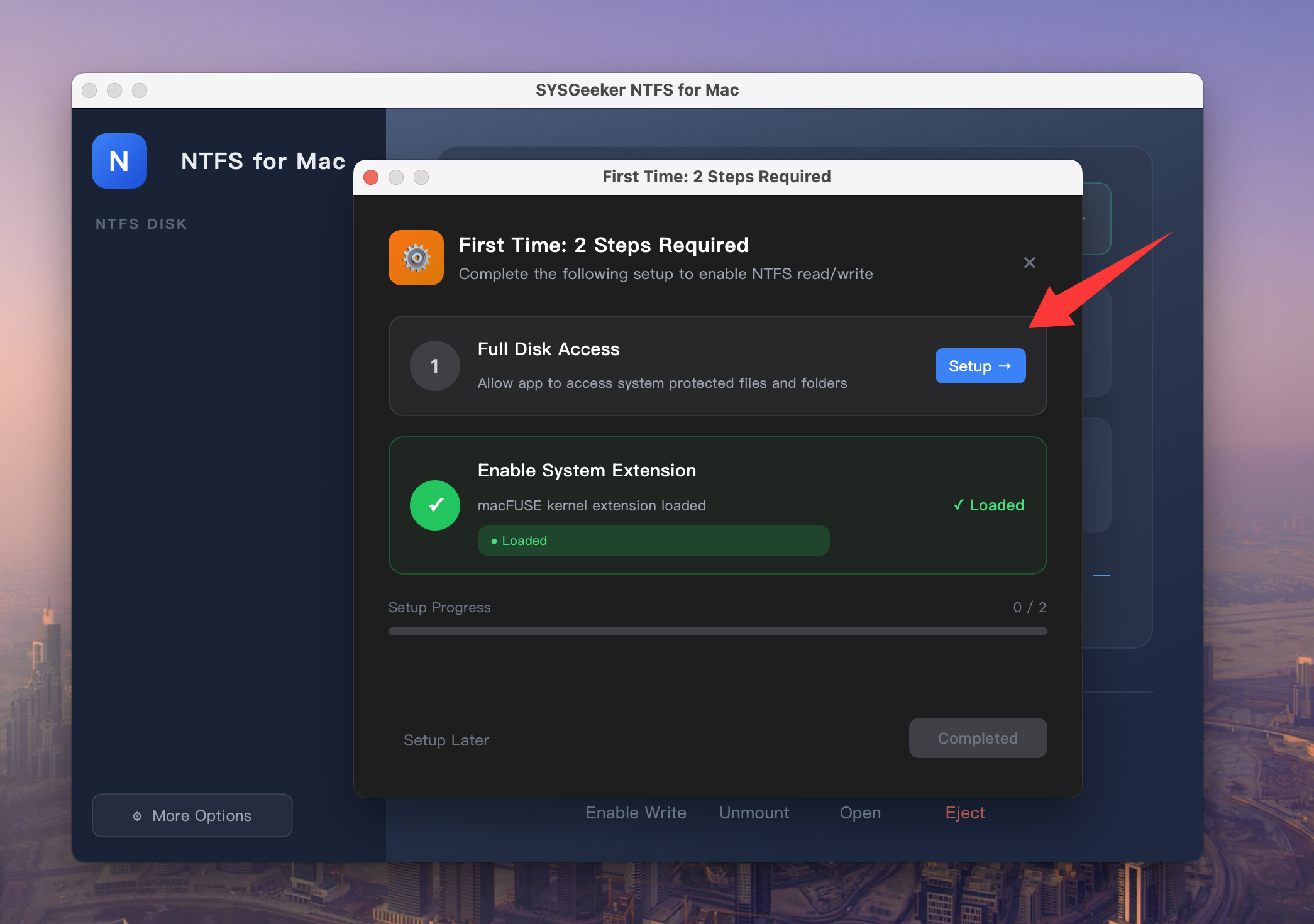
- 2In the guide window, click Open Settings
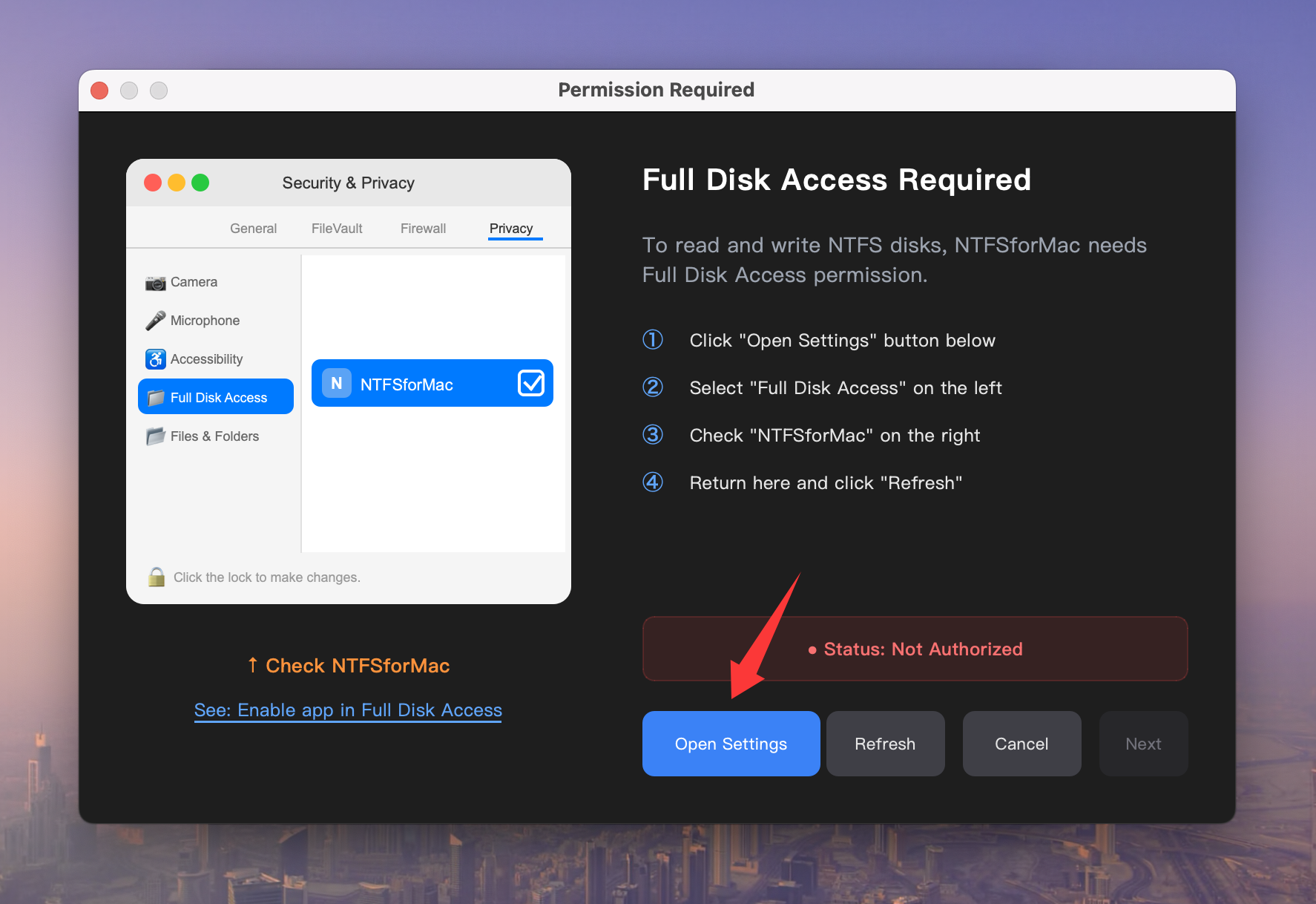
- 3macOS will open: System Settings → Privacy & Security → Full Disk Access
- 4SYSGeeker NTFS for Mac will already be listed—just turn it On
- 5Go back to the app and click Refresh (if prompted)
- 6Quit and reopen the app


