On Apple Silicon Macs (M1/M2/M3/M4), macOS requires you to approve a system extension before an NTFS for Mac app can mount NTFS drives in read/write mode. This is a standard one-time setup step for M-series Macs. After the extension is loaded, you can restore your Security Policy settings if you want.
Step 1: Confirm your Mac is Apple Silicon. Click Apple menu → About This Mac.
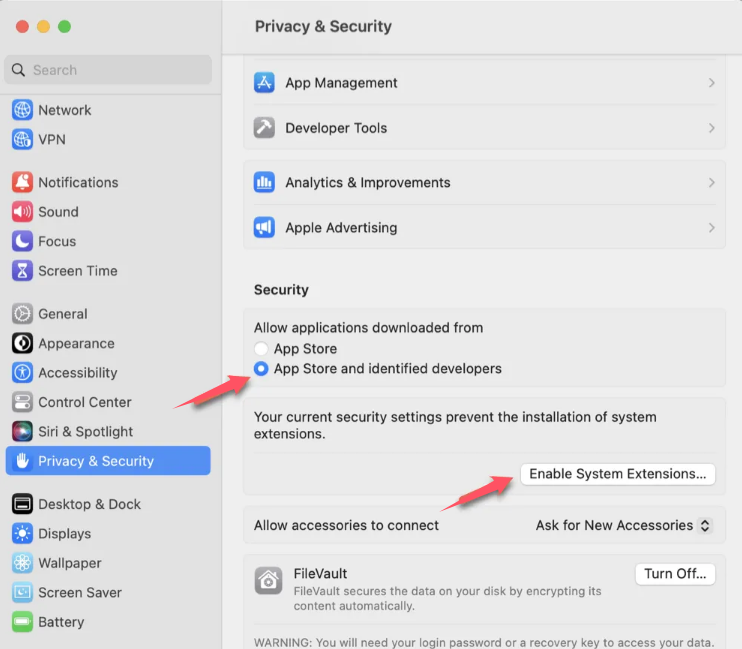
Step 2: In System Settings → Privacy & Security, scroll to the Security section and make sure App Store and identified developers is selected. Then click Enable System Extensions… to continue.
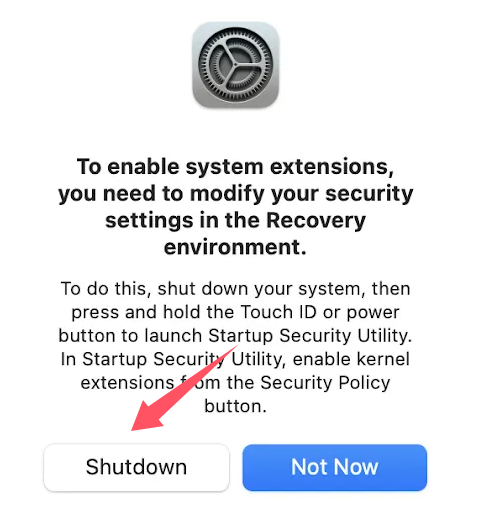
Step 3. When the pop-up shows "To enable system extensions, you need to modify your security settings in the Recovery environment", click the Shutdown button to turn off your Mac.
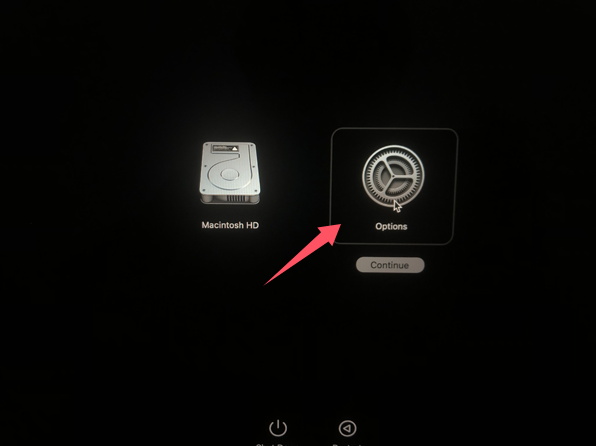
Step 4. When your Mac is completely off, press and hold the power switch (Touch ID) until it says "Loading up startup options".
Step 5. Click Options and then click Continue to boot the M1, M2, M3, M4 Mac to macOS Recovery Mode.
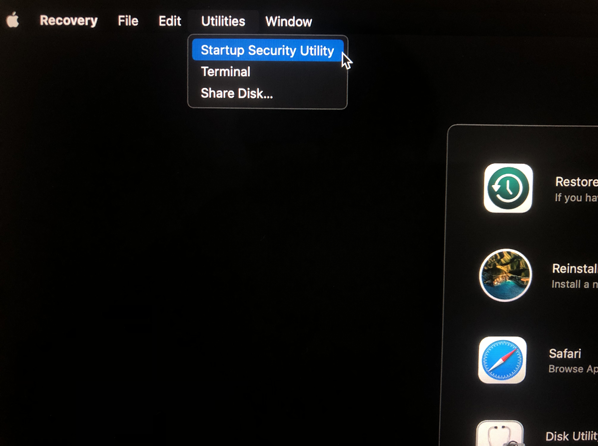
Step 6. Select "Startup Security Utility" from Utilities menu.
Step 7. Click "Security Policy...".
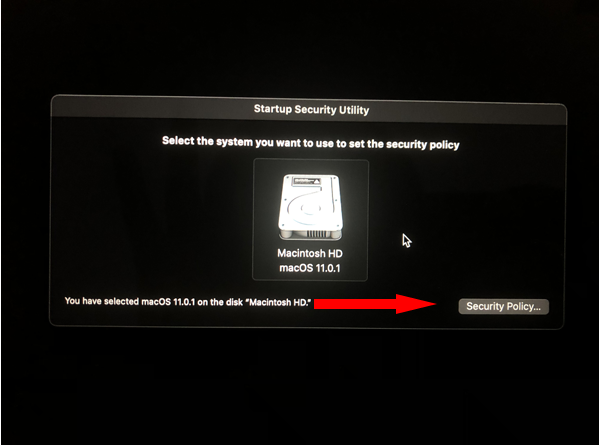
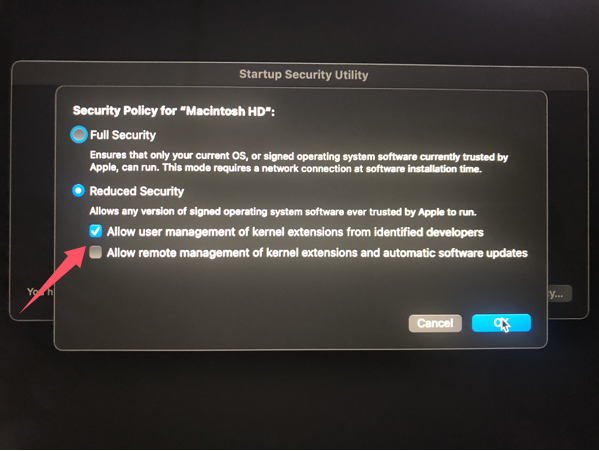
Step 8. Check "Reduced Security" option and "Allow user management of kernel extensions from identified developers", then click Ok.
Step 9: Restart your Mac.
Step 10 : Go to Privacy & Security window again, and this time in the Security section. Click the Allow button underneath System software from developer " Benjamin Fleischer" from loading.
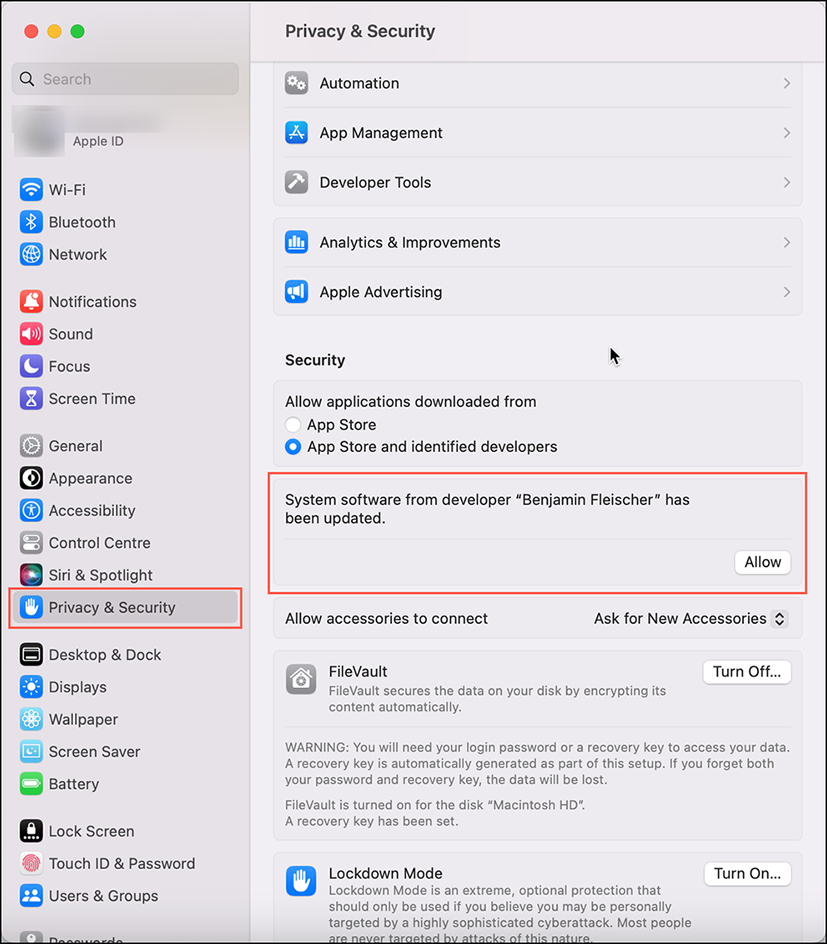
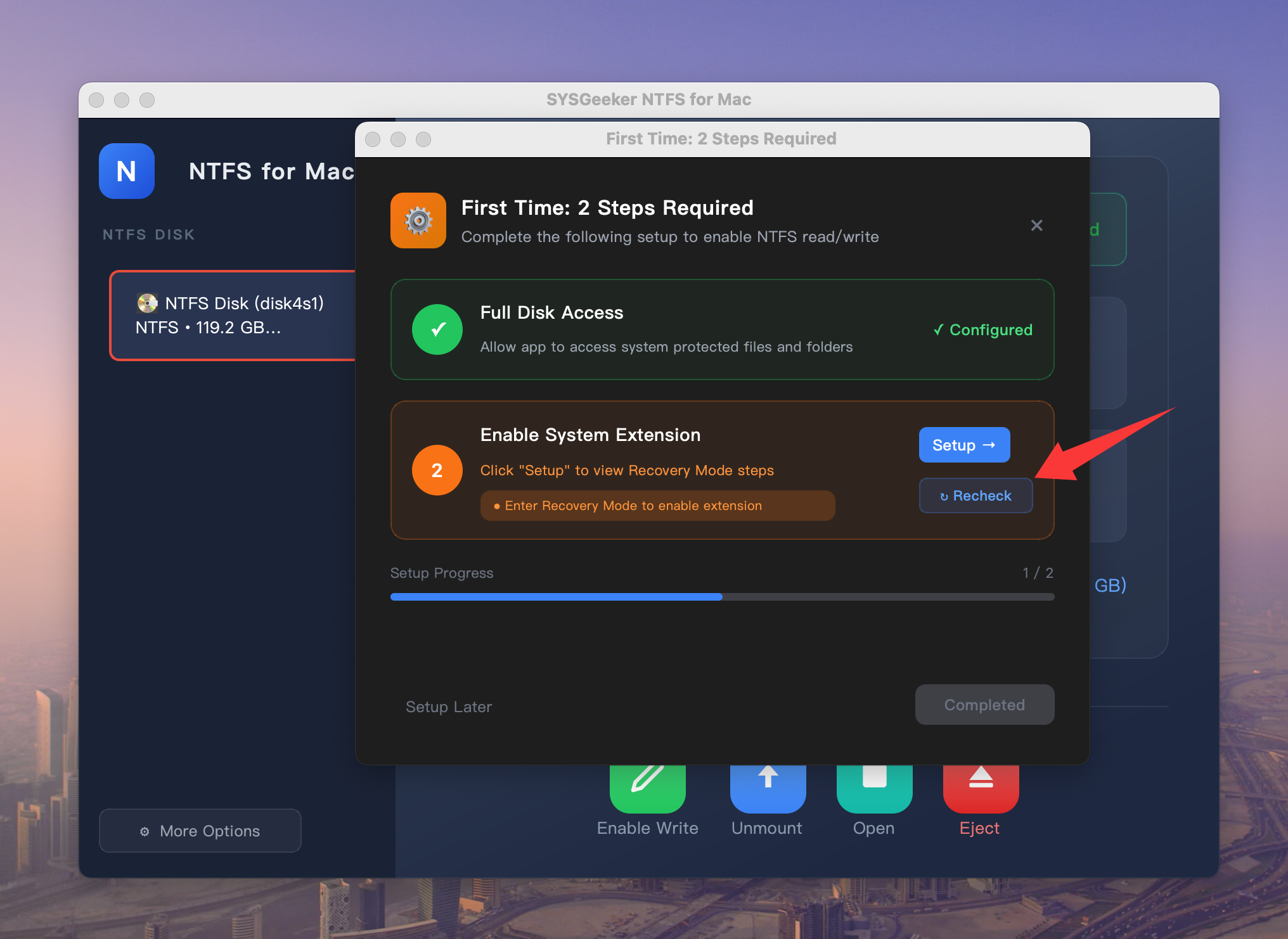
Alternaive: You can also do this directly from the app: in the Enable System Extension step, click Recheck. macOS will open Privacy & Security. Look for the message “System software from developer "Benjamin Fleischer’ has been updated.", then click Allow.
Finally, restart your Mac to make the change take effect. Then you can use SYSGeeker NTFS for Mac to read and write NTFS drive on Mac.


