

Working between Windows and macOS gets annoying fast when your external drive is NTFS. macOS can usually open and read files from an NTFS disk, but it won’t let you copy files to it, rename folders, delete items, or edit content by default—so the drive often feels “stuck” in read-only mode.
Why Can't Macs Write to NTFS Drives?
This isn’t really a bug. NTFS is a Microsoft file system, and Apple doesn’t include full write support in macOS. If you need full access without reformatting the drive, an NTFS for Mac tool is the practical fix.
Read and Write NTFS Drives using NTFS for Mac
SYSGeeker NTFS for Mac is the option I’d pick when I want the least hassle. It mounts the NTFS drive in read/write mode so it behaves like a normal Mac drive in Finder—copy, move, delete, and edit files normally. Speed is also good in real use, especially when moving big folders or large video files.
Step 1. Download and install SYSGeeker NTFS for Mac on your macOS, and then launch the tool. Be sure to Allow System Extension when the option comes on your screen. You may need to restart your compute to take it effect.
Step 2. Connect the read-only NTFS drive to your Mac. SYSGeeker NTFS for Mac will automatically recognize your NTFS hard drive and l show Read-Only tag on the program.
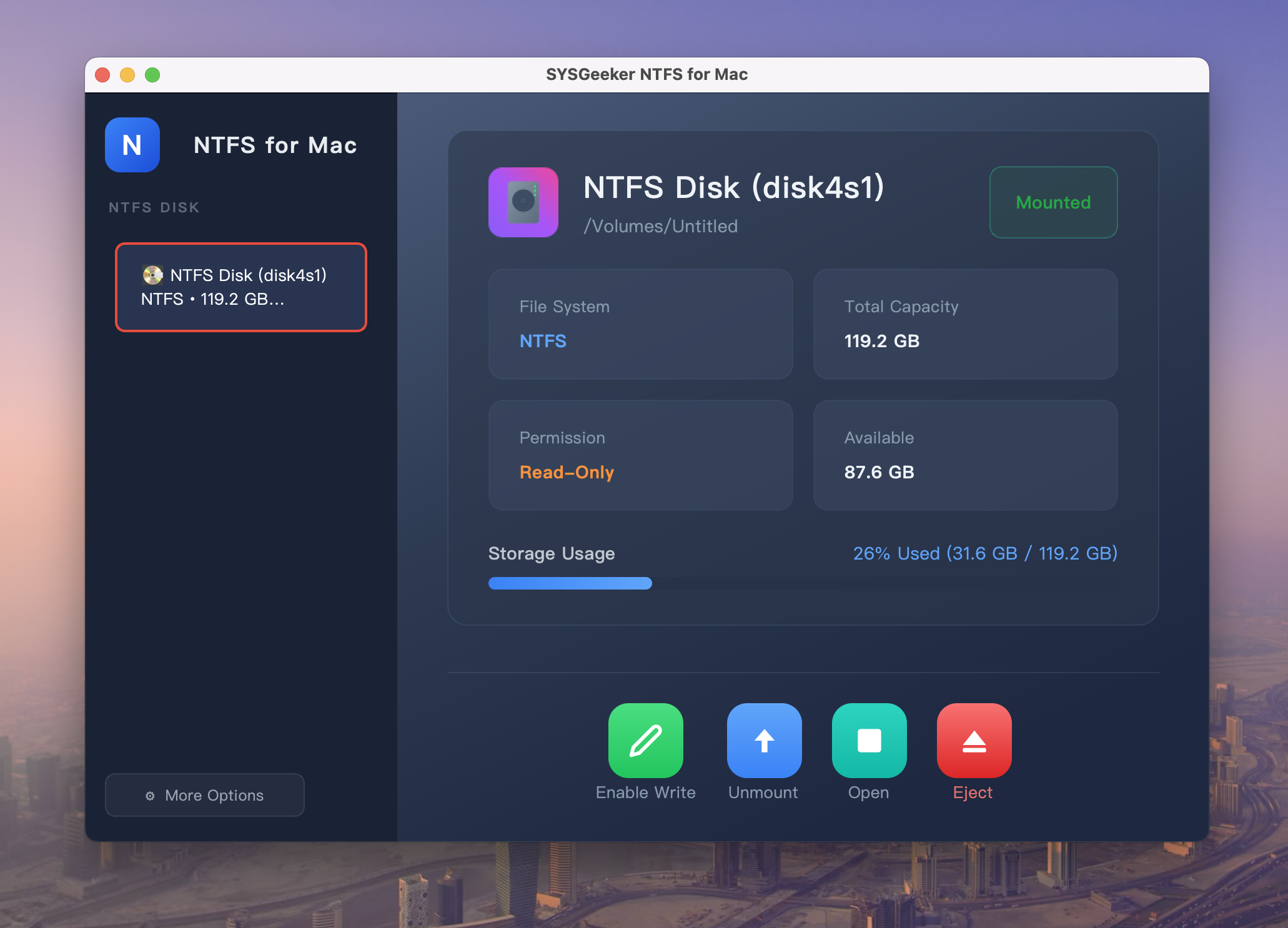
Step 3. Click "Enable Write" at the bottom of the app.
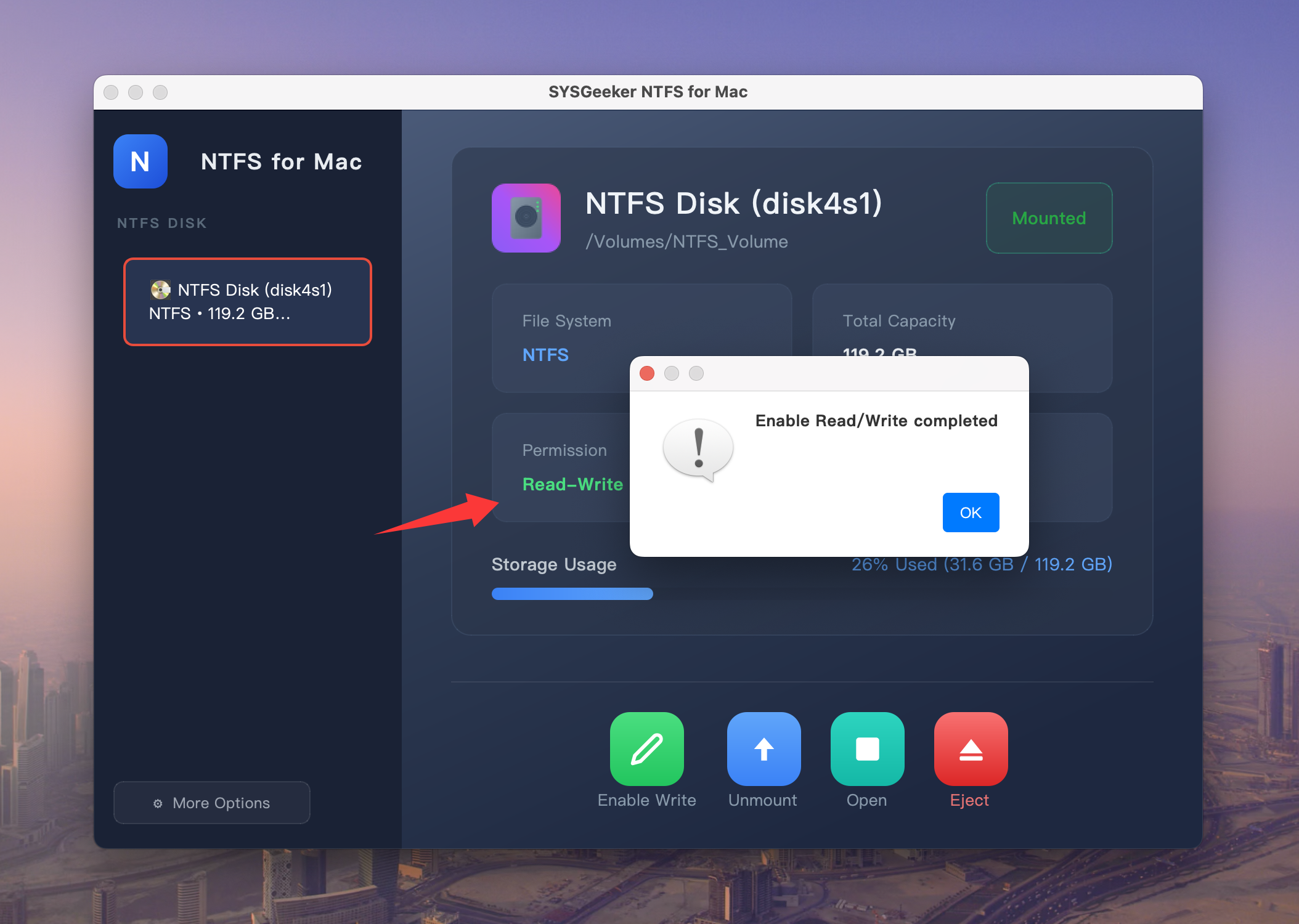
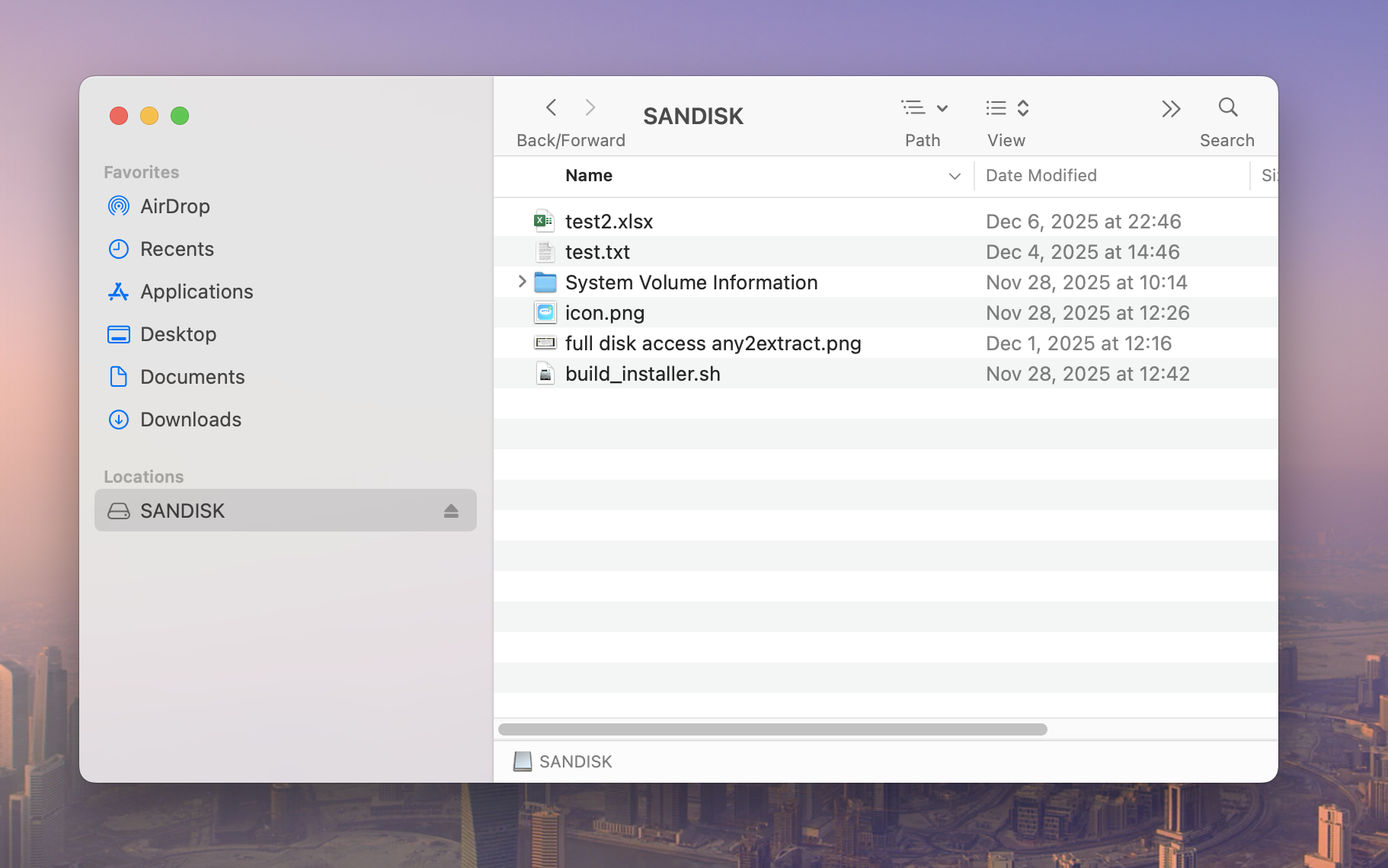
Step 4. When you see this dialog box, it means the drive has been successfully mounted in "read/write" mode. You can open the external drive from the Finder sidebar, or simply click "Open" to access it.
Now you can start copying files to the drive from your Mac. Simply drag and drop the files you want to copy to the NTFS drive or use the Finder to copy and paste files to the drive.
To Sum Up
macOS still doesn’t offer true NTFS write support by default, but you’ve got a couple of practical ways around it. If you want to keep the drive as NTFS (so it stays “Windows-native”) and still copy/delete/edit files from your Mac, an NTFS for Mac tool is the easiest, most seamless option.
If you don’t want to install any extra software, the other clean solution is to reformat the drive to exFAT. exFAT works well on both Windows and Mac for everyday file transfers—but it does require wiping the drive first, and it’s not always ideal for every workflow.


