 Last Updated on May 25, 2026 by Yasmine Lynn
Comments
Last Updated on May 25, 2026 by Yasmine Lynn
Comments
Welcome to CloneFox — a powerful and easy-to-use disk cloning solution for Windows PCs. CloneFox helps you migrate your Windows operating system, clone an entire hard drive, or copy a selected partition without reinstalling Windows or losing your files.
Whether you are upgrading from an HDD to a faster SSD, replacing an old drive, or creating a duplicate backup disk, CloneFox provides a fast and reliable cloning experience with an intuitive interface. Disk cloning software is commonly used for OS migration, drive upgrades, backups, and system deployment.

System Clone allows you to migrate only the Windows operating system and boot-related partitions to another SSD or HDD. This is the best option when upgrading to a faster SSD without copying unnecessary files.
Install or connect the target SSD/HDD to your computer using SATA, NVMe, or a USB adapter. Make sure the destination drive has enough storage space for the Windows system partition.
Open CloneFox on your Windows PC. From the main interface, choose the System Clone option.
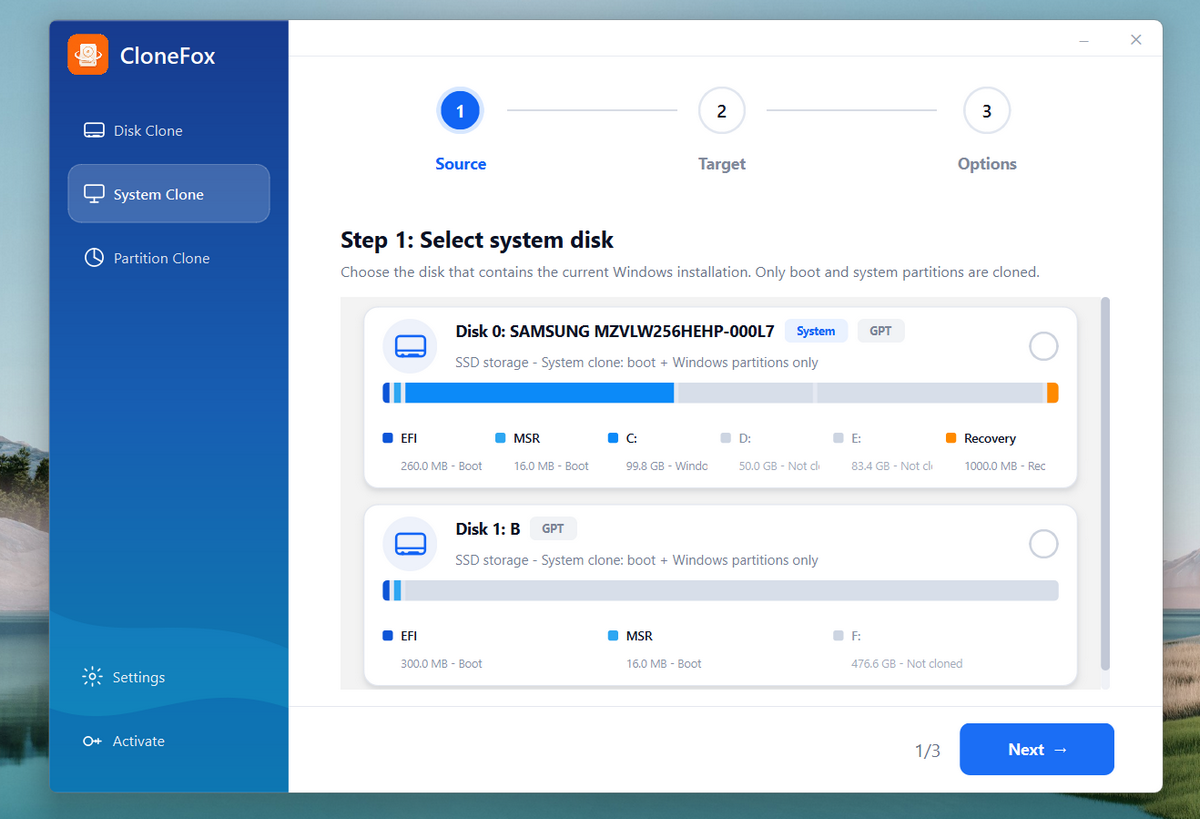
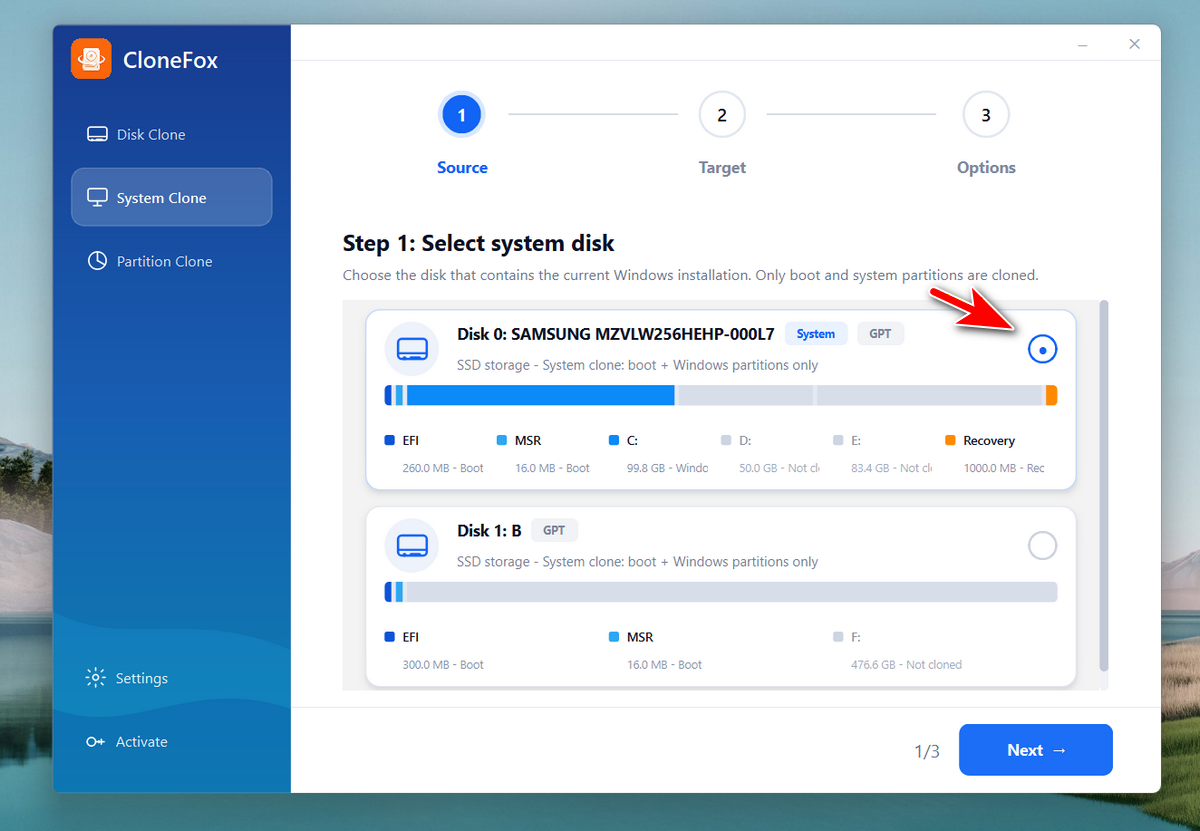
For Windows OS cloning, you should select the Windows partition on the source disk first. By default, there are more than one partition on the source disk.
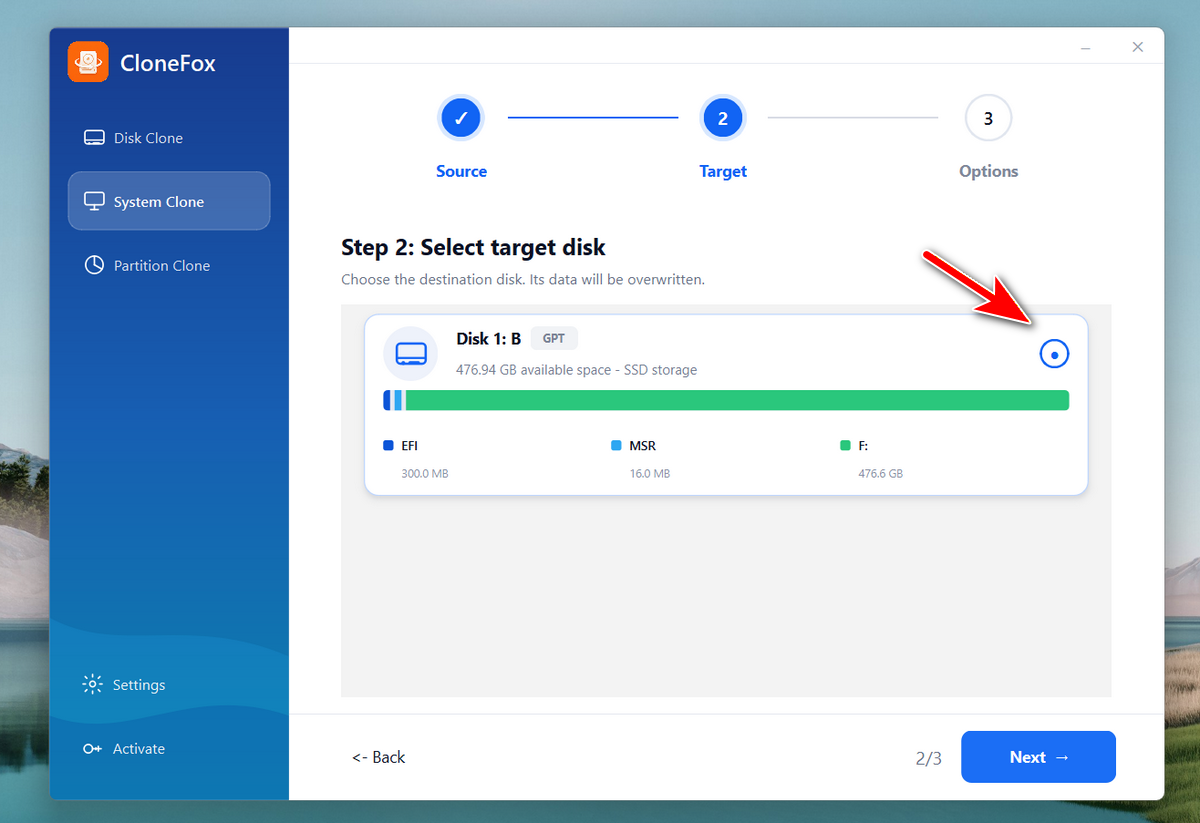
CloneFox will automatically detect all disks connected to the computer. Please choose the destination disk to proceed.
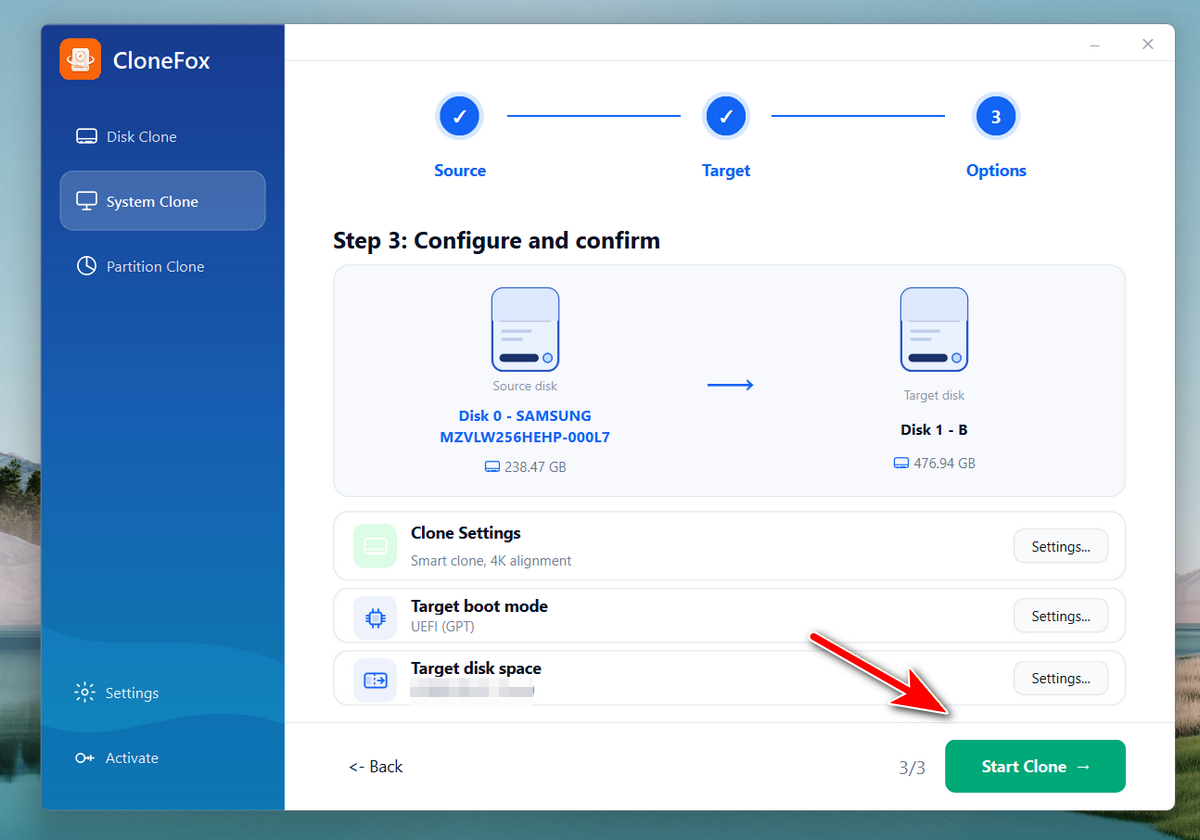
All the details of this system clone will be displayed on the window. If everything is correct, please click the Start Clone button to start cloning Windows OS to another disk.
You will see a program bar at this time, including the speed, percentage and the logs.
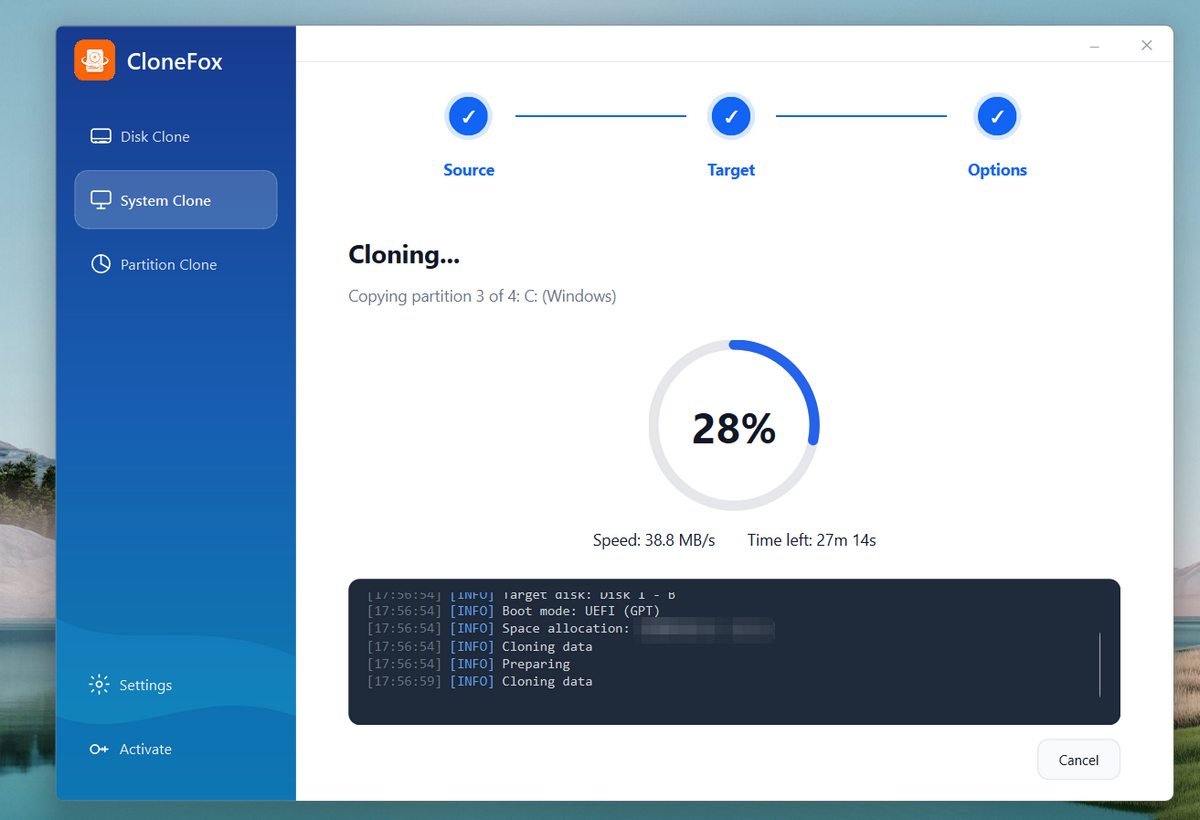
Once it is completed, you will see a notification about this.
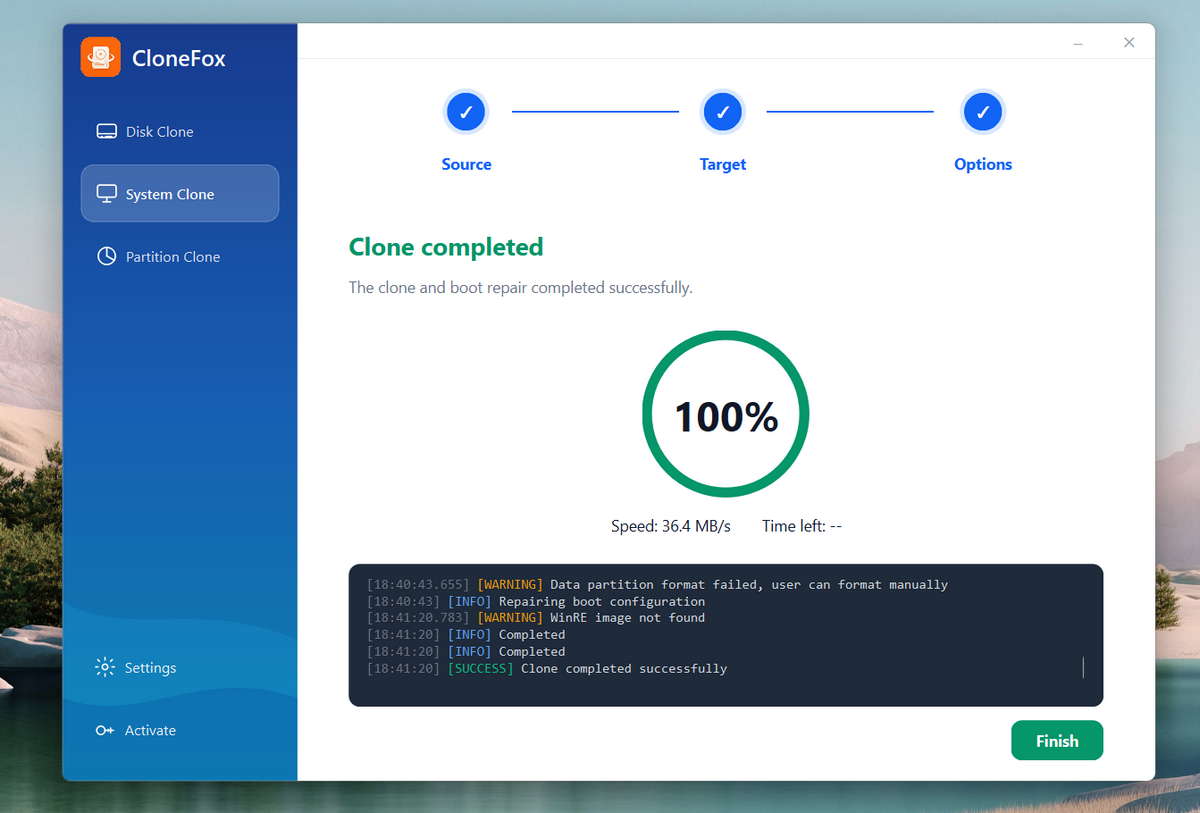
Disk Clone creates an exact copy of one hard drive to another drive. This method copies Windows, apps, files, partitions, and boot information together.
Install or connect the target SSD/HDD to your computer using SATA, NVMe, or a USB adapter. Make sure the destination drive has enough storage space for the Windows system partition.
Open CloneFox on your Windows PC. From the main interface, choose the Disk Clone option.
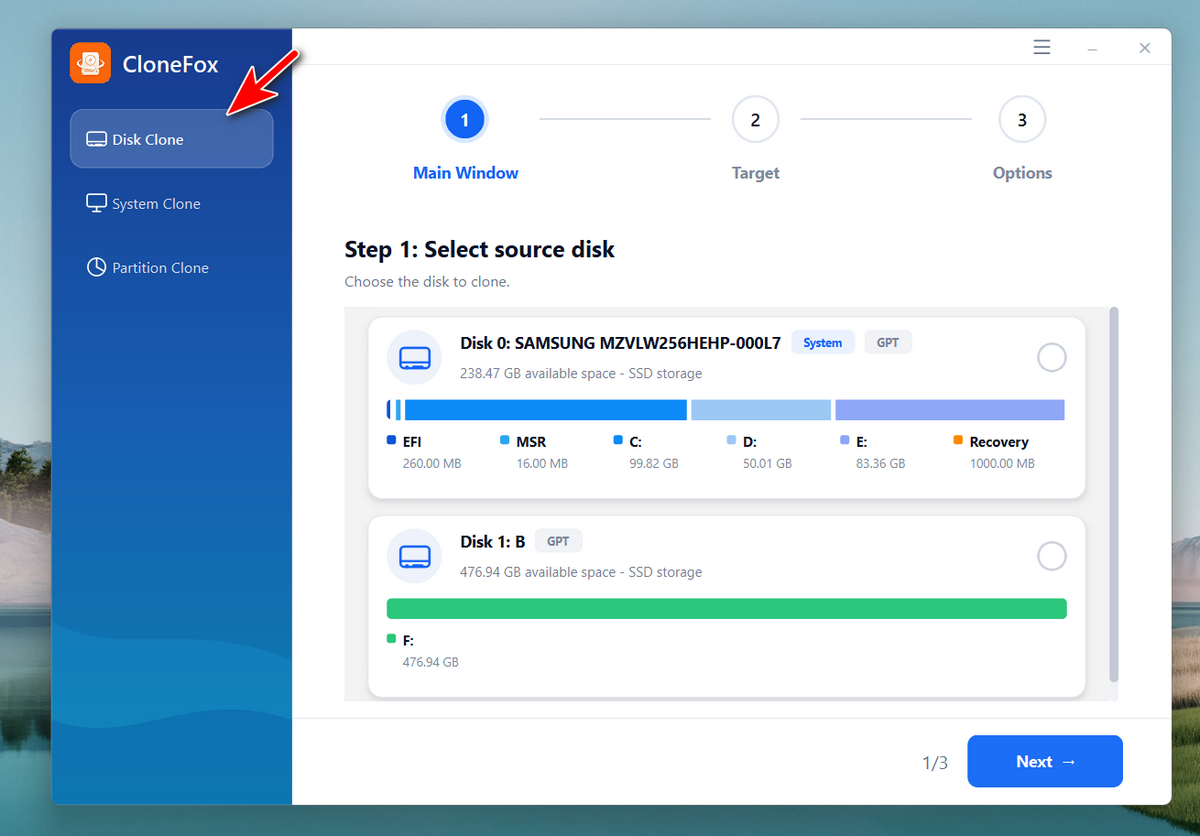
For disk cloning, you should select the source disk first.
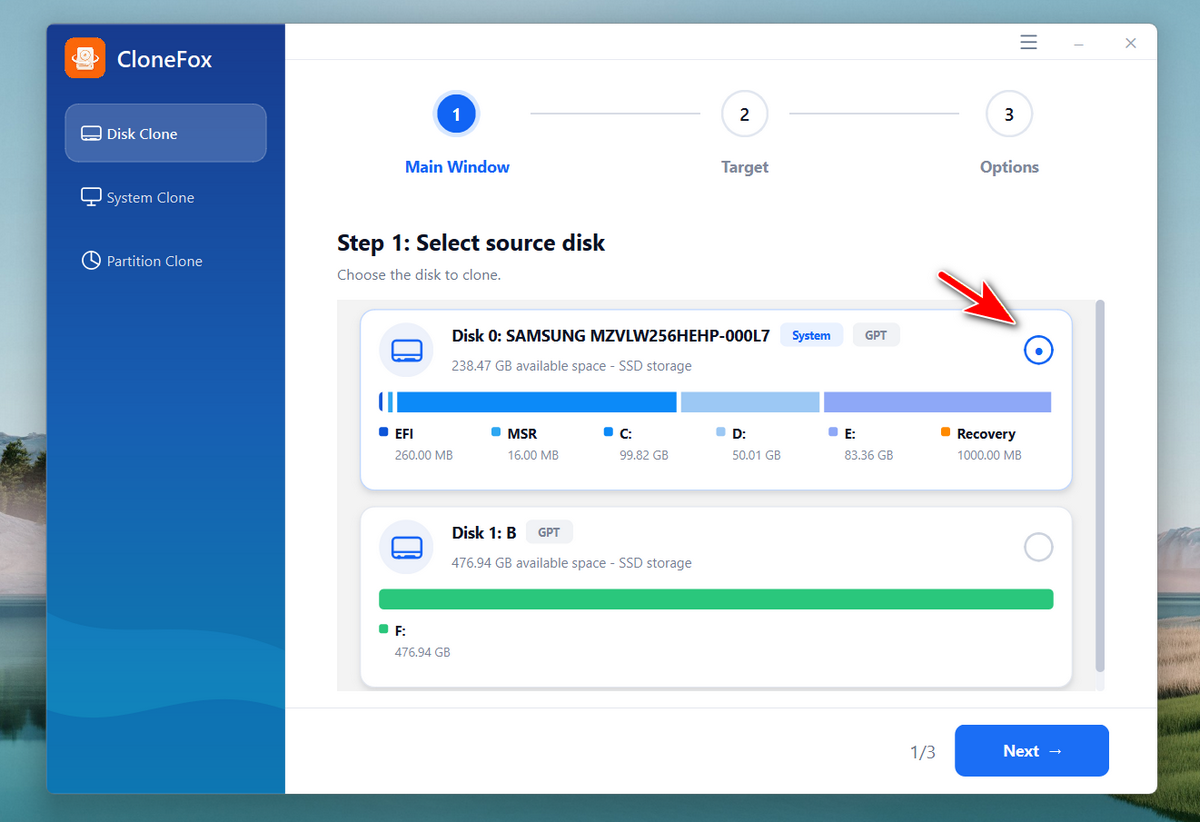
CloneFox will automatically detect all disks connected to the computer. Please choose the destination disk to proceed.
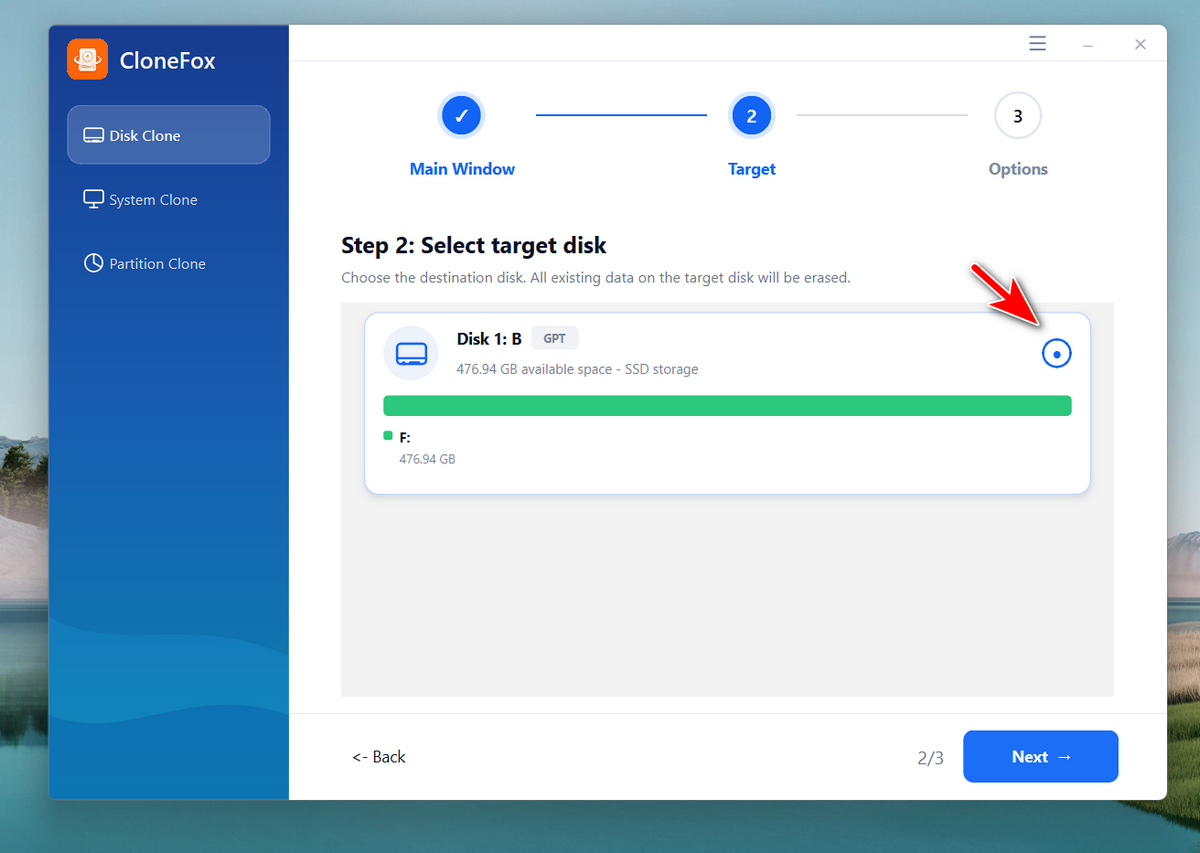
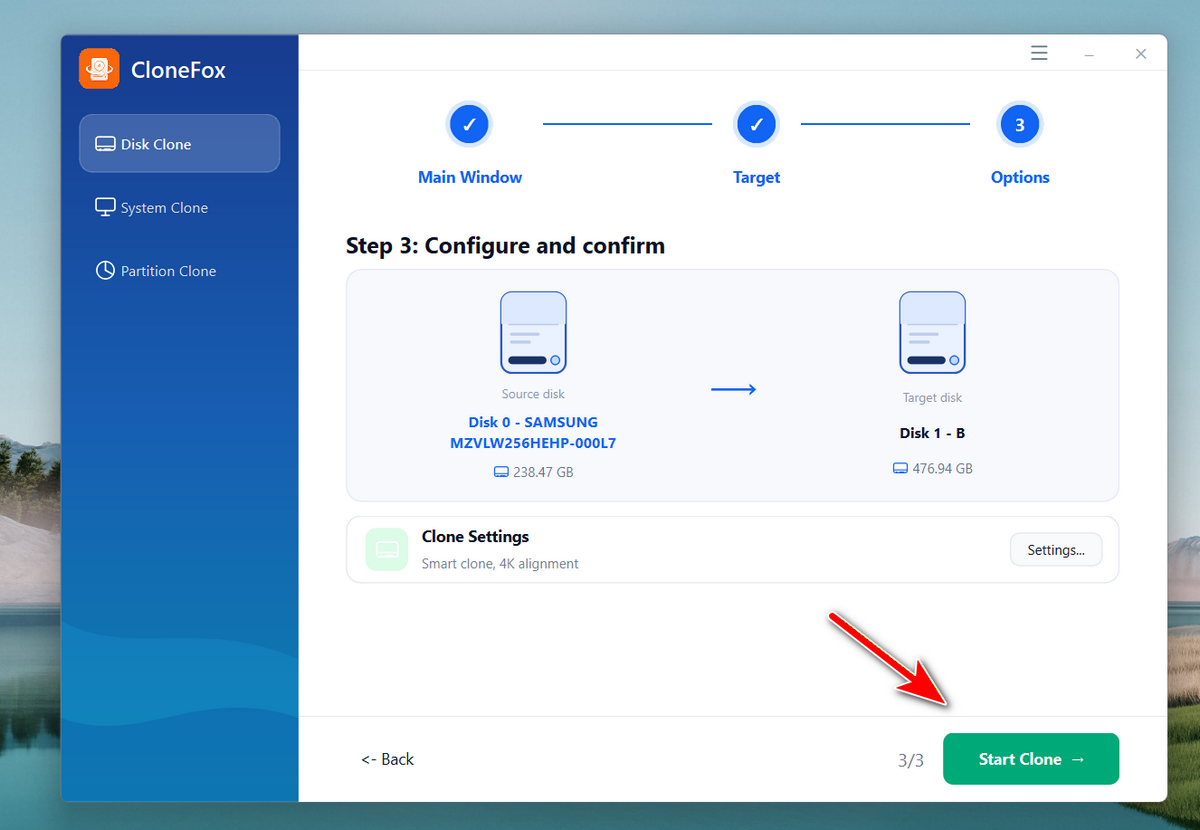
All the details of this disk clone will be displayed on the window. If everything is correct, please click the Start Clone button to start cloning source disk to another disk.
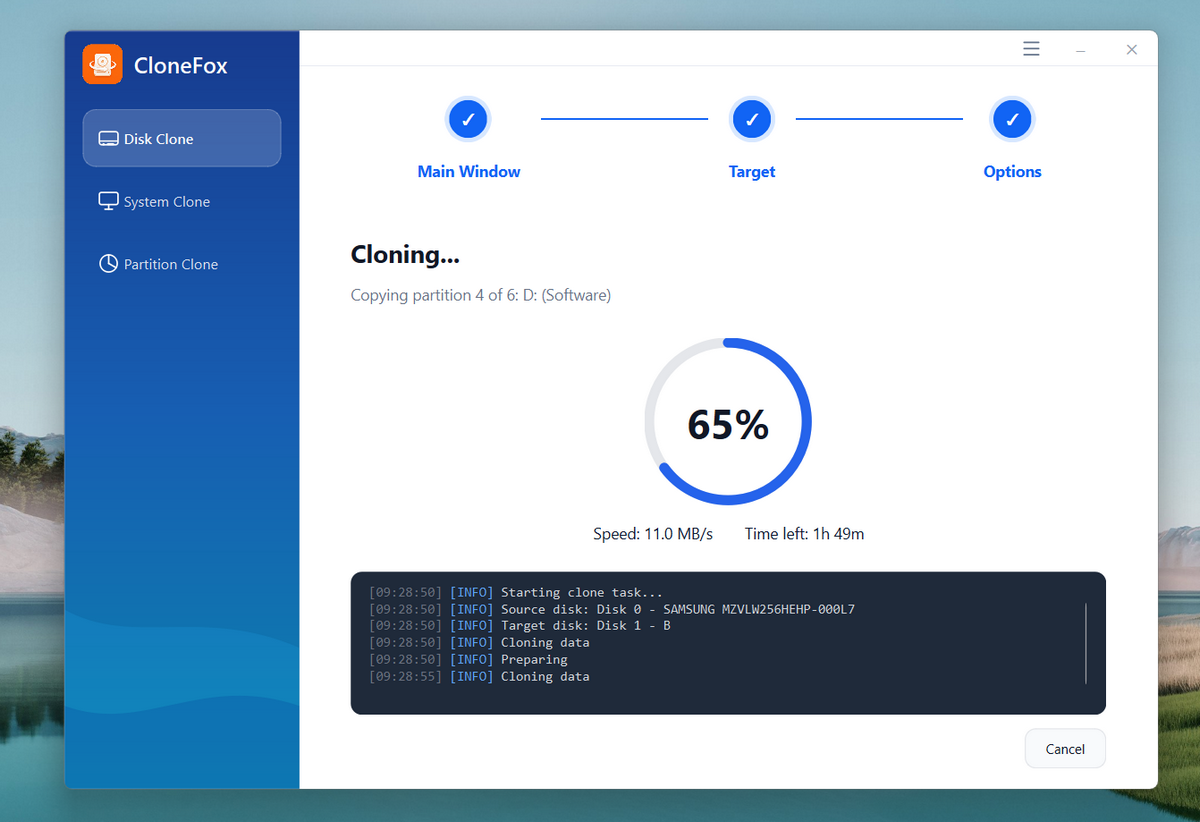
You will see a program bar at this time, including the speed, percentage and the logs.
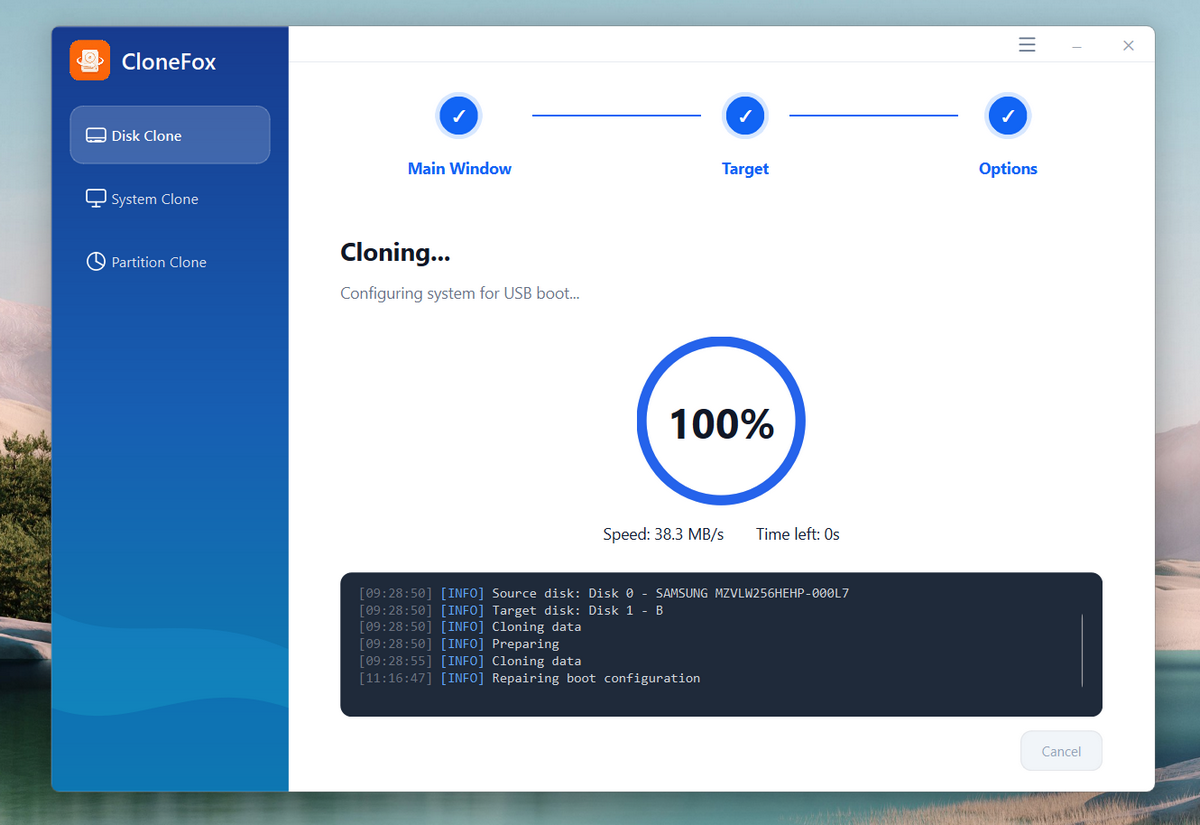
Once it is completed, you will see a notification about this.
Partition Clone allows you to copy a single partition instead of cloning the entire drive. This is useful for transferring data partitions, backup volumes, or selected storage areas.
Install or connect the target SSD/HDD to your computer using SATA, NVMe, or a USB adapter. Make sure the destination drive has enough storage space for the Windows system partition.
Open CloneFox on your Windows PC. From the main interface, choose the Partition Clone option from the left sidebar.
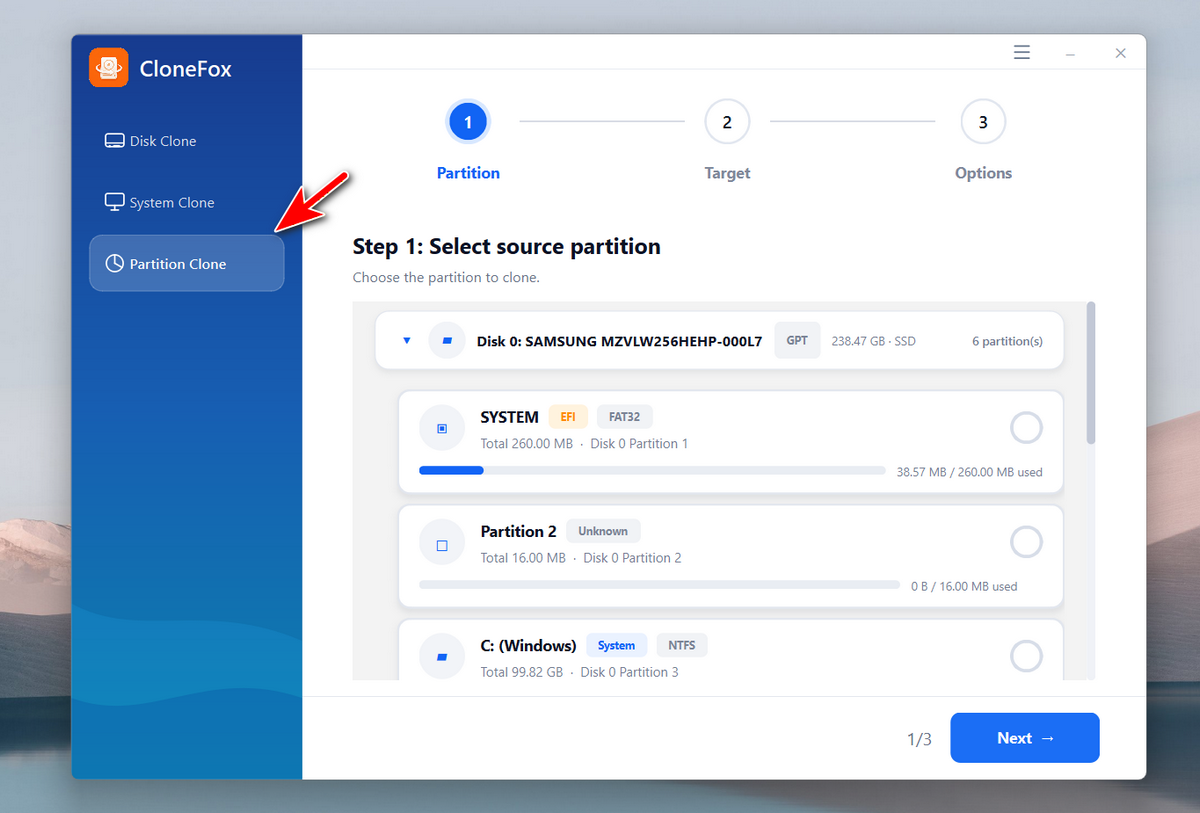
For partition cloning, you should select the source partition first.
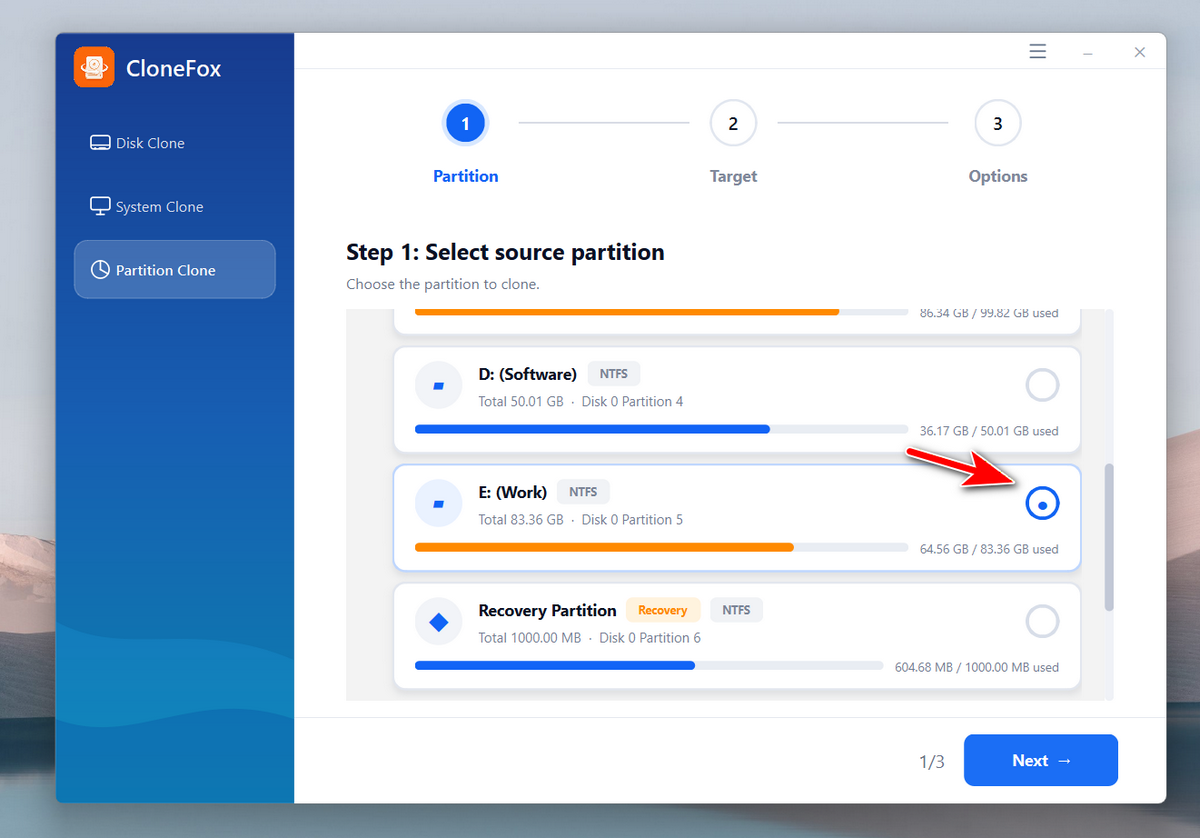
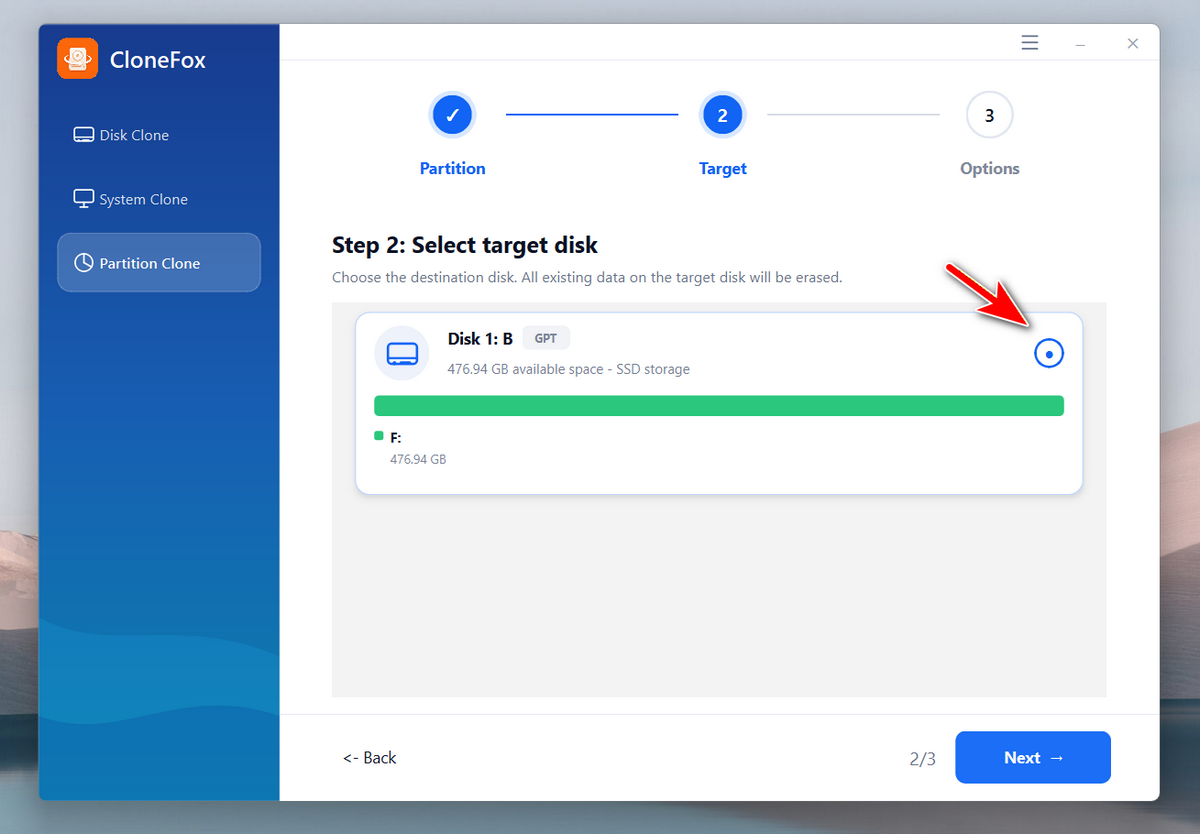
CloneFox will automatically detect all partitions from the disks connected to the computer. Please choose the destination partition to proceed.
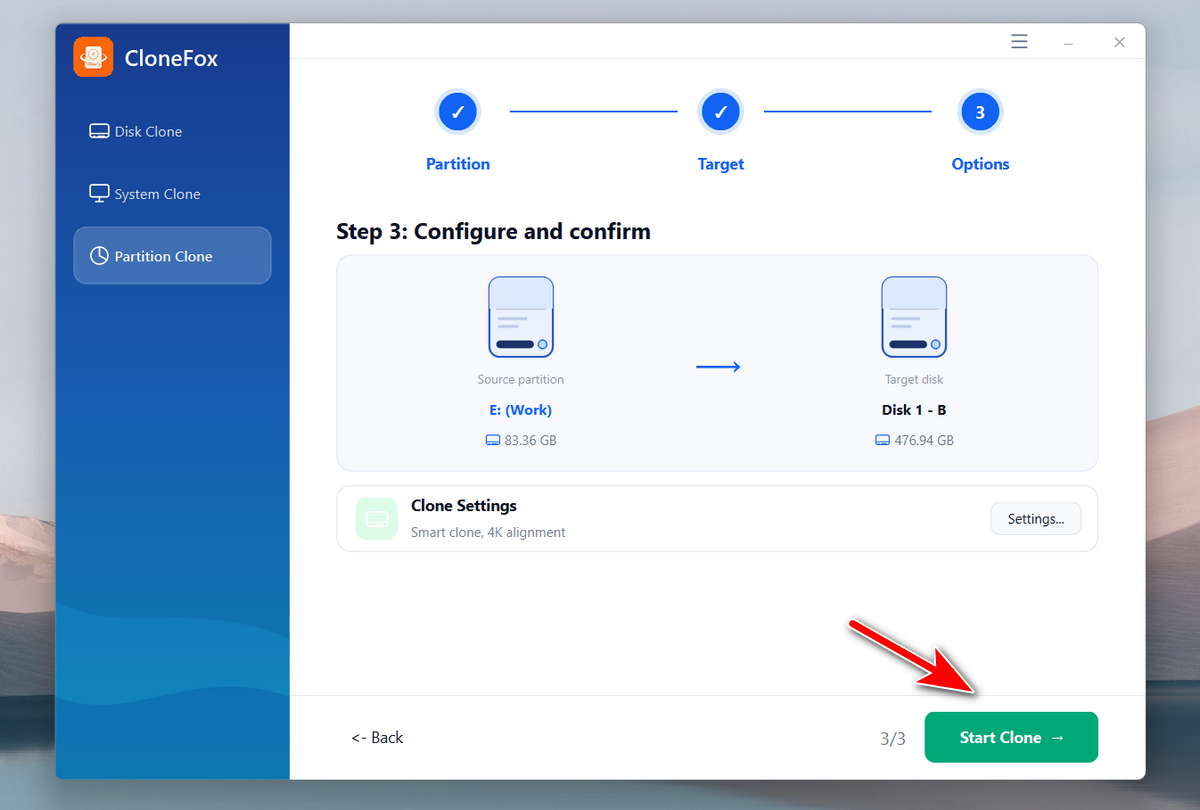
All the details of this partition clone will be displayed on the window. If everything is correct, please click the Start Clone button to start cloning source partition to another partition.
You will see a program bar at this time, including the speed, percentage and the logs.
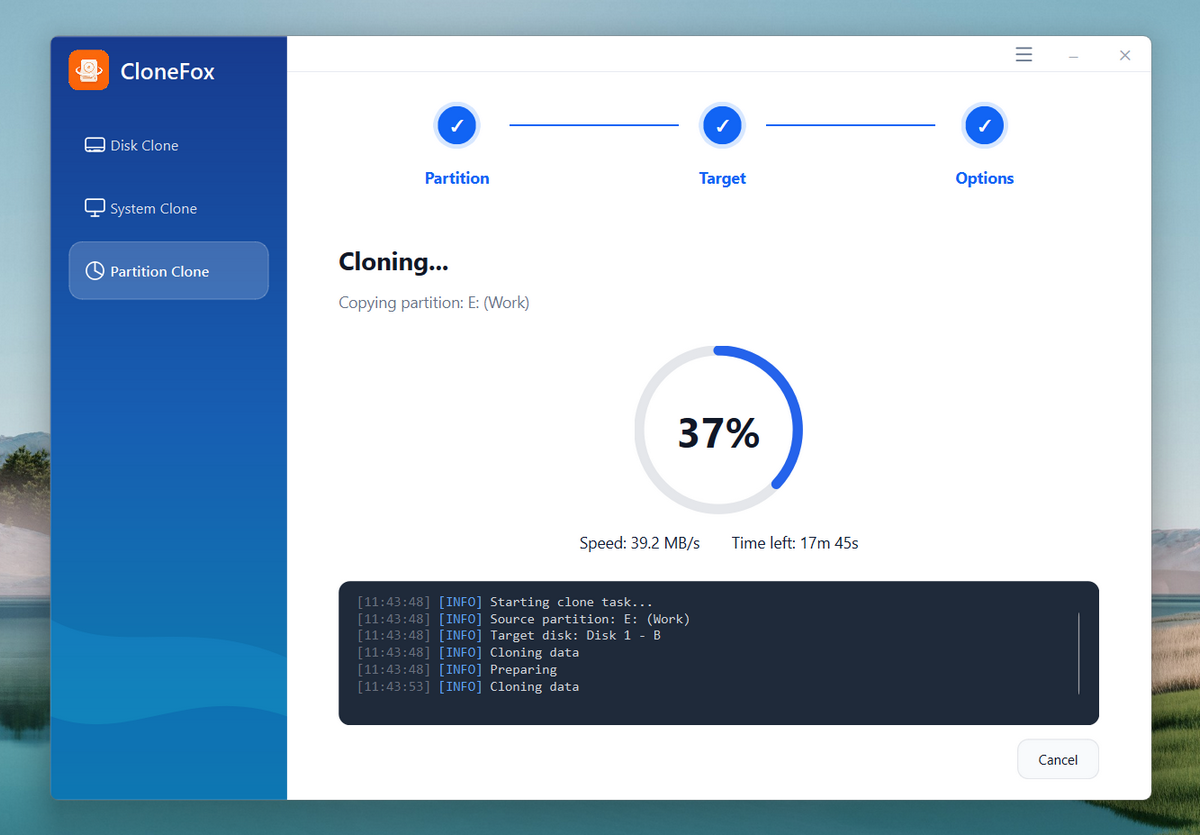
Once it is completed, you will see a notification about this.
CloneFox makes it easy to migrate Windows to SSD, duplicate an entire hard drive, or clone a selected partition with just a few clicks. With support for HDDs, SSDs, NVMe drives, and modern Windows systems, CloneFox is a reliable solution for drive upgrades, backups, and system migration..


💬 Reviews