 Last Updated on Feb 21, 2026 by Yasmine Lynn
Comments
Last Updated on Feb 21, 2026 by Yasmine Lynn
Comments
SysGeeker AppVero is a dedicated app uninstaller and cleanup tool for Windows PCs. It is designed to help users remove unwanted apps more thoroughly, delete built-in Windows apps, uninstall browser extensions, and clean up disk space without going through multiple system menus.
Compared with the default uninstall options in Windows, AppVero gives you more control and a more convenient way to manage software and browser add-ons. This guide walks you through the main features of SysGeeker AppVero and shows you how to use each one step by step.

Some apps cannot be removed cleanly through Windows Settings or Control Panel. In many cases, the built-in uninstaller fails, gets stuck, or leaves behind folders, registry entries, startup items, and other traces. This is where SysGeeker AppVero can help.
Download and install SysGeeker AppVero on your Windows computer. Open the program to access the main dashboard.
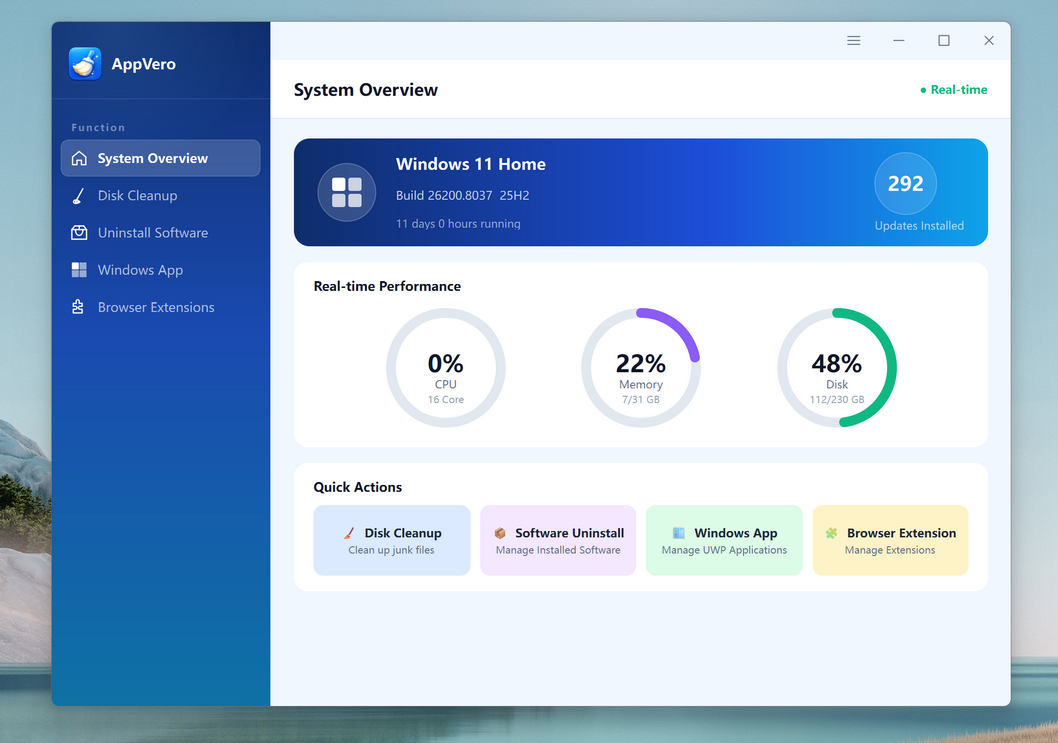
Click the "Uninstall Software" menu from the left sidebar to view the list of installed applications on your PC. Browse the list and select the app or apps you want to remove. You can check one app or multiple apps, depending on your needs.
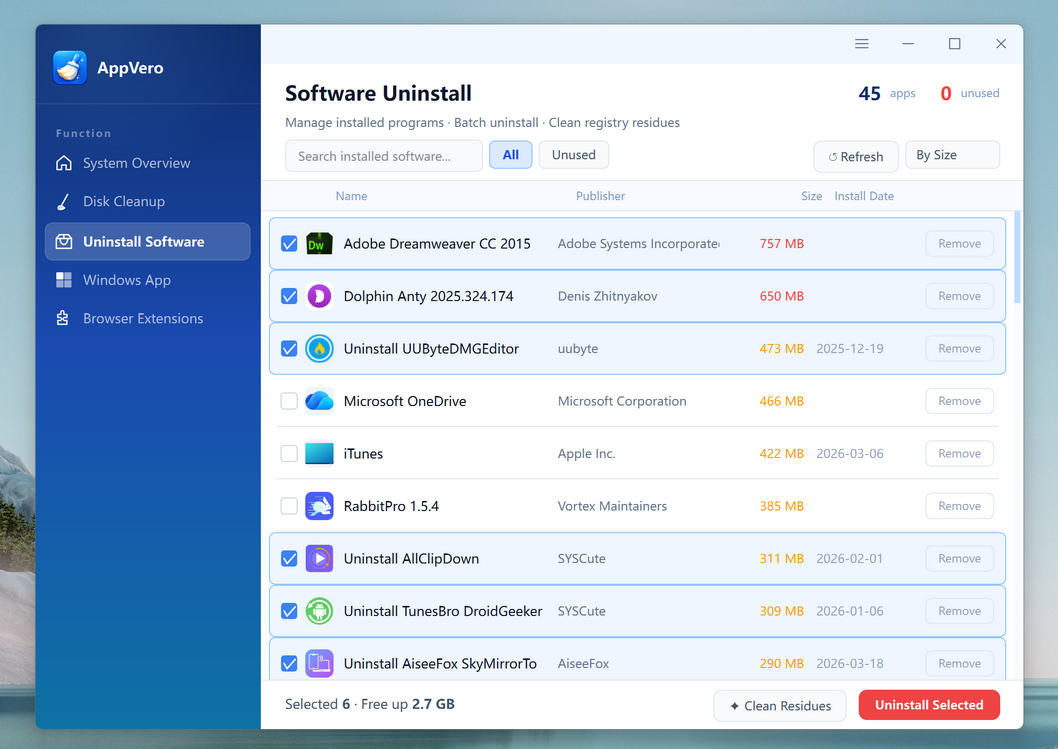
Click the "Uninstall Selected" button to begin the removal process. AppVero will launch the uninstall task for the selected app. After the main uninstall is finished, AppVero scans for leftover files, folders, and other related traces.
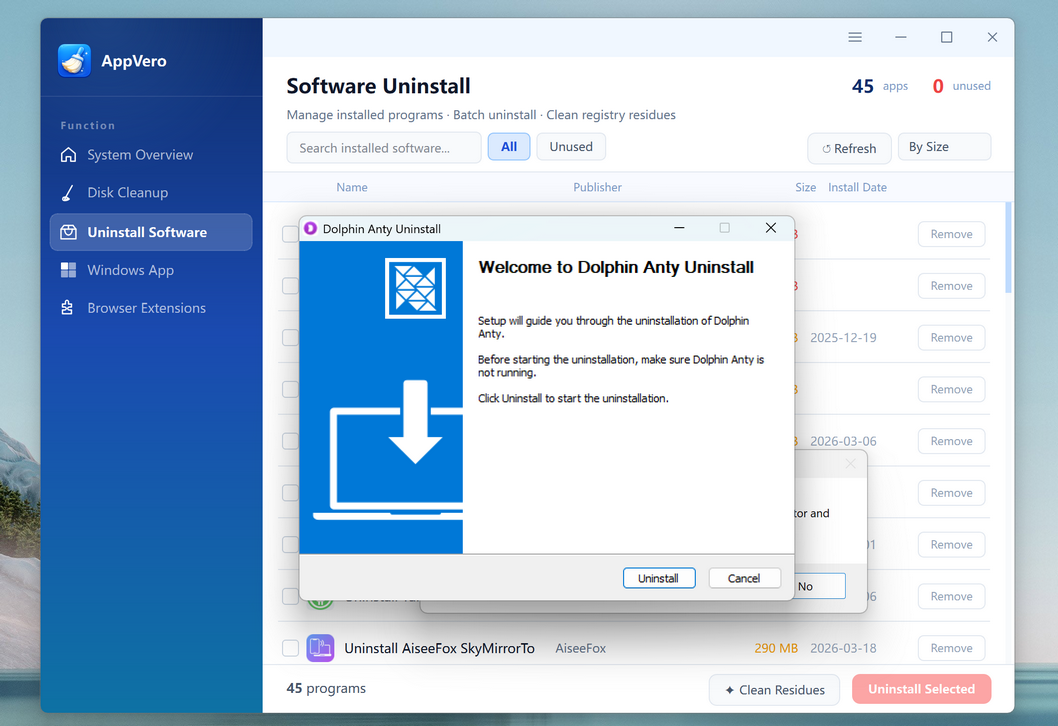
AppVero will launch the uninstall task for the selected app. You can see the deleted apps are removed from the app list.
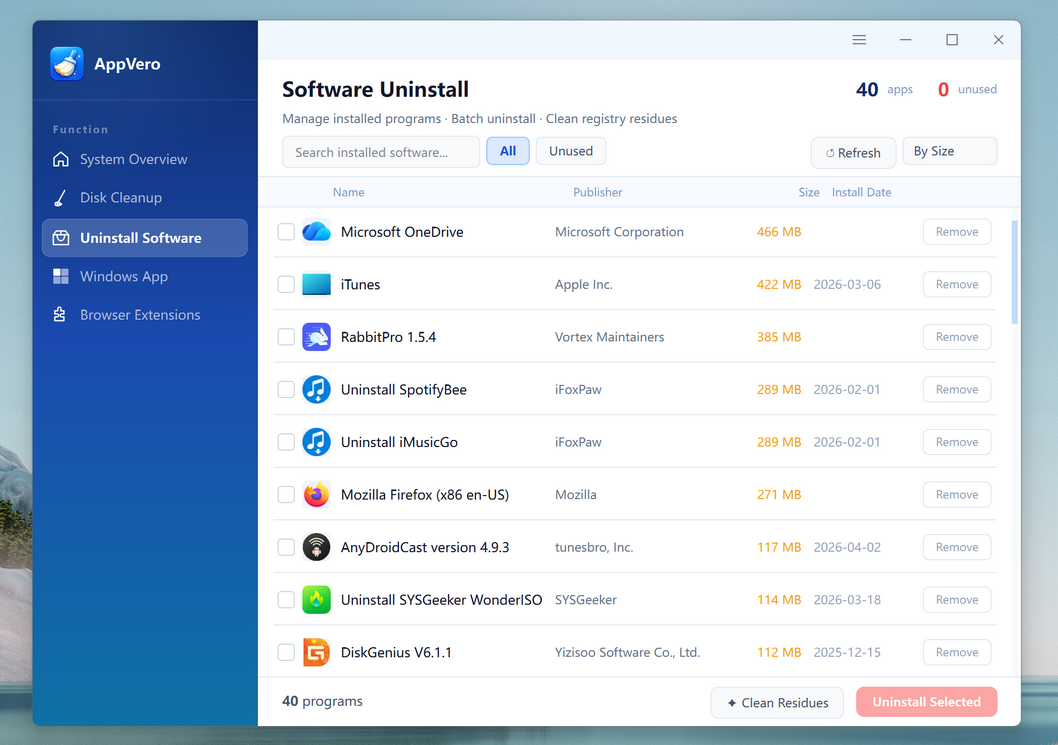
After the main uninstall is finished, click the "Clean Residues" button to scan for leftover files, folders, and other related traces.
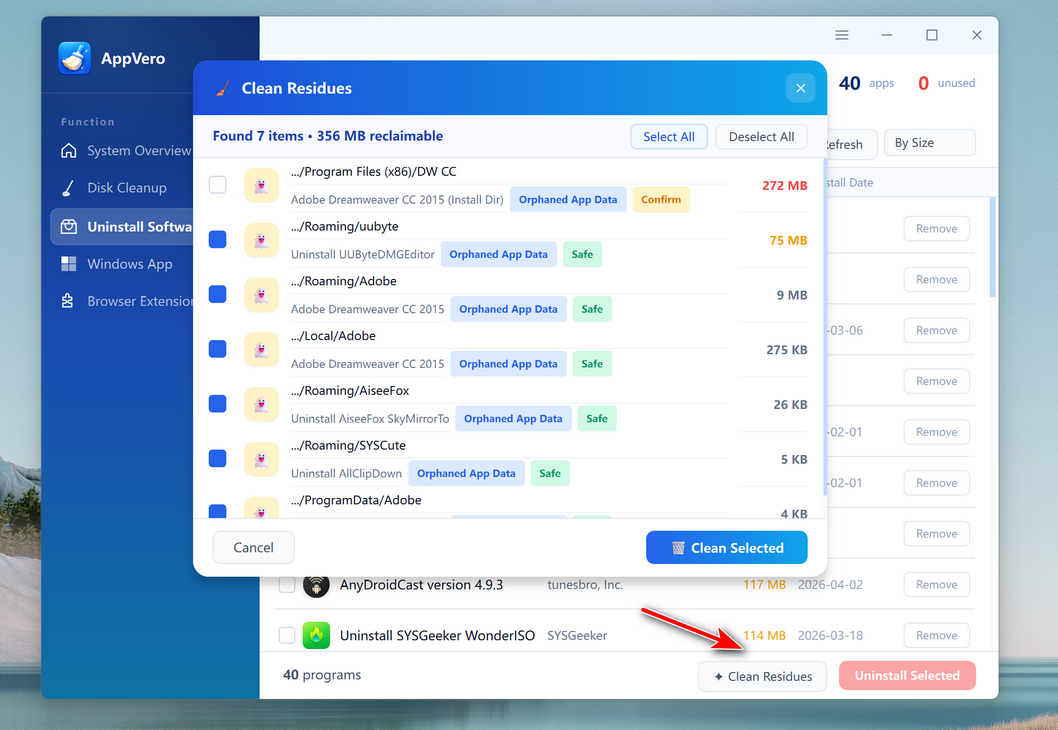
Windows 11 and Windows 10 come with a number of built-in apps that many users never use. Some of them can be removed from Settings, but others are harder to uninstall or are hidden from the normal uninstall menu. This can make system cleanup frustrating. SysGeeker AppVero provides a more convenient way to find and remove Windows system apps from one place.
Launch SysGeeker AppVero on your computer. Select the "Windows App" section from the main interface. Wait for AppVero to scan and load the list of built-in Windows apps available on your device.
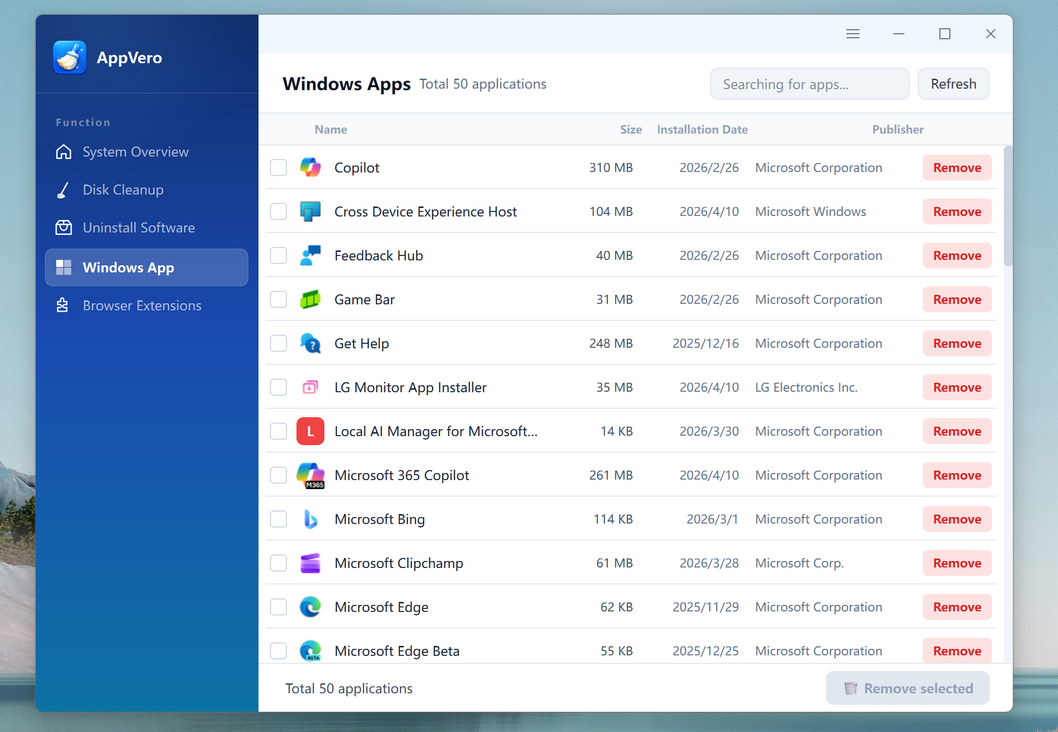
Review the app list carefully and choose the system app you want to remove. In our case, it is Copilot and Microsoft 365 Copilot.
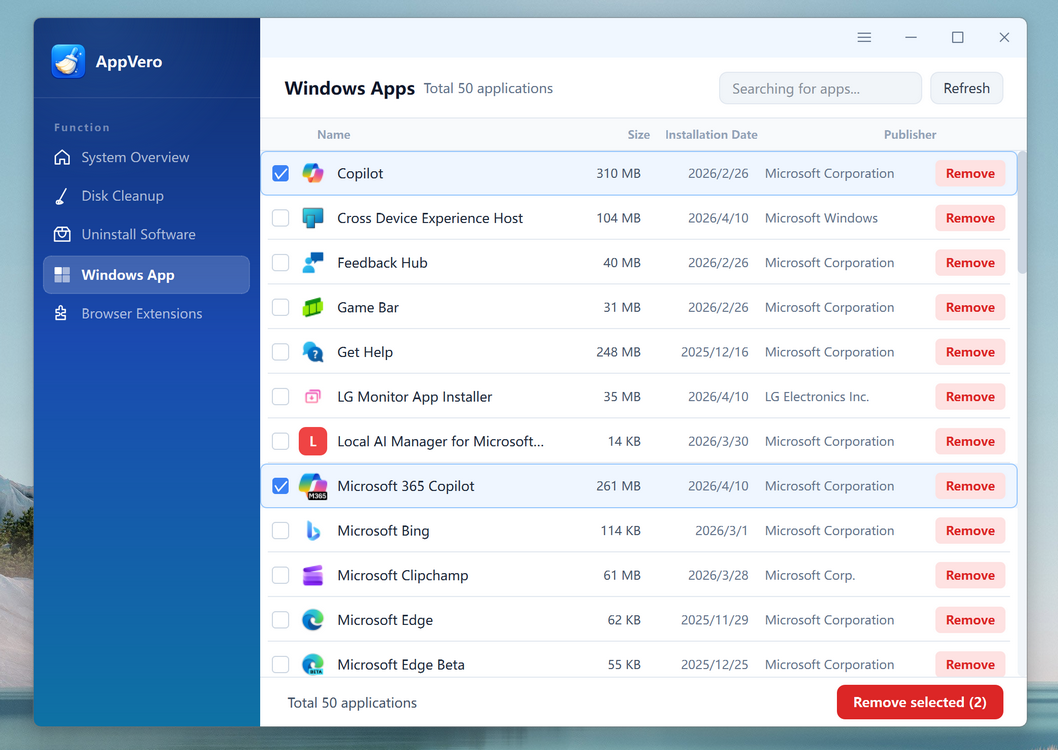
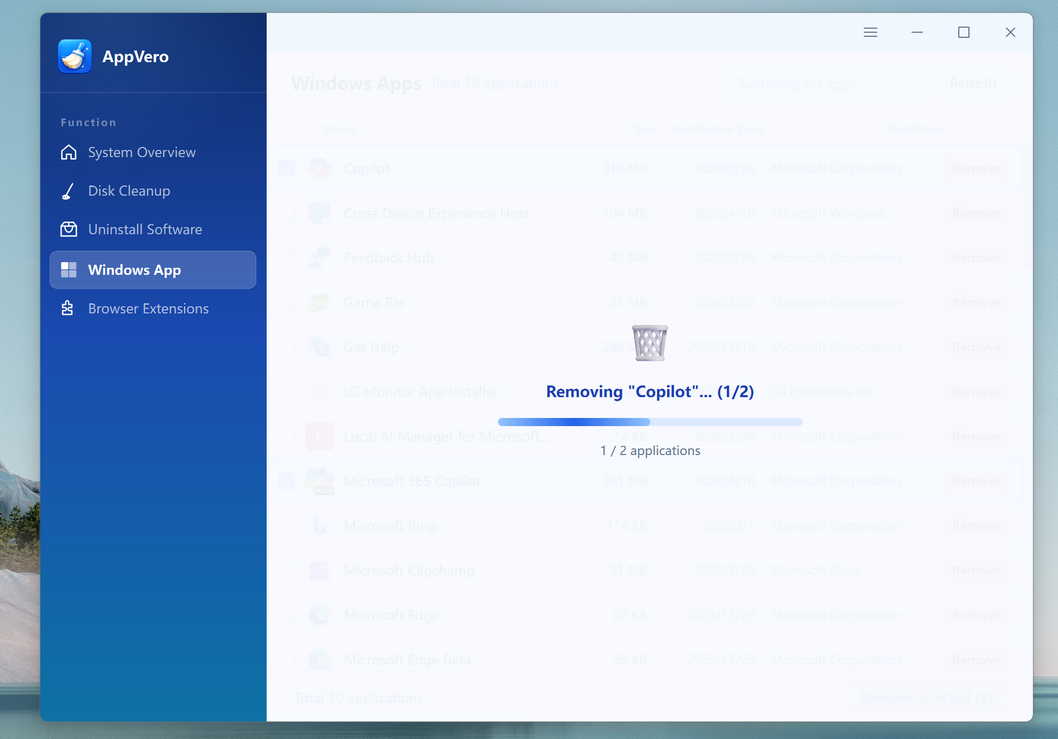
Click the "Remove Selected" button to continue. Confirm the action when prompted. AppVero will remove the selected system app from your PC.
Browser extensions can be useful, but too many of them can slow down your browser, cause conflicts, track your activity, or clutter the toolbar. Managing extensions one browser at a time can also be inconvenient, especially if you use more than one browser on the same computer. SysGeeker AppVero helps you review and remove browser extensions from different supported browsers in a more centralized way. This makes browser cleanup simpler and saves time.
Open SysGeeker AppVero on your Windows PC. Click the "Browser Extensions" section on the main screen. Let AppVero scan the installed browsers and load the extensions found in each one.
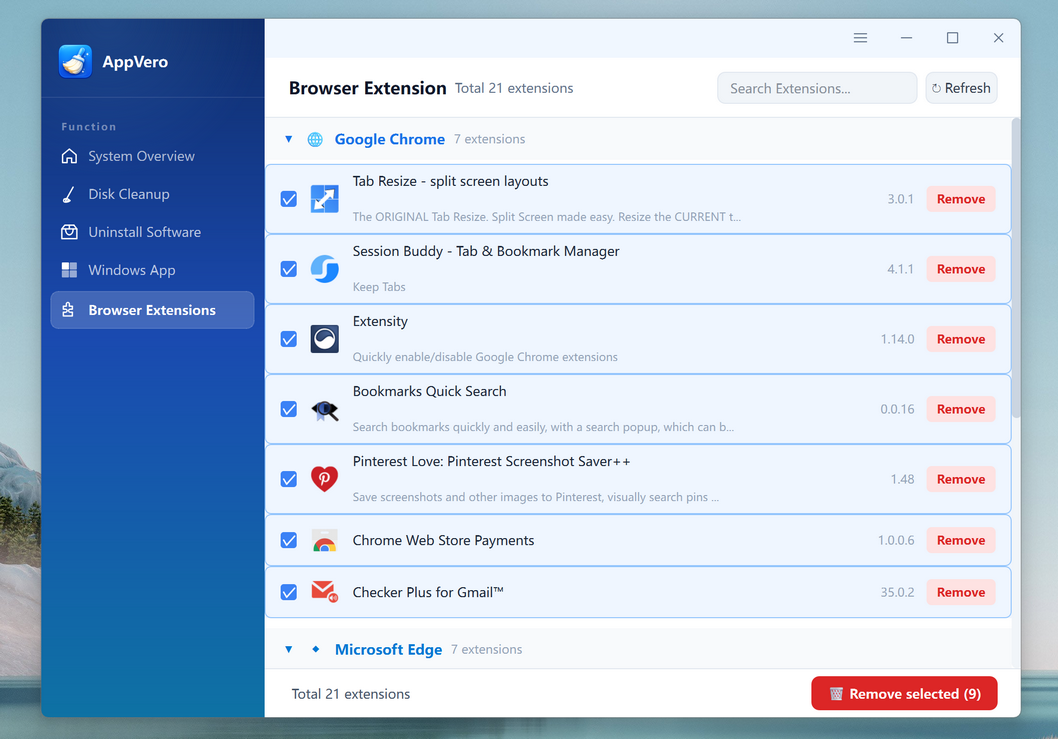
Choose the browser you want to manage, such as Chrome, Edge, or Firefox. Review the list of installed extensions and select the one you want to remove.
Click the "Remove Selected" button to uninstall the selected extension. Restart the browser after cleanup to make sure all changes take effect properly.
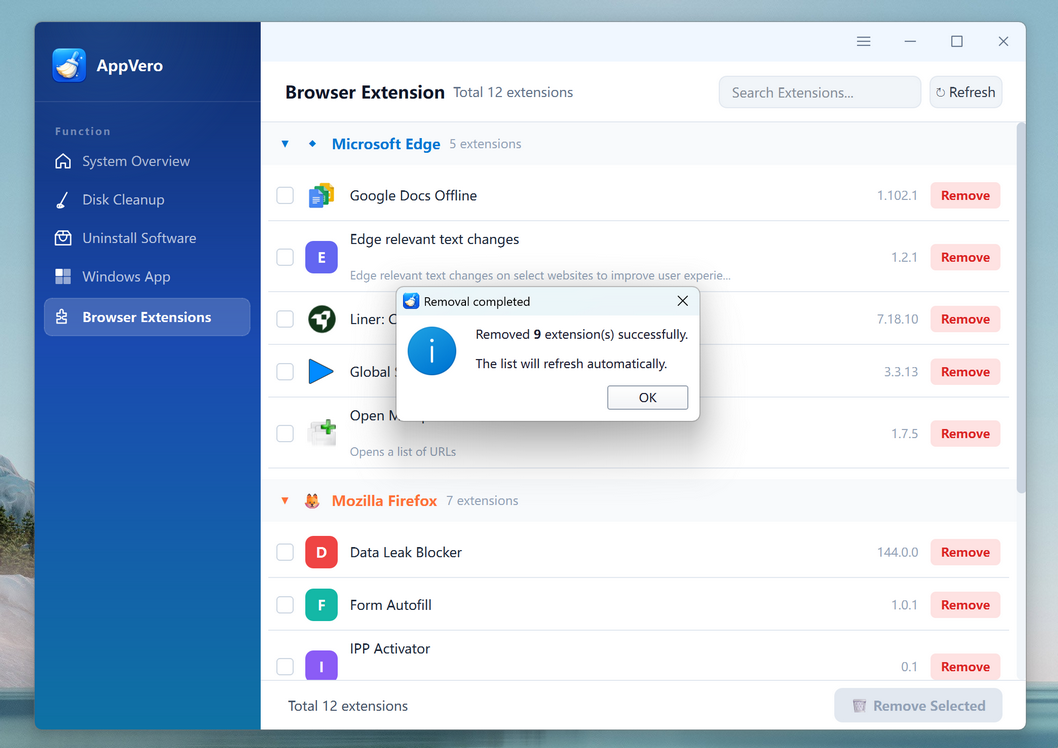
SysGeeker AppVero includes a disk cleanup feature that helps you locate and remove unwanted files safely. This is useful when you need to free up space, tidy your system, and get rid of traces left behind by old apps.
Download and install SysGeeker AppVero on your Windows computer. Open the program to access the main dashboard.
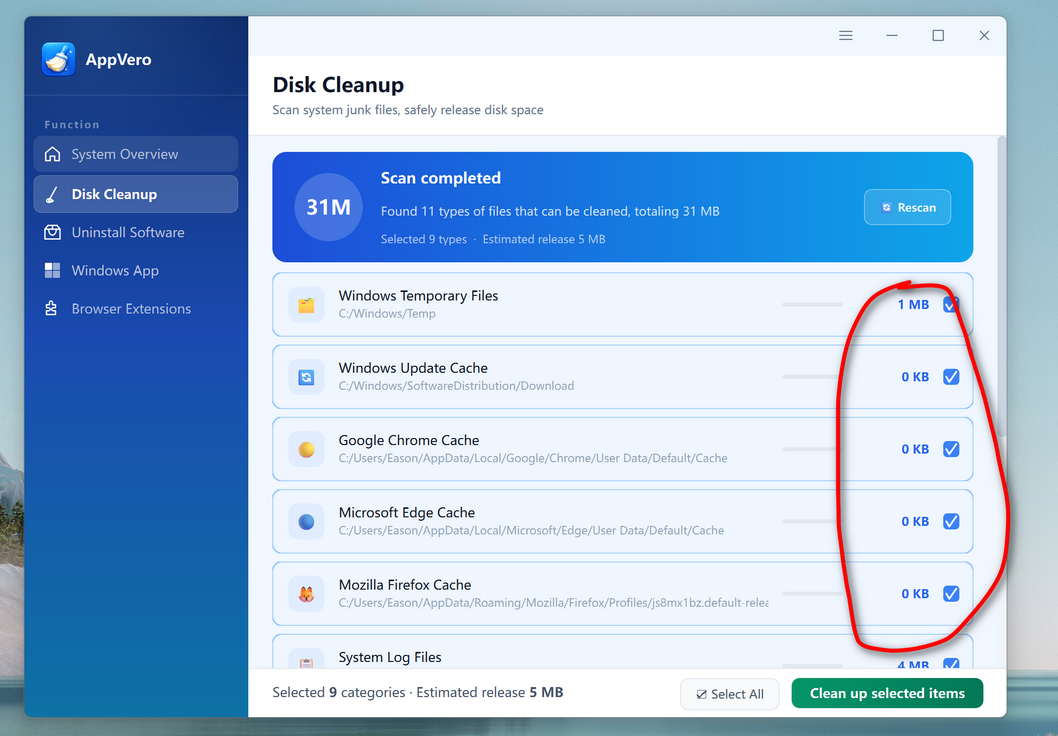
Click the "Disk Cleanup" button to let the program search for junk files, leftover data, and other removable items on your PC.
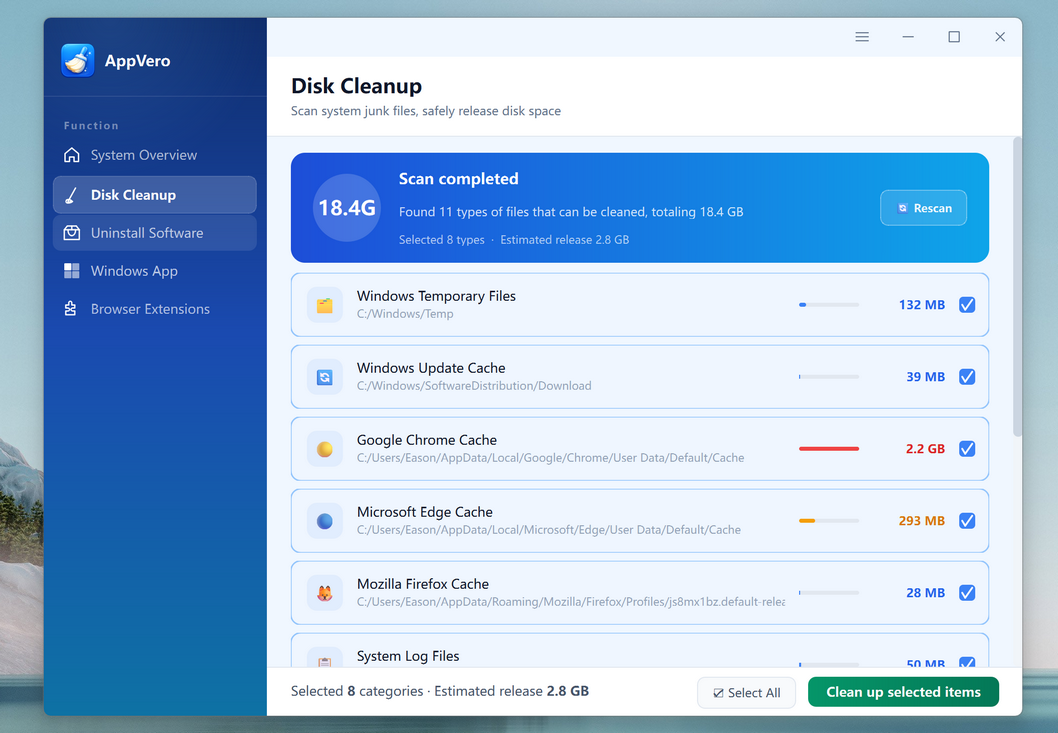
Wait for the scan to complete. AppVero will display the cleanup results by category. Review the files found and check the items you want to remove.
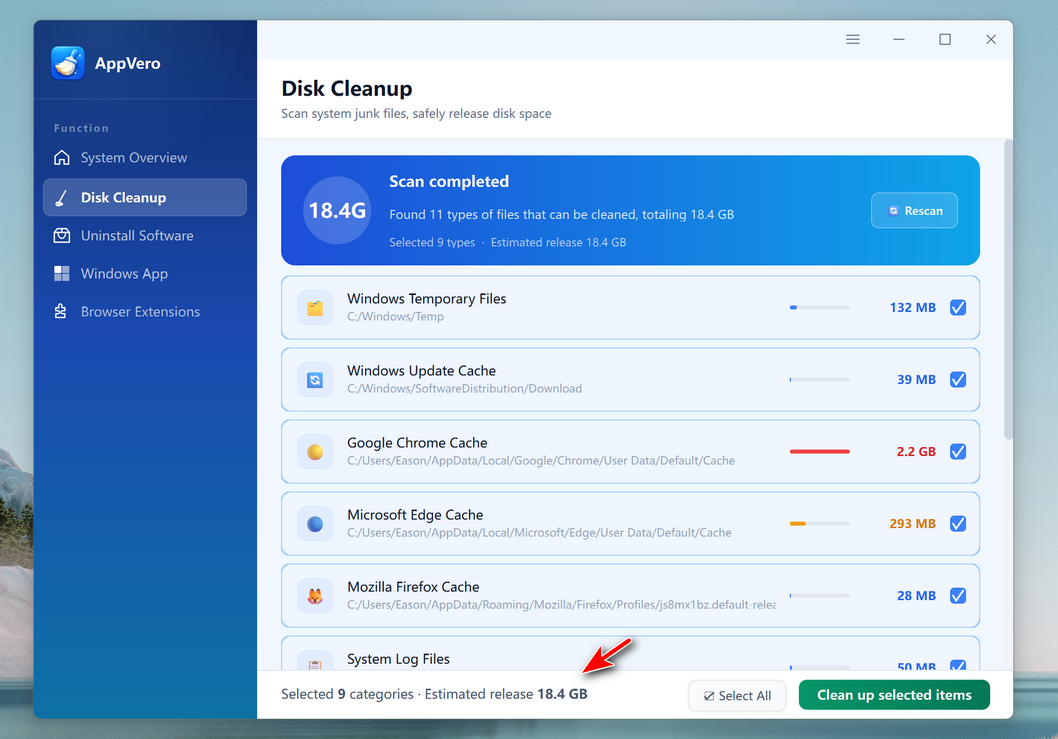
Click the "Clean up selected items" button to begin the cleanup. Confirm the action if prompted and allow AppVero to remove the selected files. After cleanup is complete, review the amount of disk space recovered.
SysGeeker AppVero is a practical tool for users who want an easier way to manage apps, browser extensions, and disk space on Windows PCs. Instead of switching between Settings, Control Panel, PowerShell, and browser menus, you can handle these tasks in one streamlined interface.
With AppVero, you can uninstall stubborn third-party software, remove unwanted system apps, delete unnecessary browser extensions, and clean up disk space more efficiently. By following the steps in this guide, you can keep your Windows 11 or Windows 10 computer cleaner, more organized, and easier to maintain.


💬 Reviews