

If you want to install macOS High Sierra on a Mac or build a recovery installer, the first step is getting the High Sierra DMG file. However, downloading macOS installers and creating a bootable USB can be complicated, especially if you are using a Windows PC.
UltraDMG provides a much easier solution. It is an all-in-one tool that allows you to download macOS DMG files directly, create macOS bootable USB drives, and extract files from DMG images on both Windows and Mac. With just a few clicks, you can download the macOS High Sierra DMG and turn a USB drive into a bootable installer without using Terminal commands.
macOS High Sierra System Requirements
For details about your Mac model, click the Apple icon at the top left of your screen, choose About This Mac. These Mac models are compatible with macOS High Sierra:
- MacBook (Late 2009 or newer)
- MacBook Pro (Mid 2010 or newer)
- MacBook Air (Late 2010 or newer)
- Mac mini (Mid 2010 or newer)
- iMac (Late 2009 or newer)
- Mac Pro (Mid 2010 or newer)
Why You Can’t Download macOS High Sierra
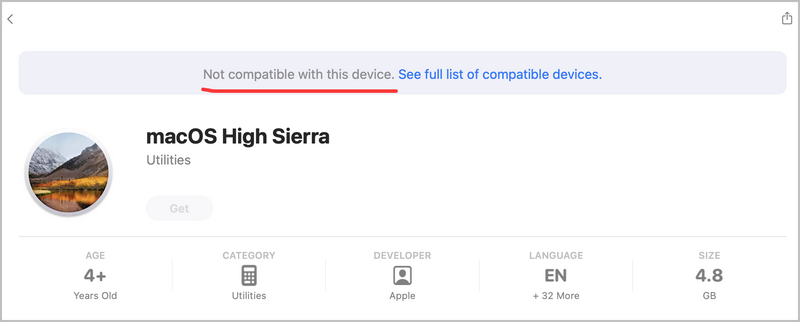
From Apple’s official macOS download page, you can only download the macOS High Sierra install app, which only works on old Mac. When you are trying to download it on a modern Mac, such as Apple Silicon, this error message will show up. This is the reason why you should get a bootable dmg file in order to make a bootable High Sierra installer on a PC or Mac.
In short, Apple doesn’t provide High Sierra download for PC and modern Mac!
What is the Bootable DMG File
A bootable DMG file is a special type of DMG (Disk Image) file that contains a complete operating system installer and the necessary boot files required to start a computer. DMG files are the standard disk image format used by macOS to distribute software and system installers.
When a DMG file is bootable, it means the image includes everything needed to start a Mac directly from that image instead of the internal hard drive. After the DMG is written to a USB drive, the computer can boot from the USB and launch the macOS installer.
Download macOS High Sierra DMG
UltraDMG is a very powerful app to let you safely download macOS dmg file and help you create bootable USB installer from it. You can download all kind of macOS dmg files from this app, including High Sierra, El Caption and the latest macOS Tahoe 26.
Step 1: Download and install UltraDMG on your Windows PC or Mac.


Step 2: Launch the app and click the Download macOS button. And you will be lead to a new window.
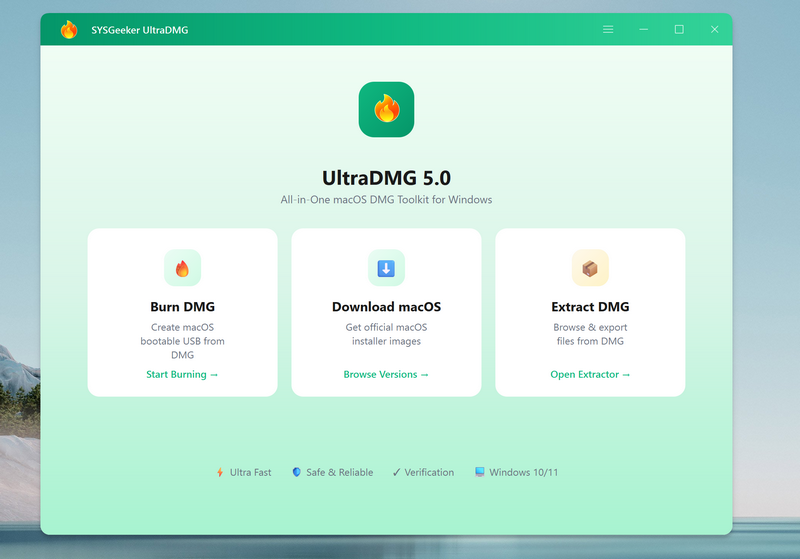
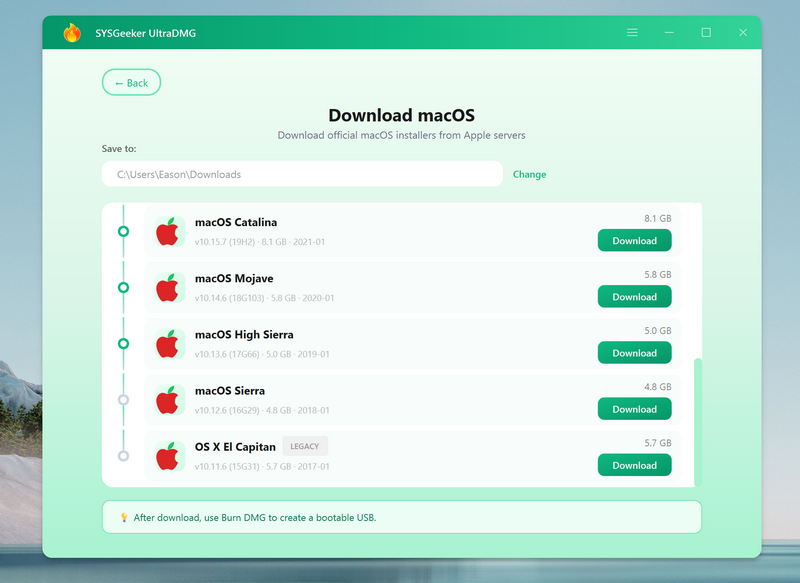
Step 3: Scroll the window and find the macOS High Sierra option. After that, click the Download button to start downloading macOS High Sierra.
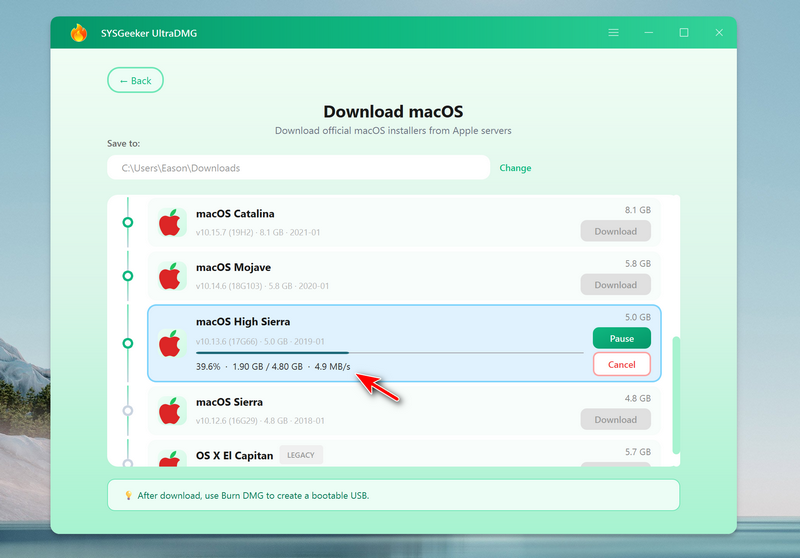
Step 4: The download speed is quite fast as you can see the screen. Wait a couple of minute and you will see the dmg file is saved at the Downloads folder of the computer.
How to Make High Sierra Bootable USB from DMG
Step 1: Back to the home screen and click the Burn DMG option. Now, insert a USB drive into the computer.
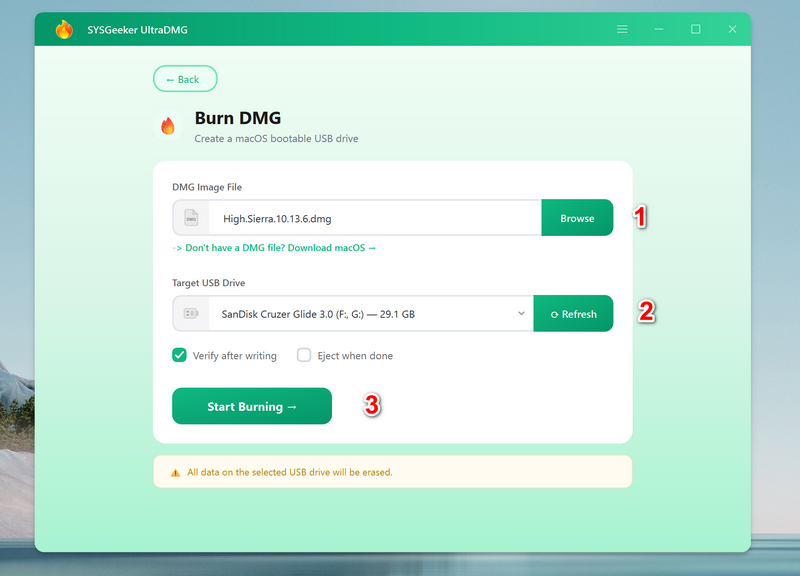
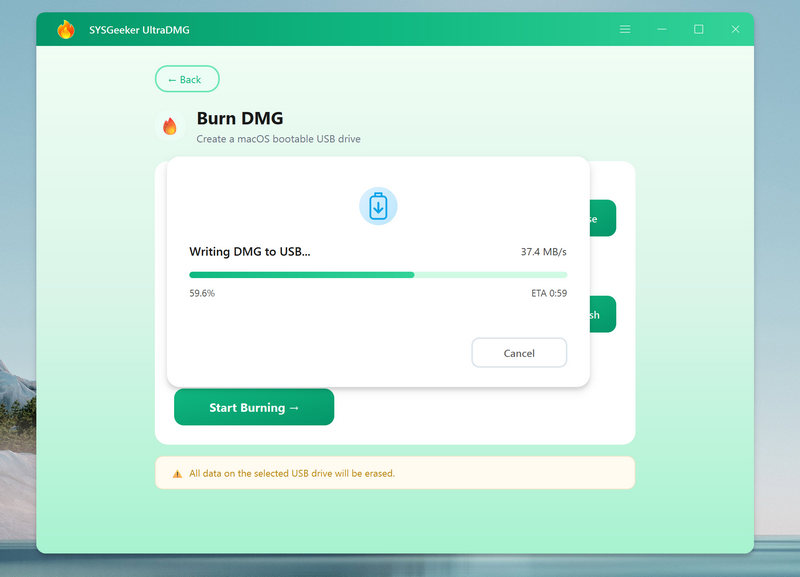
Step 2: Click the Start Burning button to make High Sierra bootable USB from the dmg file. This will be done in a couple of minutes if you used a fast USB 3.0 drive.
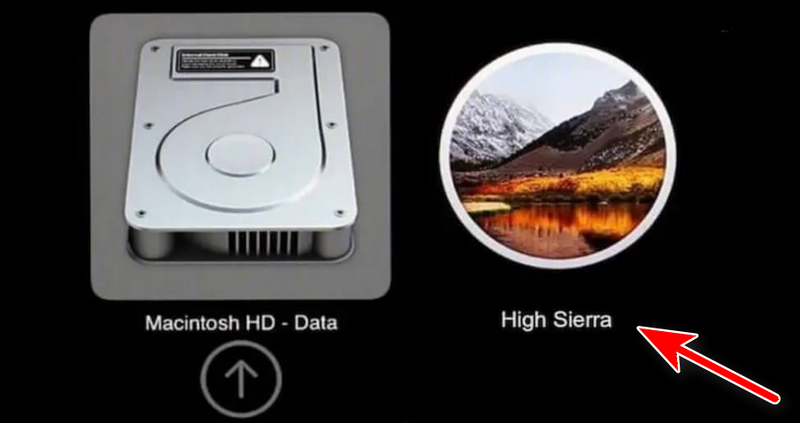
Step 3: Boot your Mac from USB drive and follow the screen prompt to start installing macOS High Sierra.
Summary
Downloading macOS installers and creating bootable USB drives used to require multiple tools and complicated commands. With UltraDMG, the entire process becomes simple and beginner-friendly.
By using UltraDMG, you can download the macOS High Sierra DMG file, create a bootable USB on Windows or Mac, and install macOS without using Terminal or manual scripts. This makes it one of the easiest ways to prepare a macOS installer for upgrading, reinstalling, or repairing a Mac system.