

I recently bought a new SSD for my Windows 11 PC because the old drive was getting full and the computer felt slower than before.
At first, I thought about reinstalling Windows, but then I remembered how annoying that is. I would need to reinstall all my apps, copy files back, set up browsers, log into accounts, and fix all my settings again.
So I decided to migrate Windows 11 directly to the new SSD.
I used CloneFox for this.
Why I Didn’t Reinstall Windows
A clean install sounds nice, but it takes too much time. I already had everything set up on my old drive: apps, documents, browser bookmarks, desktop files, and work tools. I didn’t want to start from zero. Cloning the system drive was much easier. It lets me move Windows 11, installed programs, personal files, and settings to the new SSD.
What I Prepared
Before starting, I prepared:
- A new SSD
- CloneFox application, You can download below:

Step 1: Connect the New SSD
First, I connected the new SSD to my PC. You can install it inside the computer if there is an extra slot. If not, a USB SSD enclosure also works. After connecting it, I checked Windows Disk Management to make sure the new SSD showed up.
Step 2: Open CloneFox
Then I opened CloneFox and chose System Clone.This option is made for moving Windows to another drive. I didn’t need to manually choose every Windows partition. CloneFox handled that part for me.
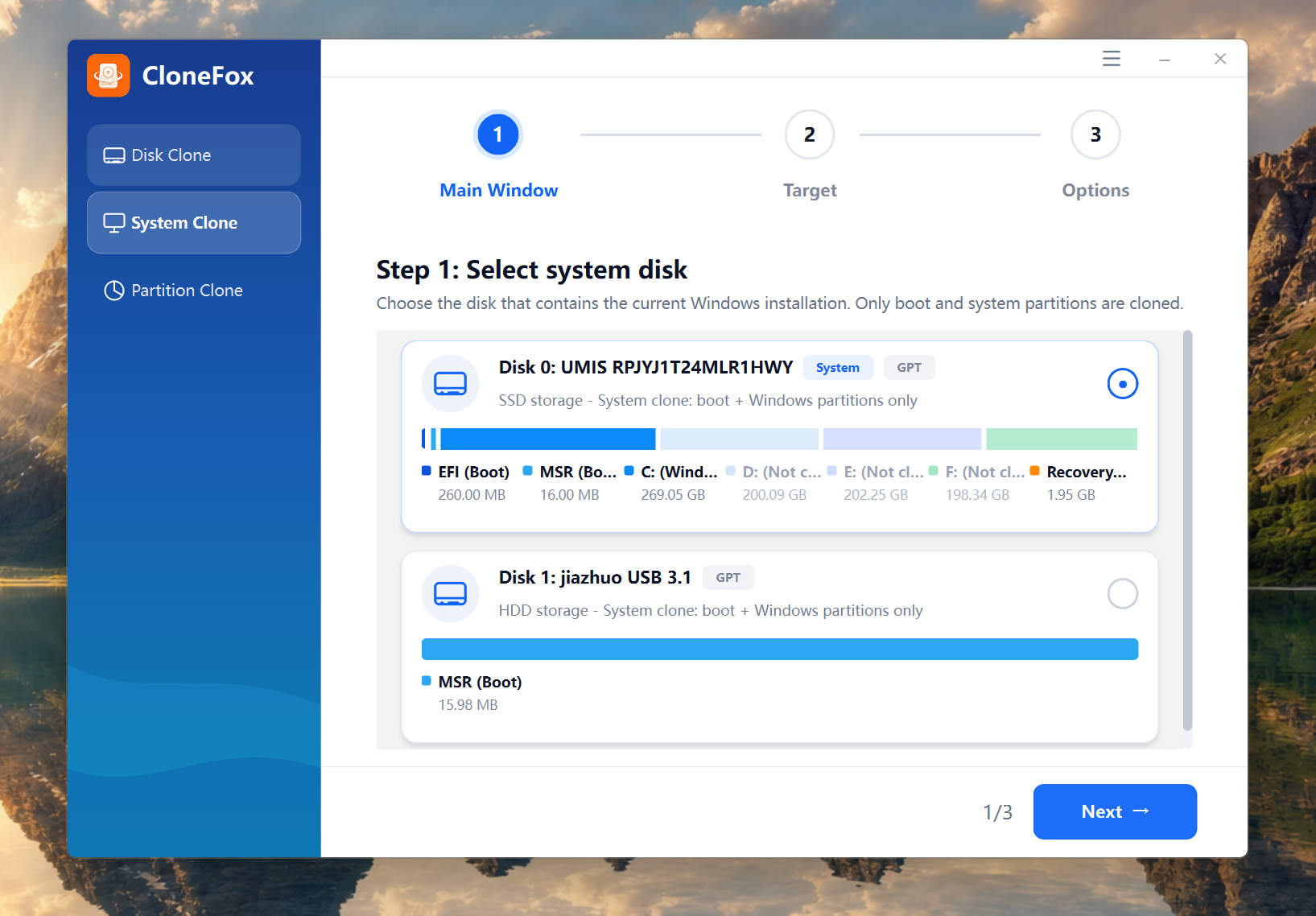
Step 3: Select the New SSD
Next, I selected the new SSD as the target drive. This step is important because the target drive will be overwritten. So I checked the disk name and size carefully before continuing.
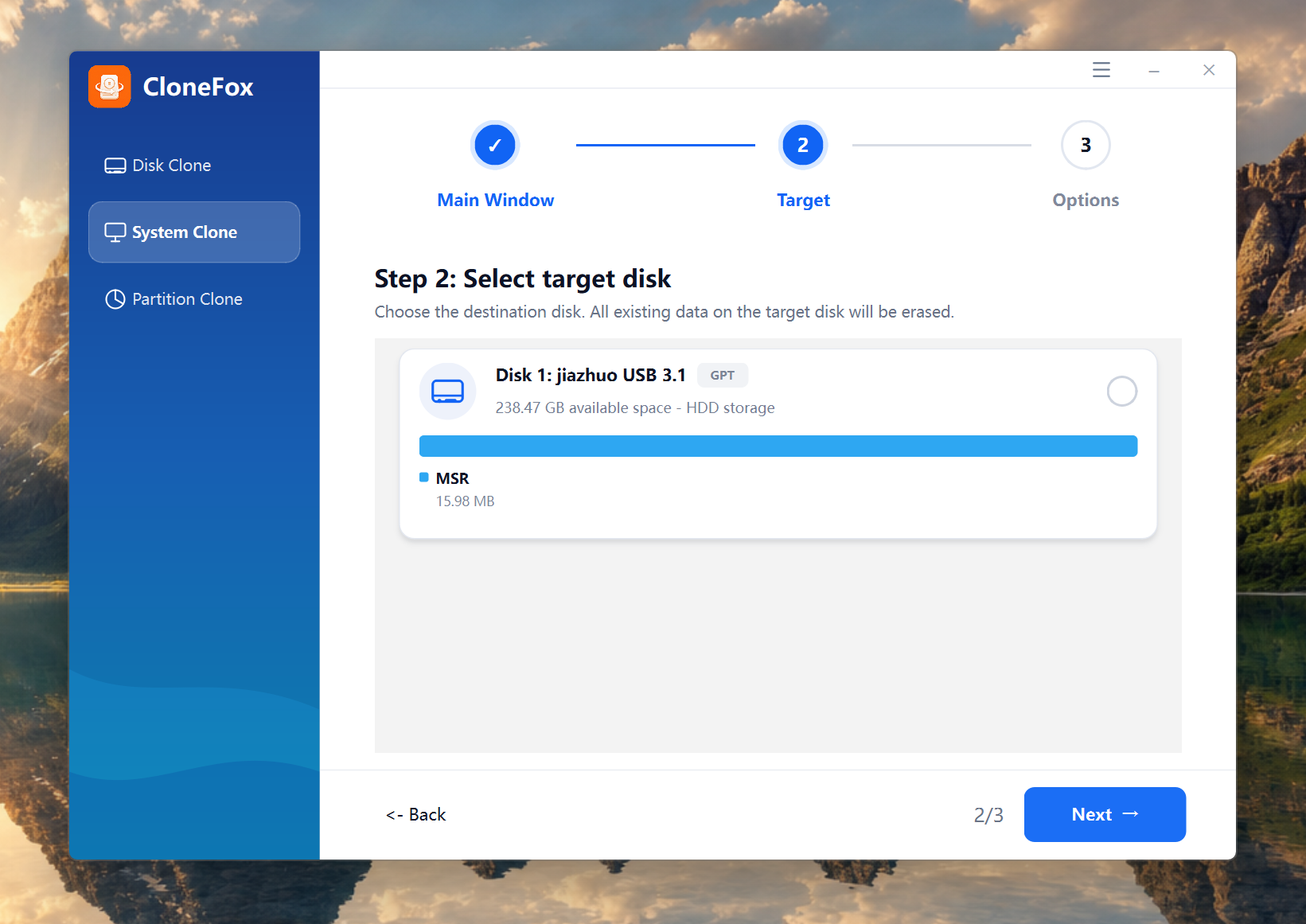
Step 4: Start the Clone
After that, I started the cloning process. I used the default options, including Smart Clone and SSD alignment. For most users, these settings are enough.
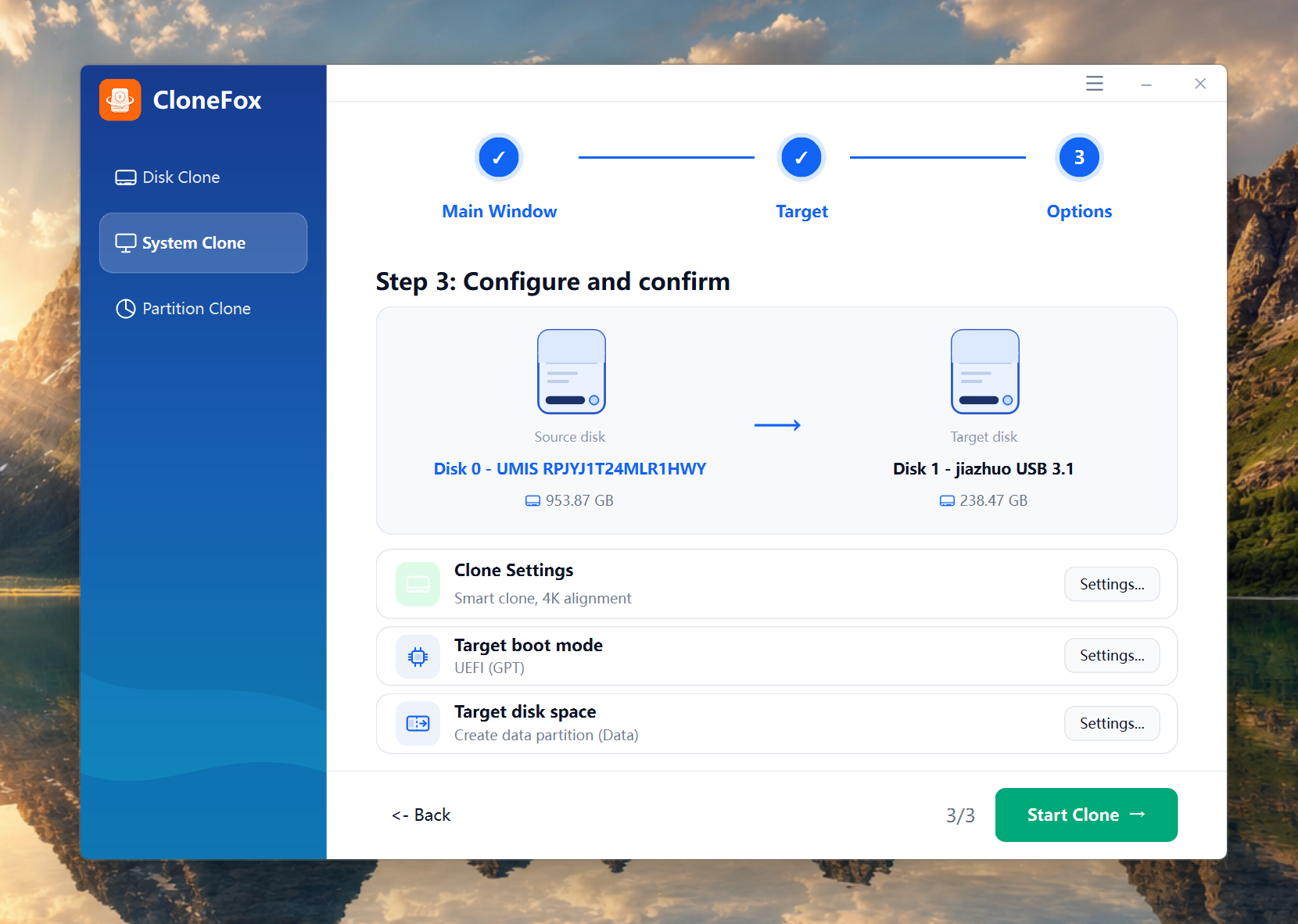
Then I just waited for CloneFox to finish.
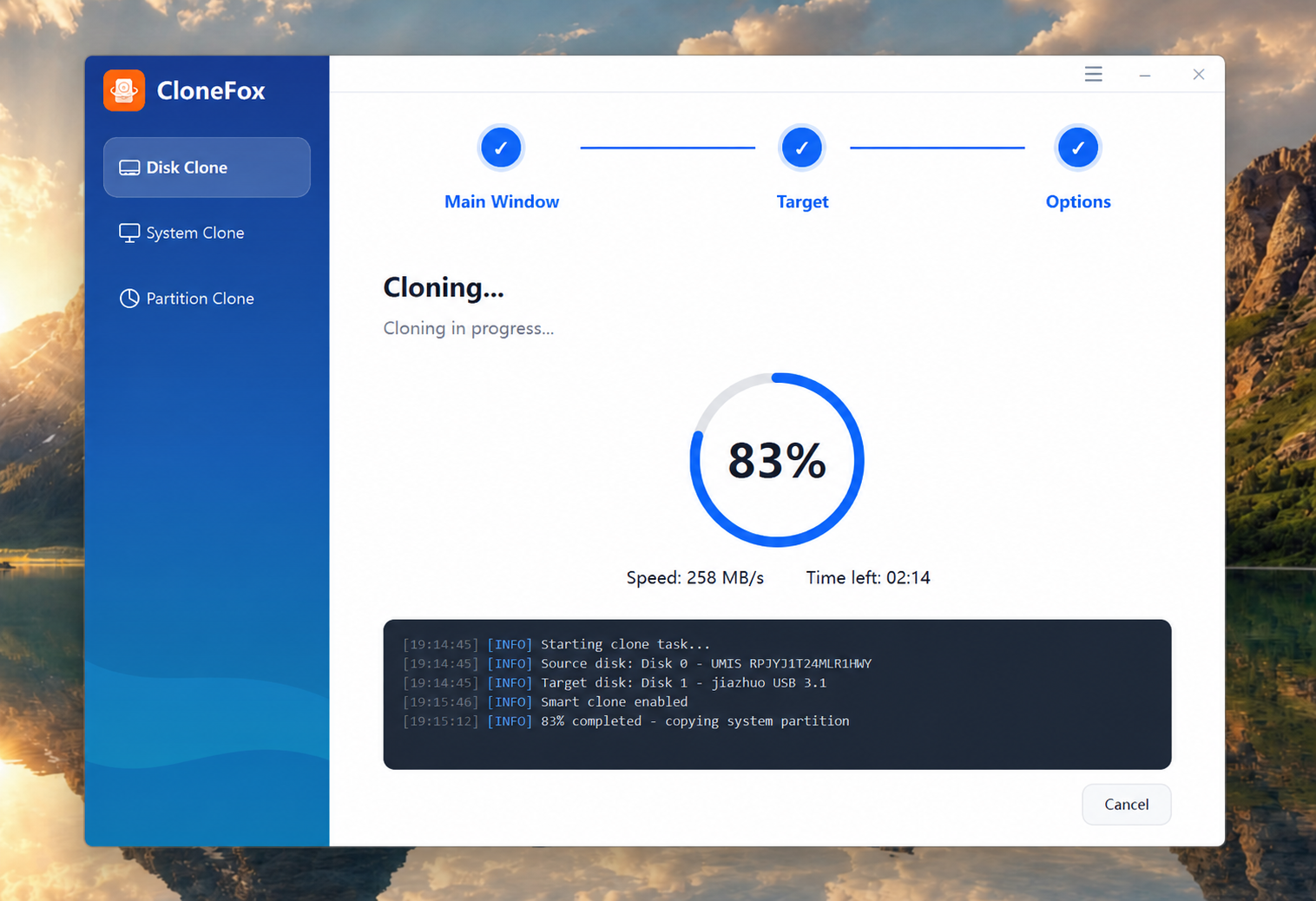
Step 5: Boot From the New SSD
When the clone was complete, I shut down the computer and set the new SSD as the boot drive. On my PC, I entered BIOS and changed the boot order. After that, Windows 11 started from the new SSD normally.
Everything was still there: my apps, files, desktop, browser data, and settings. The only difference was that the computer felt faster.
My Experience
The whole process was easier than I expected. I didn’t have to reinstall Windows. I didn’t have to copy files manually. I didn’t have to spend hours setting up software again. CloneFox made the migration pretty straightforward. I just selected the source system, selected the new SSD, and started the clone.
For me, this was much better than doing a clean install.
In my case, CloneFox worked well and saved me a lot of time. If your old drive is slow or almost full, moving Windows 11 to a new SSD is definitely worth it.