

Backing up Windows 11 is always a good idea, especially if your computer has important files, work documents, photos, or programs you don’t want to lose.
If you only want to back up personal files, you can simply copy them to an external hard drive. But if you want a full backup of Windows 11/10, including the system, apps, settings, and boot partitions, a normal copy-and-paste is not enough.
For this, I recommend using CloneFox. CloneFox can clone your Windows 11 system drive to an external hard drive or external SSD, so you can keep a complete copy of your system.
Why Use CloneFox?
Windows 11 has many hidden system partitions. If you only copy the C: drive manually, the backup may not boot or restore correctly.
CloneFox makes this easier because it can clone the whole system drive, including:
- Windows 11 system files
- installed programs
- user files
- system settings
- boot partitions
- recovery partitions
This is useful if your laptop drive fails, Windows crashes, or you want to move everything to another drive later.
What You Need
Before starting, prepare:
1. An external hard drive or external SSD
2. CloneFox app
3. Your Windows 11 computer
Step 1: Connect the External Hard Drive
First, connect the external hard drive or external SSD to your Windows 11 computer. Make sure Windows can detect the drive. You can check it in File Explorer or Disk Management.
You can download and install CloneFox below before starting.

Step 2: Open CloneFox and Select the Source Drive
Install and open CloneFox. If you want to back up the full Windows 11 system, choose System Clone or Disk Clone. For most users, System Clone is easier because it focuses on the Windows system and required boot partitions.
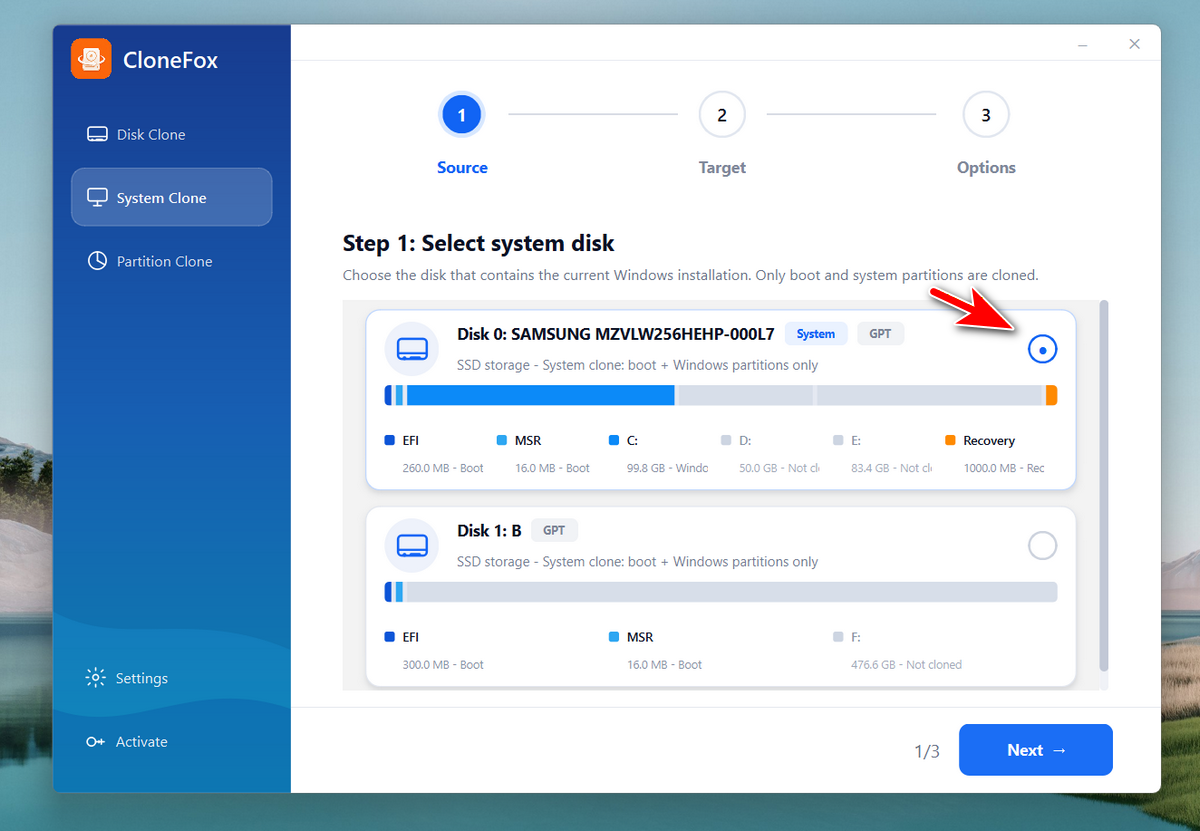
Select your Windows 11 system drive as the source drive. Usually, this is the disk that contains the C: drive.
Step 3: Select the External Drive
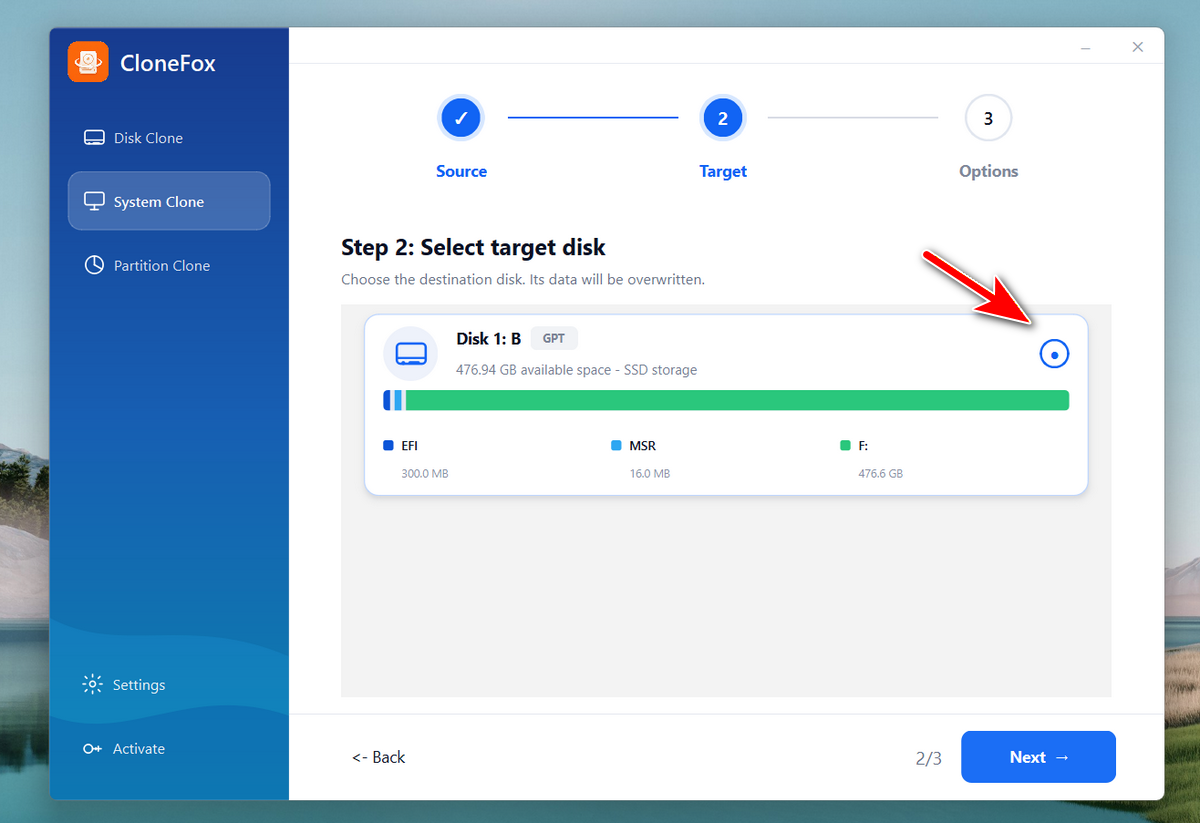
Next, select the external hard drive as the target drive. Check the drive name and size carefully before continuing, because the target drive will be used for the backup.
Step 5: Start the Backup
After confirming the source and target drives, start the cloning process. CloneFox will copy your Windows 11 system to the external drive. The time depends on your data size and drive speed.
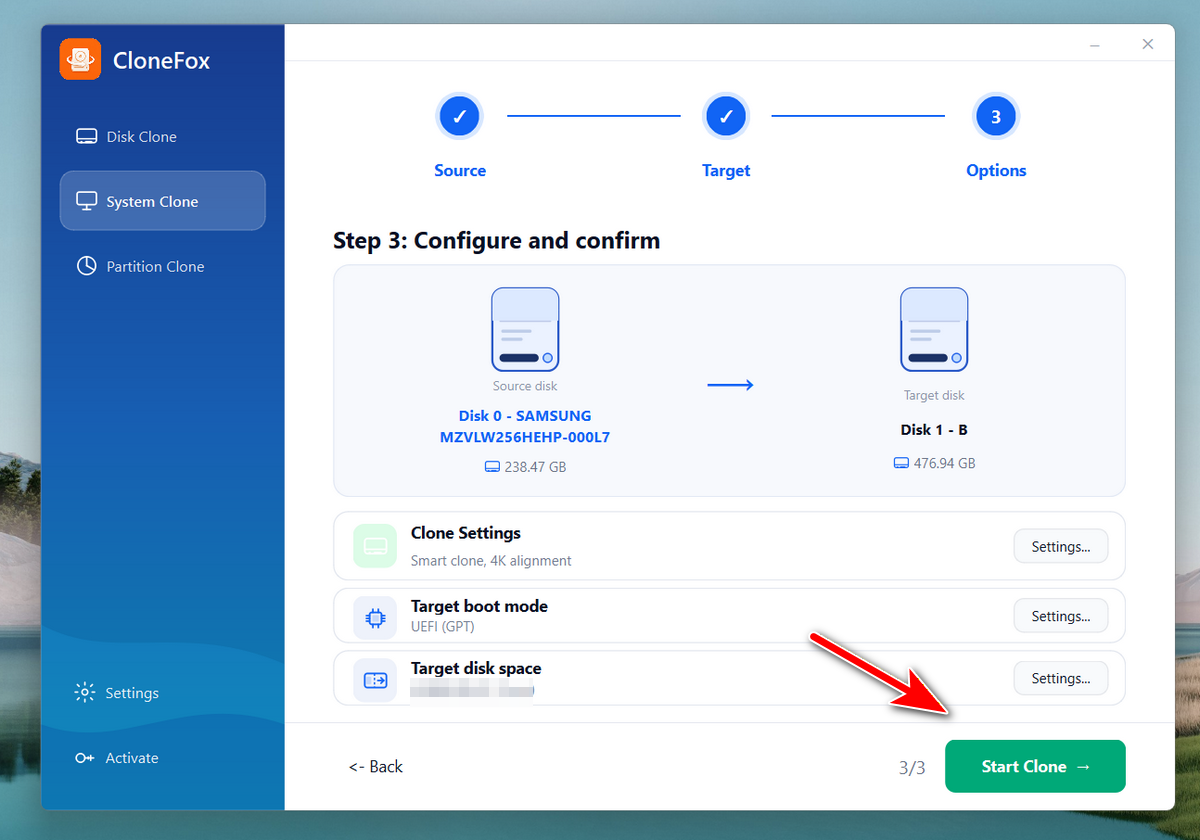
Do not unplug the external drive during the process.
Step 6: Finish and Keep the Drive Safe
When the clone is complete, you can disconnect the external drive and keep it in a safe place. Now you have a full Windows 11 backup that is much more complete than copying files manually.
Now, download CloneFox and give it a try!
Final Thoughts
If you only need to save documents, photos, or videos, manual copy is fine. But if you want to back up Windows 11 with the system, programs, settings, and boot data, CloneFox is a much better choice.
It is simple, clear, and more friendly for users who do not want to deal with command lines or complicated backup settings.