

When I moved data from an old Windows PC to a newer disk, I realized that simply copying files was not always enough. Some partitions contain apps, system files, settings, or large folders that I wanted to keep exactly the same. Windows has basic disk tools, but for partition cloning, I found it much easier to use a dedicated tool like CloneFox.
CloneFox is designed for disk clone, system clone, and partition clone tasks, so it feels more straightforward when I only want to copy one specific partition instead of cloning the entire drive.
Why I Use CloneFox to Copy a Partition
The biggest reason is convenience. I do not need to manually copy folders one by one, and I do not have to worry about missing hidden files or partition data. CloneFox lets me select the source partition, choose a target disk, and clone the partition with a guided wizard.
This is useful when I want to:
- Move a data partition to a new SSD or HDD
- Back up an important partition
- Copy a work or product partition to another disk
- Transfer files from an old PC drive to a new computer
Partition cloning should keep the source data safe, but the destination space may be overwritten, so it is important to select the correct target.
How to Copy a Partition to Another Disk with CloneFox
Step 1: Open CloneFox and Choose Partition Clone
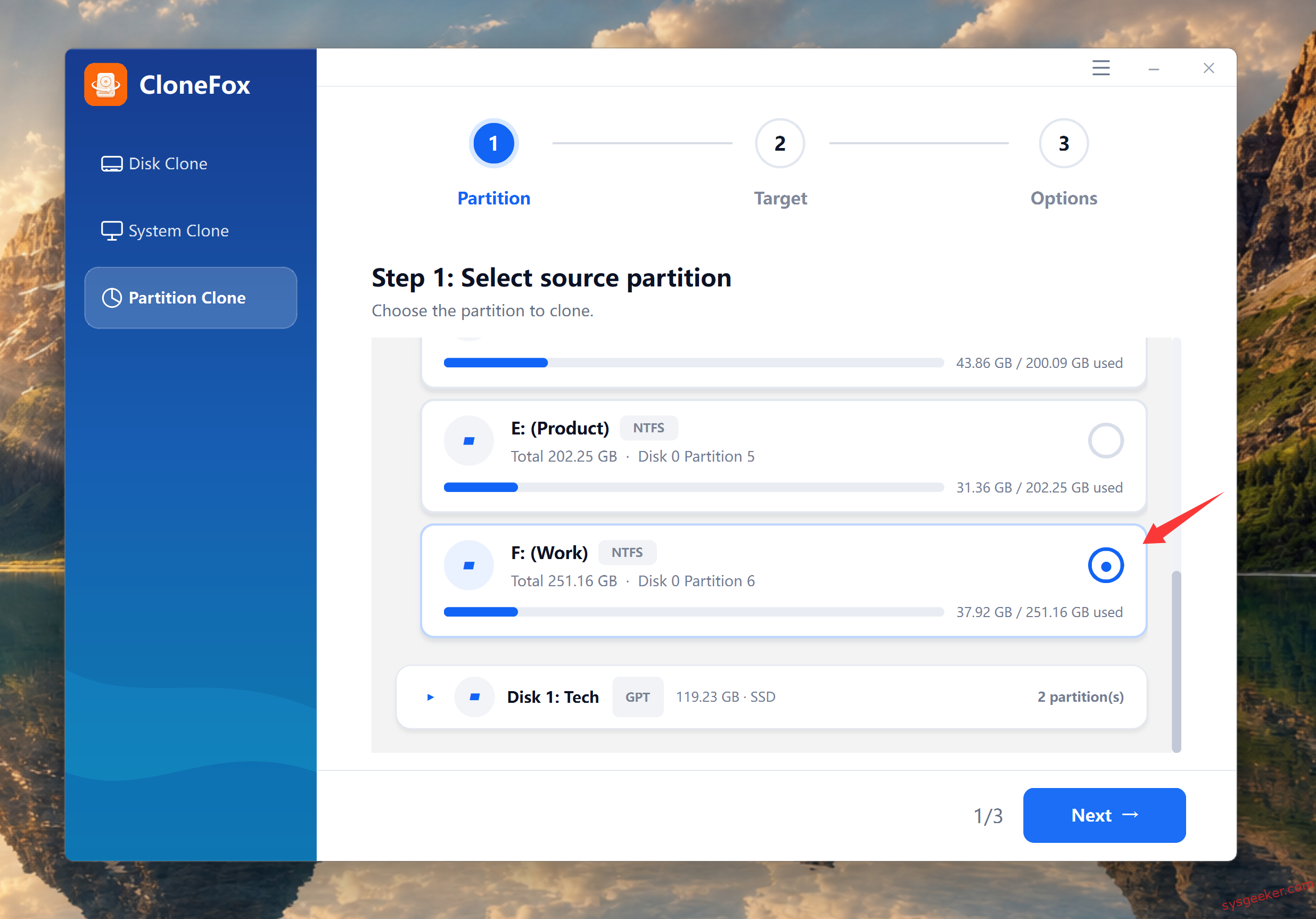
Download and install CloneFox on your PC, Launch CloneFox and select Partition Clone from the left menu. This mode is used when I only want to copy one partition instead of the whole disk.

Step 2: Select the Source Partition
Choose the partition you want to clone. For example, if I want to copy my work partition, I select that partition from the list and click Next.
Step 3: Choose the Target Partition
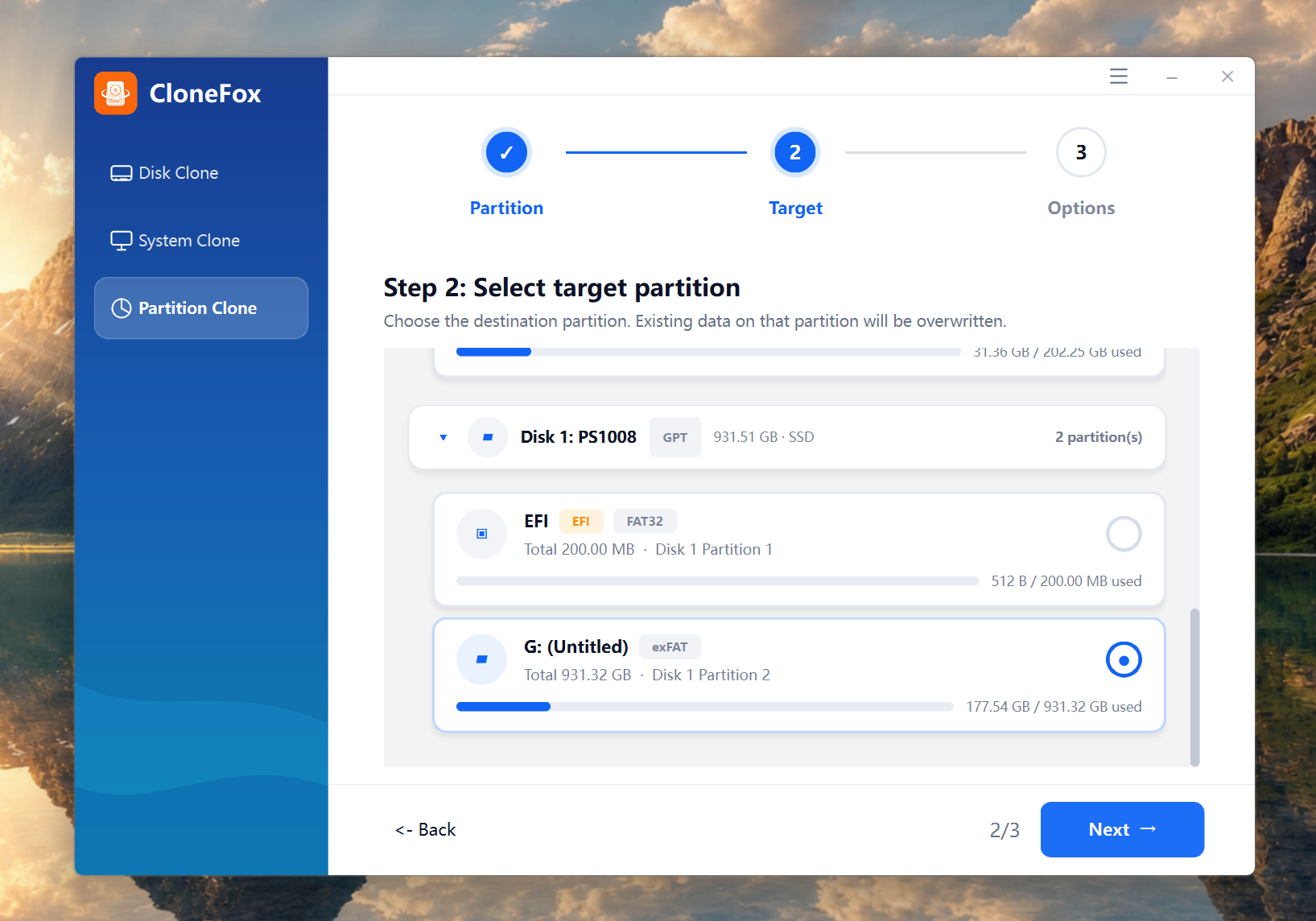
Next, select the disk where the cloned partition will be copied. This can be another internal drive, an external HDD, or an SSD connected to the PC.
Step 4: Set Clone Options
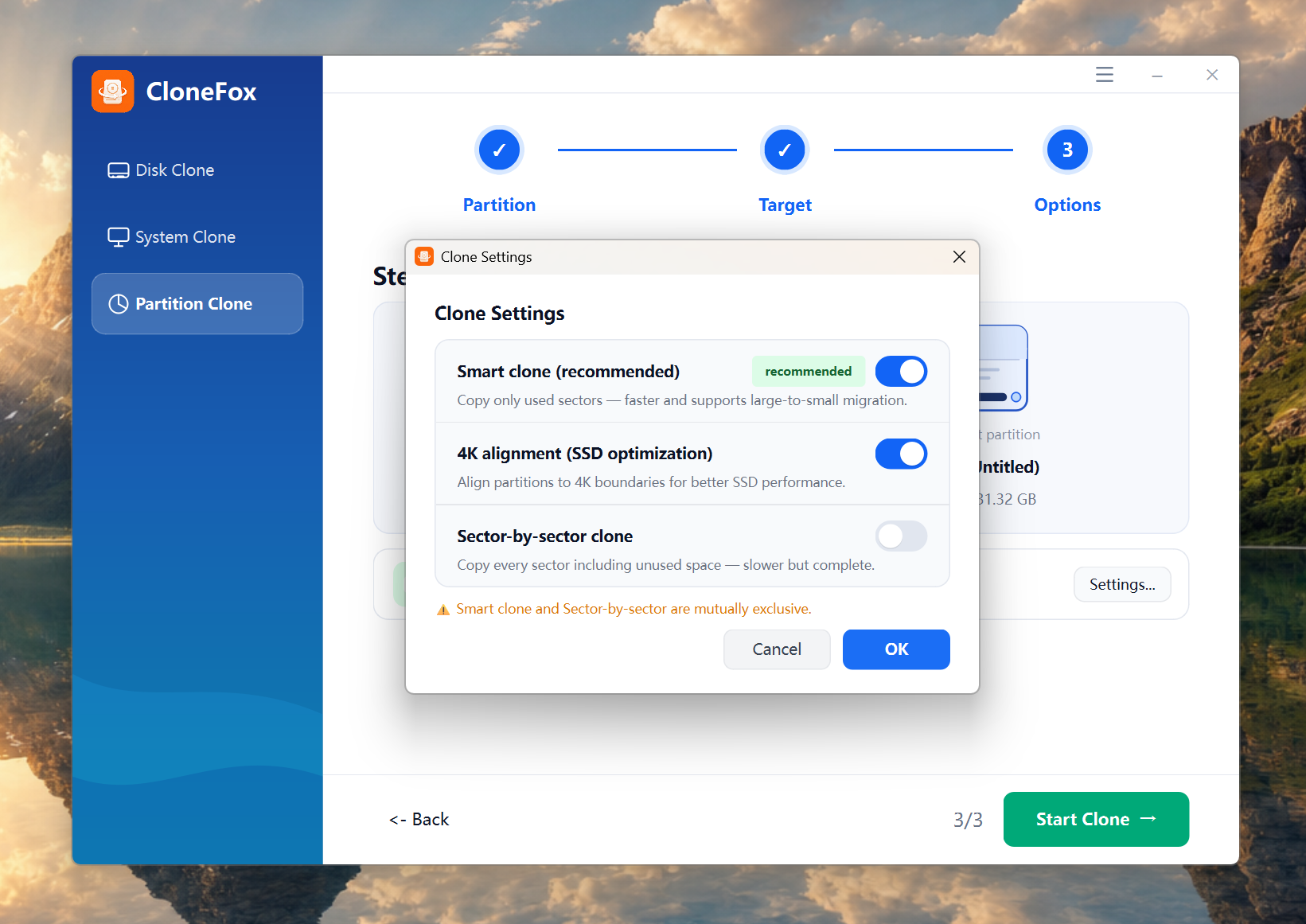
In this step, I can review the clone settings before starting the partition copy. For most users, I’d keep Smart Clone enabled because it only copies used sectors and usually works faster. If the target disk is an SSD, I’d also turn on 4K alignment for better performance. Sector-by-sector clone is only needed when I want to copy every sector exactly, but it takes more time and requires more space.
Step 5: Start the Clone
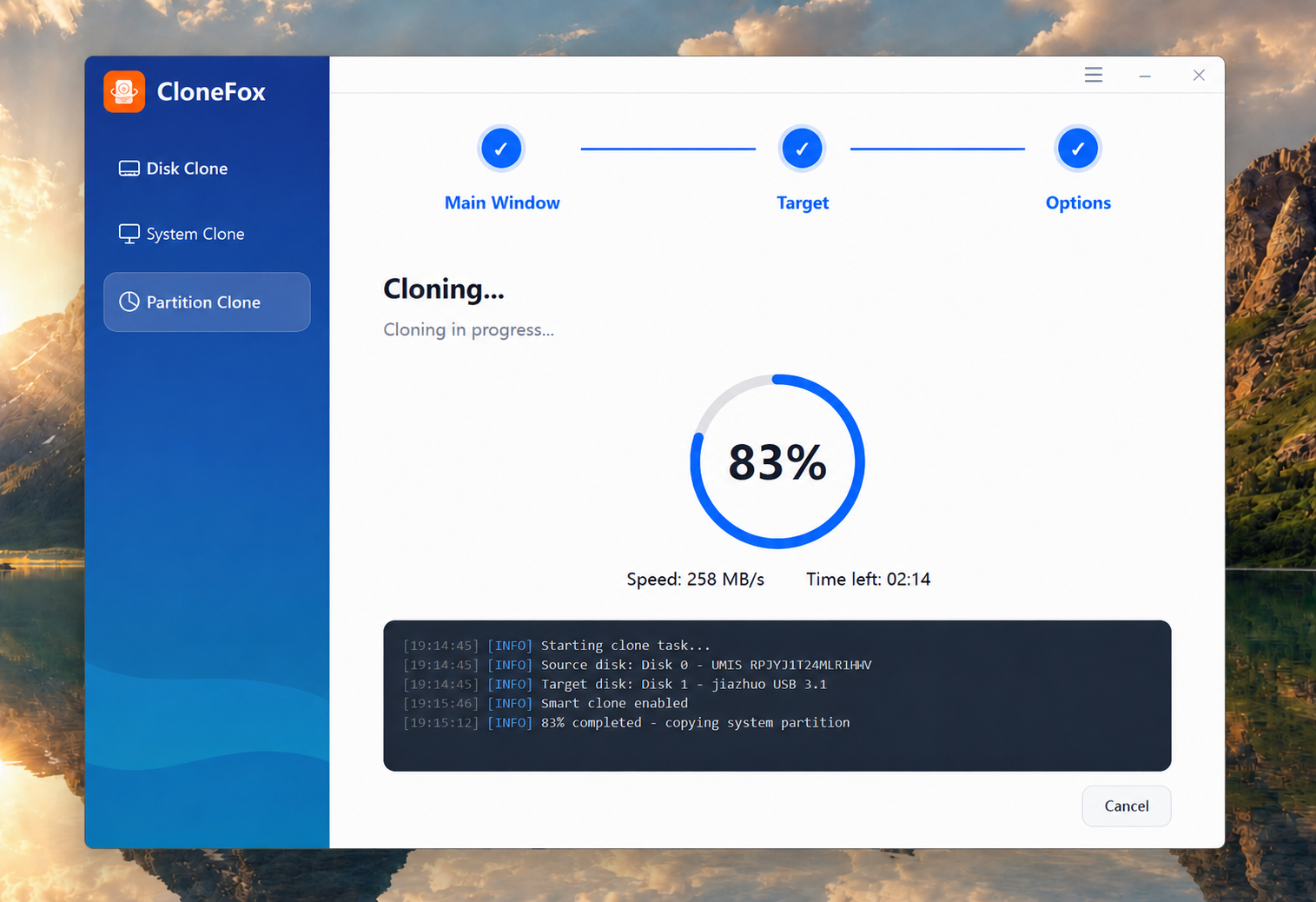
After confirming everything, click the clone button and wait for the process to finish. The time depends on the partition size and disk speed.
My Thoughts
For me, CloneFox is a simple solution when I need to copy a partition to another disk in Windows. It is easier than doing everything manually, and the step-by-step wizard makes the process less confusing.
If you only need to copy personal files, normal copy and paste may be enough. But if you want to copy an entire partition with its structure and data, I would recommend using CloneFox Partition Clone.