

If you’re looking for a simple way to mirror your iPhone or iPad to your computer, SkyMirrorTo is honestly one of the easiest tools I’ve come across. I’ve tried quite a few different solutions in the past, and most of them either had noticeable lag or required too many complicated steps just to get things working.
When I discovered SkyMirrorTo, it felt like a breath of fresh air. The setup was quick, and within a few minutes I had my iPhone screen showing on my PC without any hassle. That alone already saved me a lot of time compared with some other tools I tested before.
Why Choose SkyirrorTo?
Before diving into the steps, let me explain why I recommend SkyMirrorTo. After using it for a while, I’ve found it to be one of the most user-friendly tools for screen mirroring iPhone or iPad devices. It’s quick to set up, the connection is stable, and best of all, the mirroring is super smooth. Unlike some other options I’ve tried, there’s almost no lag, and the image quality remains sharp throughout.
So if you’re looking for an easy and reliable way to mirror your iPhone/iPad to your computer, here’s how to do it.
How to Use SkyMirrorTo to Cast Your iPhone/iPad to PC
Step 1. First, visit the official SkyMirrorTo website and download the SkyMirrorTo software on your Windows or Mac computer. Follow the instructions to install it.


Step 2. Make sure both your iPhone/iPad and your computer are connected to the same Wi-Fi network. This will ensure smooth and stable screen mirroring.
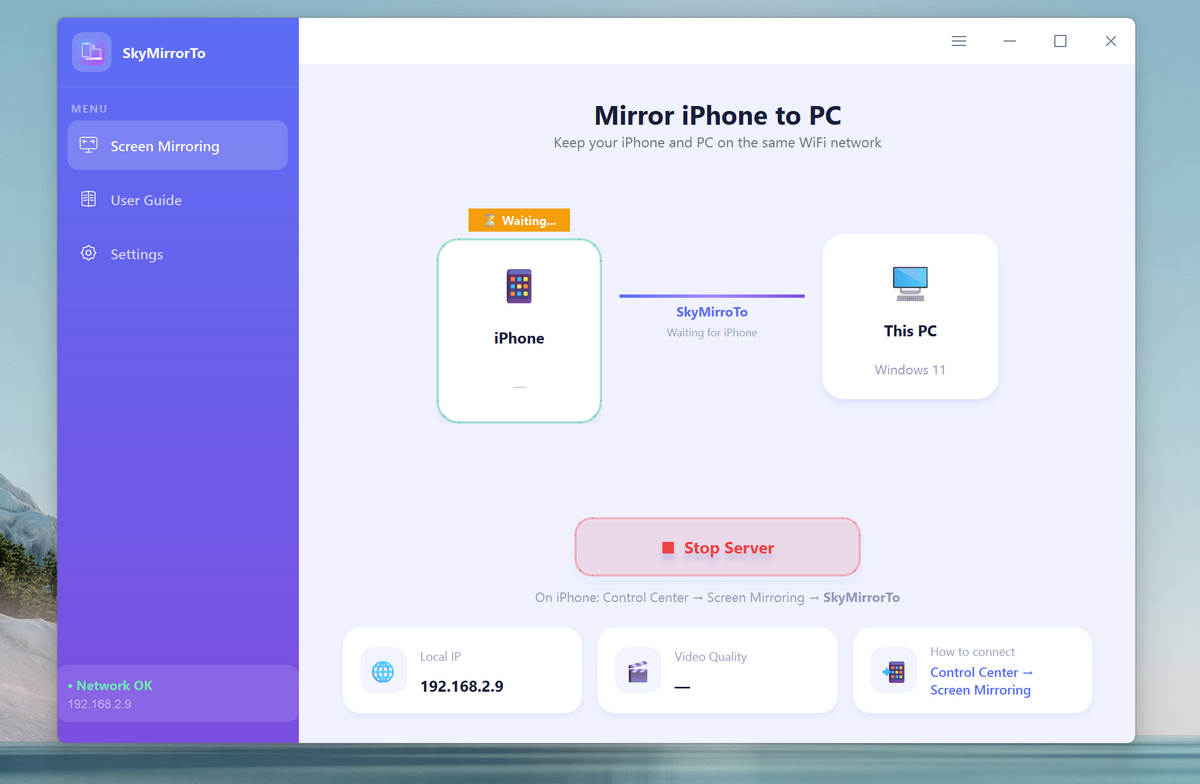
Step 3. Open the SkyMirrorTo software on your computer. You’ll see the interface ready to start mirroring. Now, click the Start to Mirror button on the home screen.
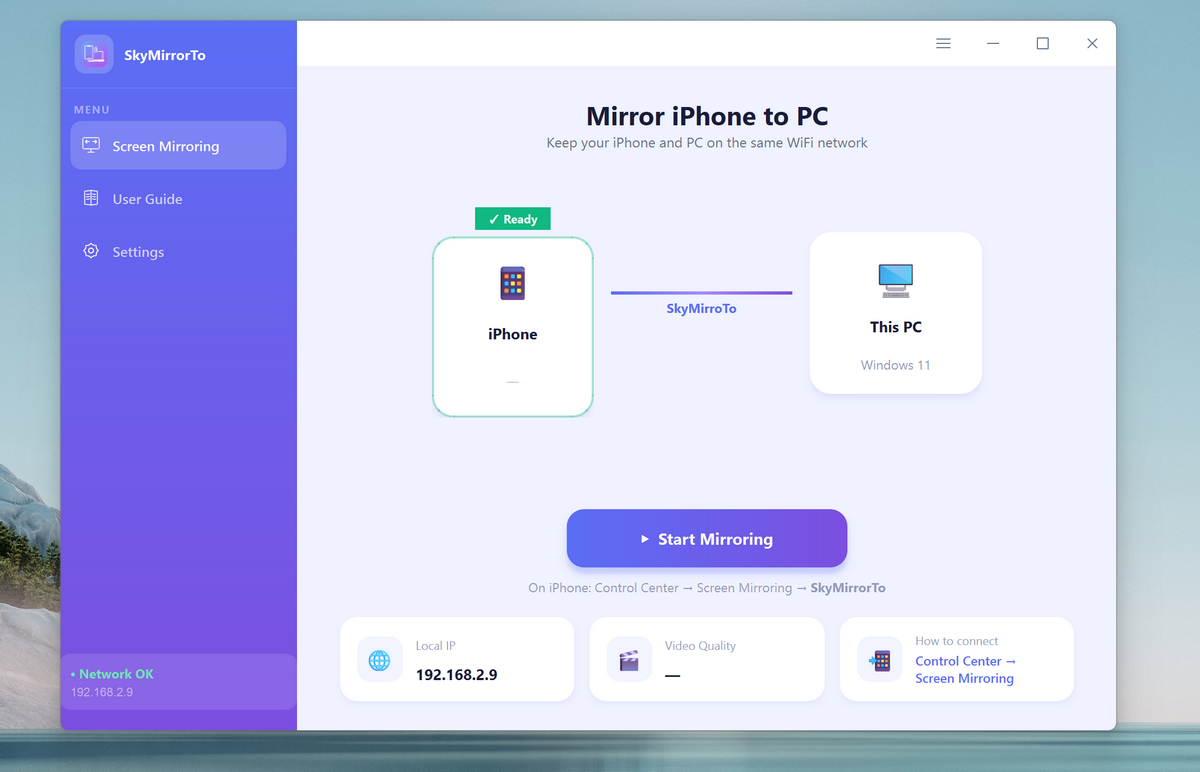
Step 4: Wait a few seconds, you will see the iPhone is connected for mirroring.
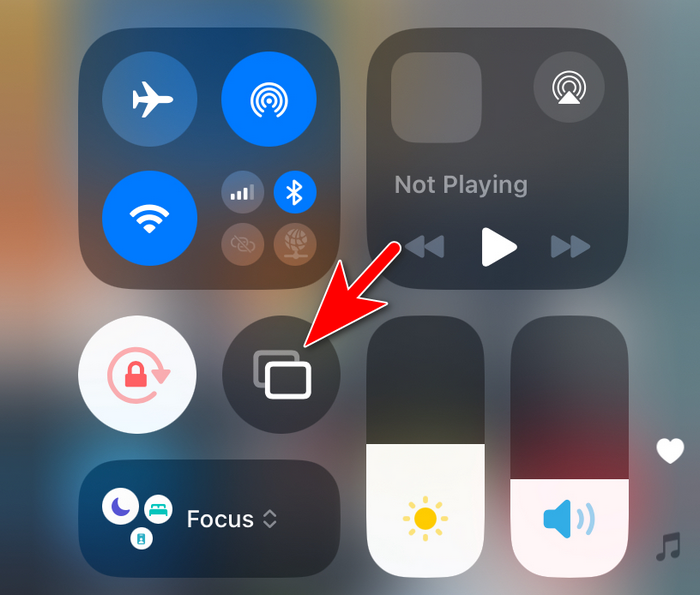
Step 5. The mirror feature is disabled on iPhone by default. You need to turn it on manually.
Step 6. Choose the mirroring device from the list. In here, it is UxPlay@ADMIN.
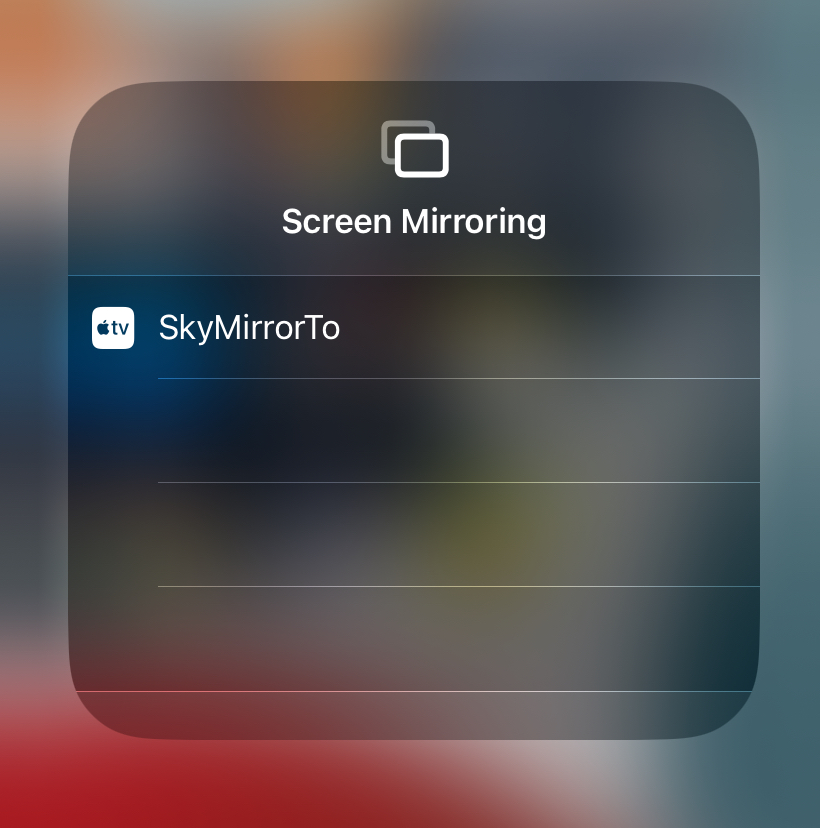
Step 7. The iPhone screen will be casted to the computer screen automatically after tapping on the SkyMirrorTo name. You can now see the iPhone screen being mirrored to a big screen.
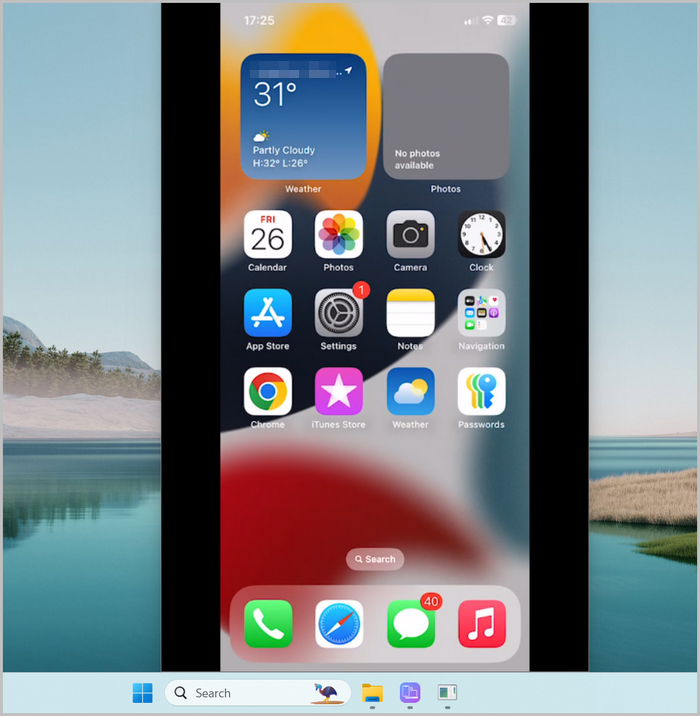
Watch the Screen Mirroring in Action:
I recorded a short demo video showing the mirroring process with SkyMirrorTo. The original recording includes the device audio, but I added background music to make the video easier to watch.
Download SkyMirrorTo and instantly mirror your iPhone or iPad screen to your computer.
No cables, no complicated setup — just install and start casting.
Final Thoughts
After using SkyMirrorTo for a while, I can say it’s one of the most straightforward mirroring tools I’ve tried. What I appreciate the most is that it doesn’t require complicated setup or extra cables — just install it, connect to the same network, and it works.
If you want to mirror your iPhone or iPad to a PC without dealing with lag or confusing settings, SkyMirrorTo is definitely worth trying. It turned out to be a very convenient tool for presentations, watching videos, or simply sharing your phone screen on a bigger display.
I’m a teacher and sometimes I need to show apps from my iPhone on a classroom computer. Before this, the only option was plugging cables or using complicated streaming tools.
SkyMirrorTo made it much easier. As long as the phone and PC are on the same Wi-Fi network, the mirroring starts quickly and the quality looks sharp on a bigger screen.
I also recorded a short demo video while using it and the mirrored screen stayed smooth the whole time. For presentations or tutorials, it’s a really convenient solution.
Tried SkyMirrorTo yesterday while testing different AirPlay mirroring tools on Windows. Setup was easy and the connection was stable most of the time.
There’s a tiny bit of delay when moving fast in games, but for presentations, videos, or showing apps it works perfectly fine. Pretty solid tool overall.
I just needed a quick way to show my iPhone screen on my PC for a tutorial video. Installed SkyMirrorTo, connected to the same Wi-Fi, and it worked immediately.
Super simple and no cables needed. That’s all I wanted.
I randomly found SkyMirrorTo while looking for a way to mirror my iPhone to Windows without buying Apple TV.
Not gonna lie — I expected it to be janky like most mirroring apps, but it actually works pretty well. Connected over Wi-Fi and the delay was barely noticeable.
For quick demos or screen sharing it’s honestly good enough.
Really simple to use. Installed it, clicked start, and my iPad appeared on my laptop screen. No cables needed which is nice.
I was looking for a way to mirror my iPhone to Windows without Apple TV. SkyMirrorTo actually works surprisingly well.
Just tested SkyMirrorTo today because I needed to show some photos from my iPad on a bigger screen. The connection process was quick and the image quality looked pretty good on my monitor. There’s a tiny bit of delay sometimes, but honestly it’s not a big deal unless you’re trying to mirror games.
Used SkyMirrorTo to show an app demo from my iPhone during a meeting. The delay was minimal and the screen looked pretty sharp on the monitor.
SkyMirrorTo is one of the easiest apps I’ve used for mirroring my iPhone 17 Pro Max screen to my Windows 10 PC. The connection process is very quick, and the screen quality is surprisingly smooth with almost no delay. It works great for presentations and recording tutorials.
I tried several screen mirroring apps before, but SkyMirrorTo stands out for its simplicity and stable performance. It connects to my iPad in seconds and mirrors the screen clearly on my Windows 11 laptop. Perfect for watching videos or demonstrating apps.
SkyMirrorTo is a reliable solution for anyone who needs to mirror an iPhone to a PC. The interface is clean, and the setup is straightforward even for beginners. I especially like how stable the connection is compared to other mirroring tools.
This app works exactly as advertised. SkyMirrorTo allows me to mirror my iPhone screen to my PC with high resolution and very little lag. It’s very useful for screen recording, live demos, and sharing content on a larger screen.
If you’re looking for a simple way to mirror your iPhone to a computer, SkyMirrorTo is definitely worth trying. The installation is quick, and the mirroring quality is excellent. It’s now my go-to tool for iPhone screen sharing on PC.
I don’t see it in my iphone. What am I doing wrong?
Please uninstall the old version and download the latest version; I have updated this app.