

When it comes to securing RAR files on a Windows PC, FossZIP stands out as a reliable and user‑friendly solution. With its intuitive interface and robust AES 256‑bit encryption, FossZip makes it easy to add a password to any RAR archive—no technical expertise required. Whether you’re protecting financial spreadsheets, personal photos, or confidential reports, this step‑by‑step guide will show you how to create a password‑protected RAR file in just a few clicks using FossZIP’s built‑in security features.
Why Using FossZIP for Password Protecting RAR File
- Built‑in AES 256‑bit encryption for strong, industry‑standard protection.
- Fully support Windows 11, Windows 10, Windows 8.1 and Windows 7.
- User‑friendly interface that guides you through setting and managing passwords.
- Ability to batch‑process multiple files or folders in one go.
- Regular updates and dedicated support to address security vulnerabilities.
- Cross‑platform compatibility, ensuring encrypted archives open on Mac and mobile devices with compatible tools.
How to Password Protect a RAR File on Windows 11/10 PC
Please follow the simple steps listed below to create a password‑protected RAR archive using FossZIP on your Windows PC.
Step 1: Download and Installation
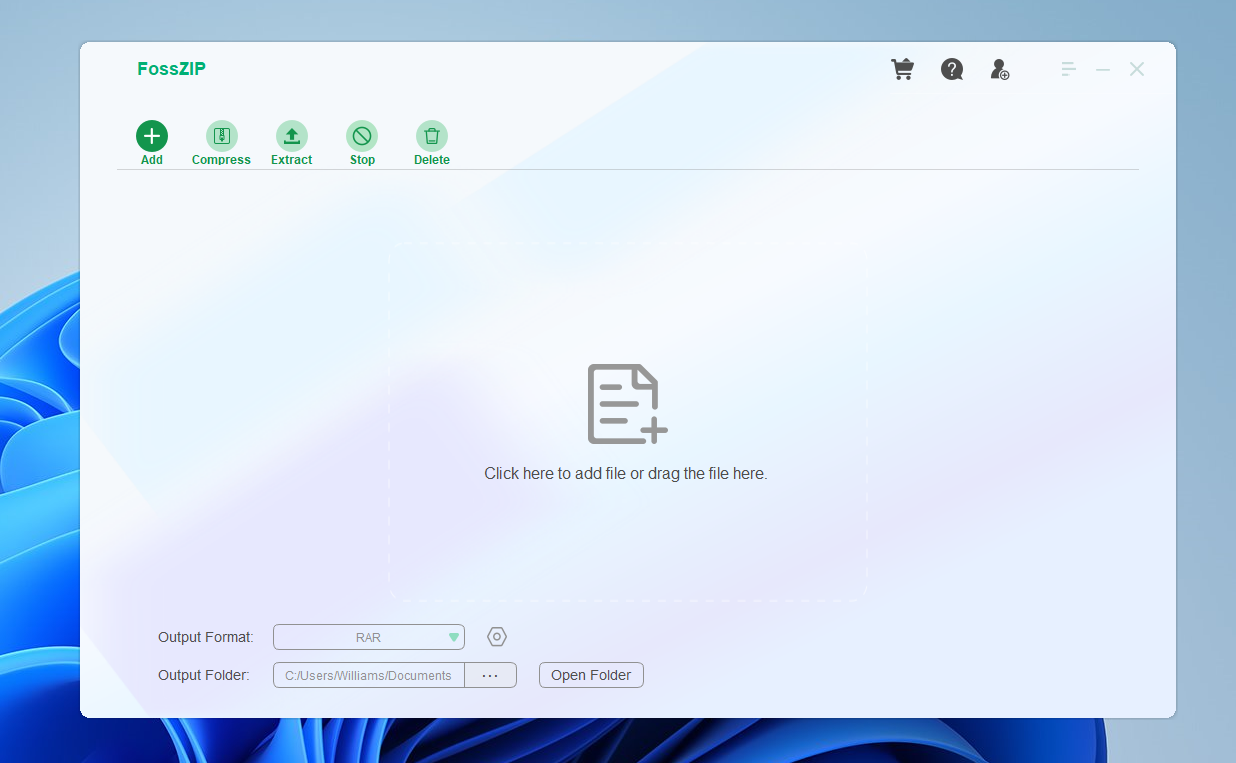
First, download and install FossZIP from the following download link. Then, open FossZIP from the Start menu or desktop shortcut.


Step 2: Add Files and Folders to FossZIP App
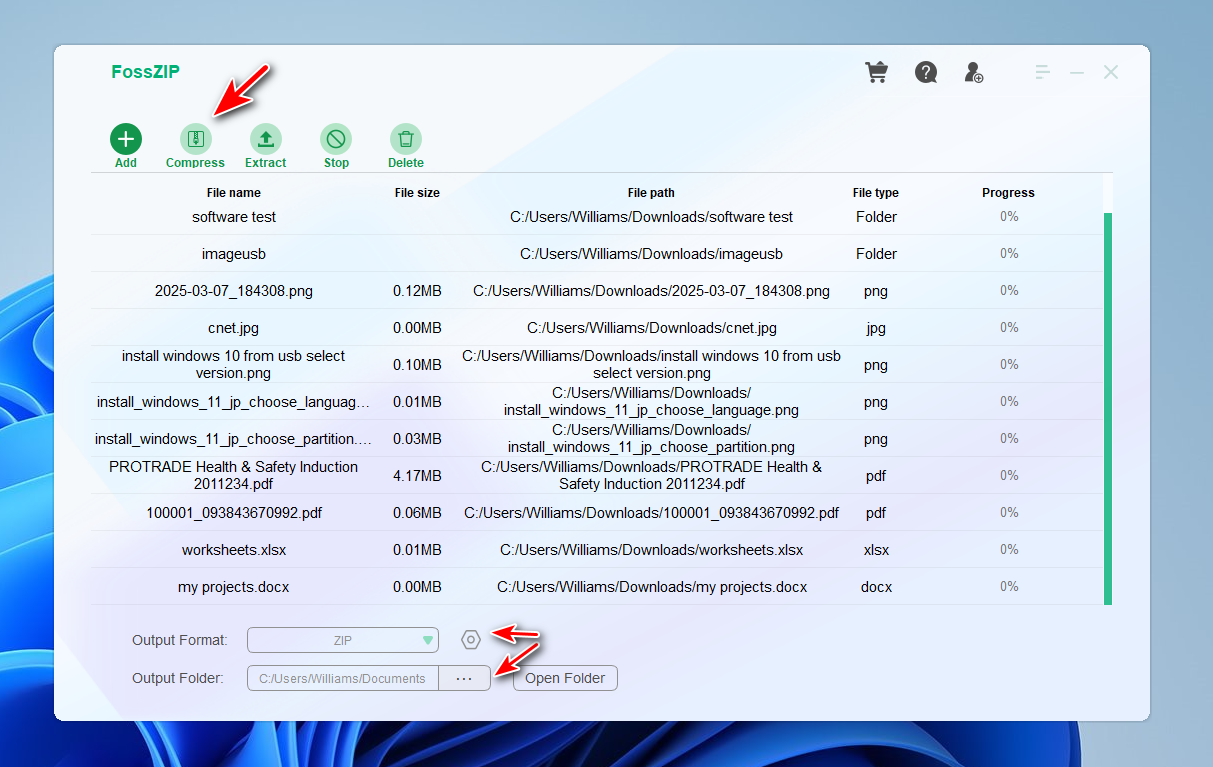
Click the ‘Add‘ button at the top left corner to add the files and folders you want to add to the new .zip file. You can also drag and drop the files into the center of the app interface. After that, click the "…" icon at the bottom to choose a local folder to save the new RAR file.
Step 3: Add Password to RAR File
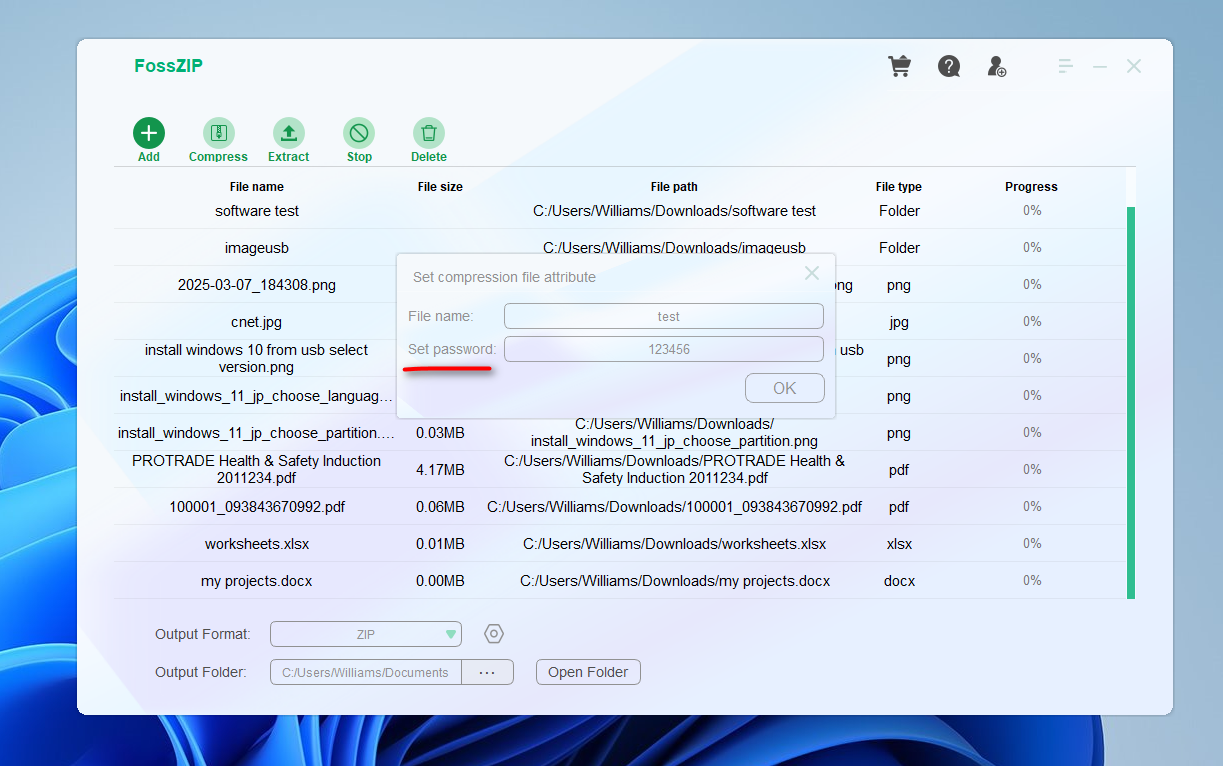
When all files and folders are imported, please click the ‘Compress‘ button at the top. At this time, you will be asked to set a file name and password. Please save the password or write down the password into a safe place. Finally, click the ‘OK‘ button to create a new password-protected RAR file.
Step 4: Verify the Password Protect RAR File
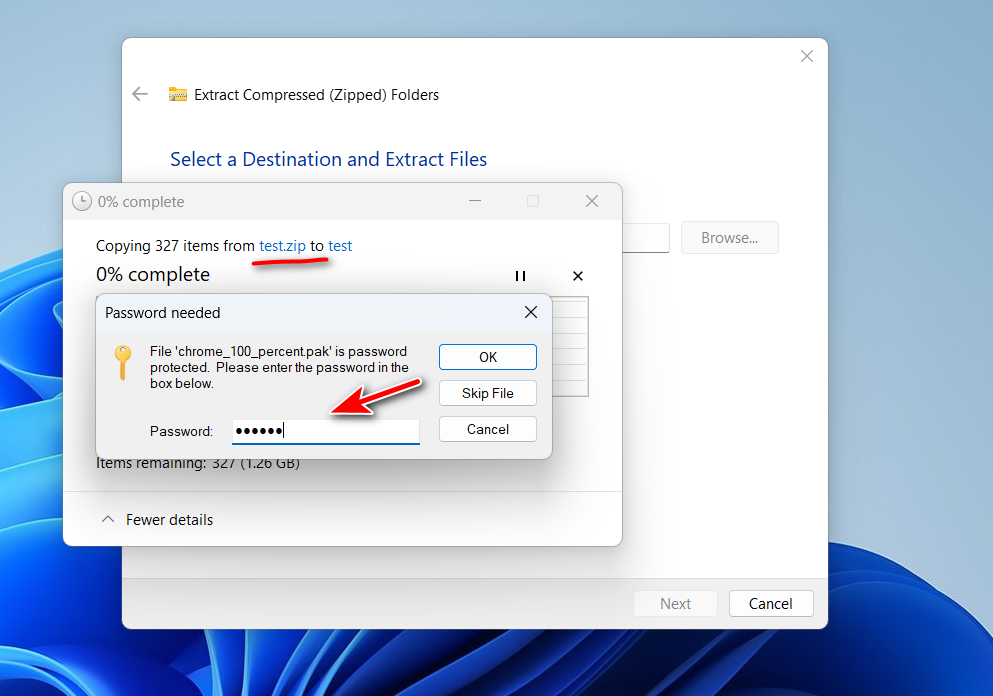
Go to folder where the new RAR file is saved. Now, double click the RAR file and you will see a prompt for entering the correct password before it is opened or extracted.
The Bottom Line
Encrypting RAR files with FossZip is a fast and effective way to keep sensitive data out of the wrong hands. Thanks to its seamless Windows integration and powerful AES 256‑bit encryption, you can confidently share and store archives knowing they’re protected by a strong password. Give your files the security they deserve—next time you package documents for emailing or backup, rely on FossZip to lock down your information effortlessly.