Upgrading the computer storage should not require reinstalling Windows, losing files, or spending hours moving data manually. Whether you are replacing an old HDD with a fast SSD, upgrading to a larger NVMe drive, or creating a backup copy of your system disk, reliable disk cloning software can save enormous time and effort.
This is where CloneFox comes in. It is a professional disk cloning solution designed for Windows 11 and Windows 10 users. It helps you clone an entire hard drive, migrate Windows to SSD, or copy a selected partition safely and quickly — even if you are not a technical user.
Why Using Disk Cloning Software
Disk cloning software creates an exact copy of your entire drive, making it essential for data protection and system management.
- System Backup & Recovery – Instantly restore your OS and files after a crash or failure.
- Hardware Upgrades – Migrate everything to a new/larger drive without reinstalling the OS.
- Data Migration – Transfer your entire system to a new PC seamlessly.
- Preserves Everything – Copies OS, apps, settings, and files exactly as-is.
After cloning, you can boot directly from the new drive immediately.
How to Safely Clone a Disk with SysGeeker CloneFox
Disk Clone creates an exact copy of one hard drive to another drive. This method copies Windows, apps, files, partitions, and boot information together. Below is a step by step for disk cloning with CloneFox software.

Step 1. Connect the New SSD/HDD to Computer
Install or connect the target SSD/HDD to your computer using SATA, NVMe, or a USB adapter. Make sure the destination drive has enough storage space for the Windows system partition.
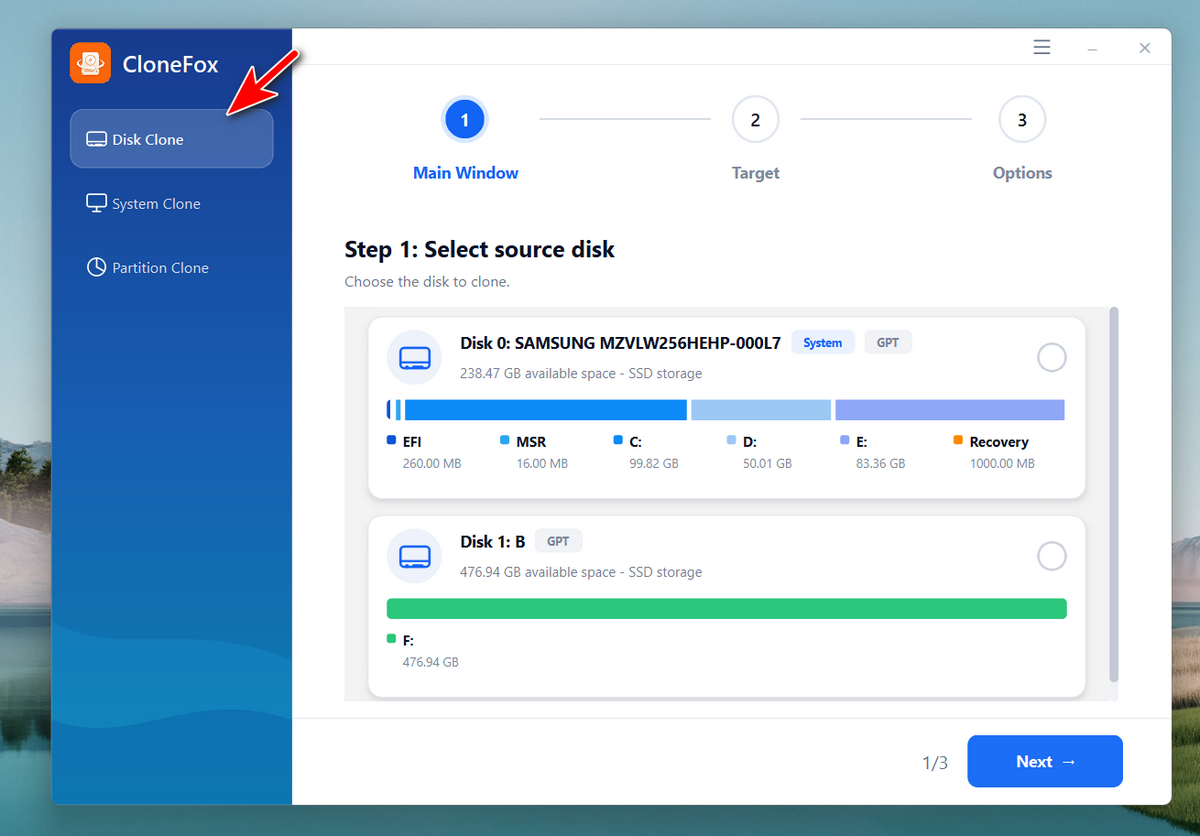
Step 2. Launch CloneFox and Select Disk Clone
Open CloneFox on your Windows PC. From the main interface, choose the Disk Clone option.
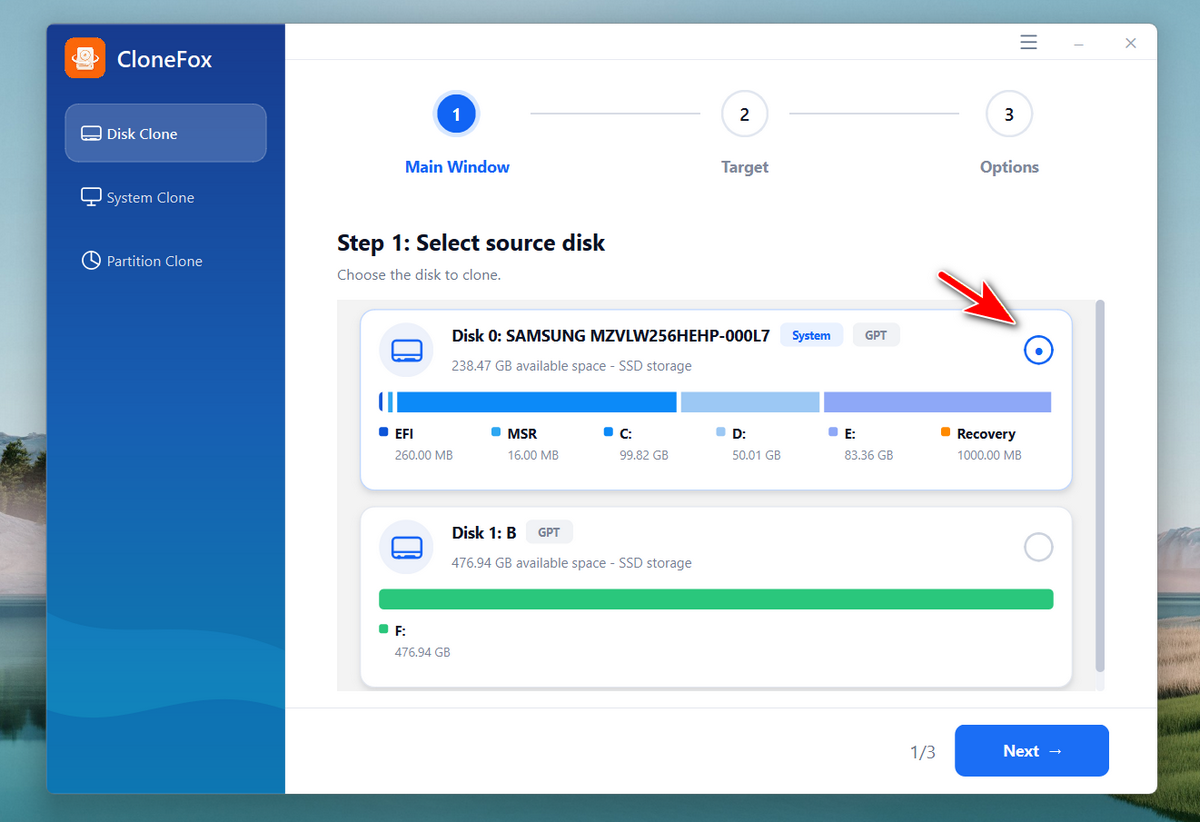
Step 3. Select the Source Disk
For disk cloning, you should select the source disk first.
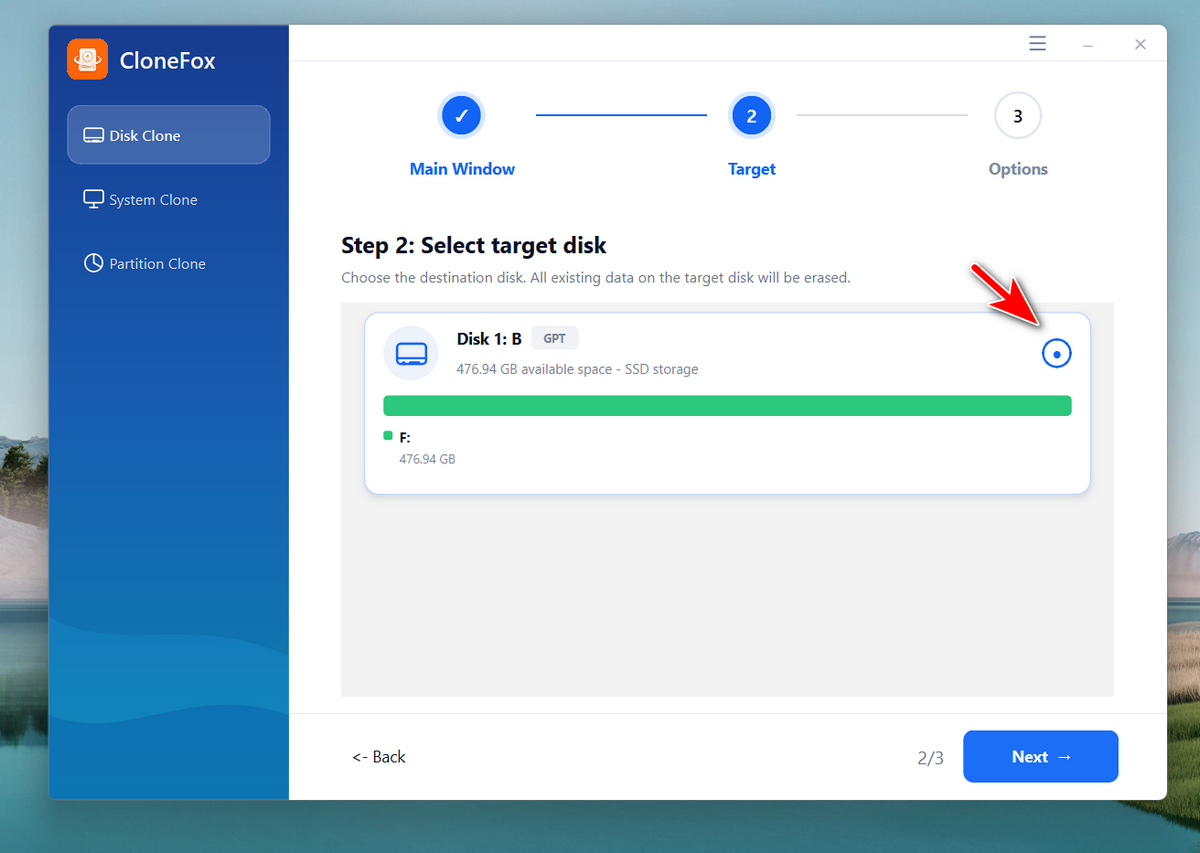
Step 4. Select the Destination Disk
CloneFox will automatically detect all disks connected to the computer. Please choose the destination disk to proceed.
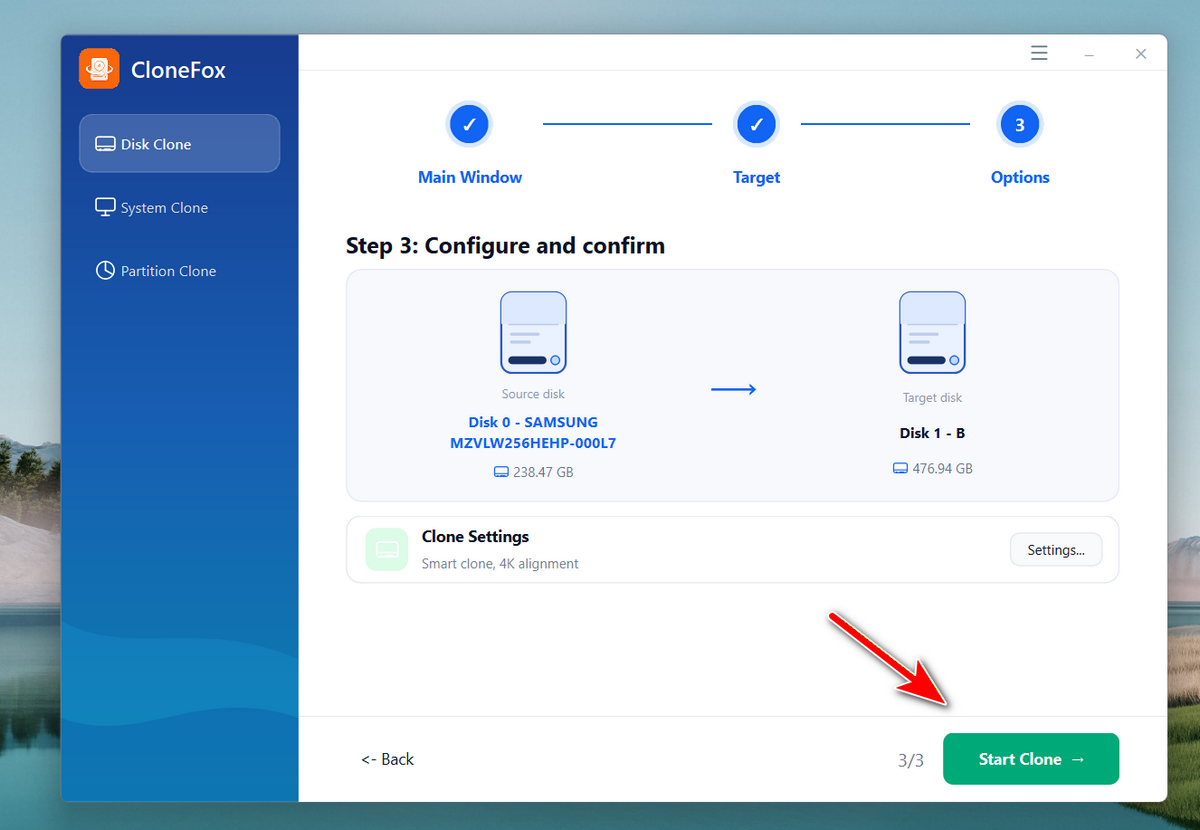
Step 5. Confirm the Operation and Start Disk Clone
All the details of this disk clone will be displayed on the window. If everything is correct, please click the Start Clone button to start cloning source disk to another disk.
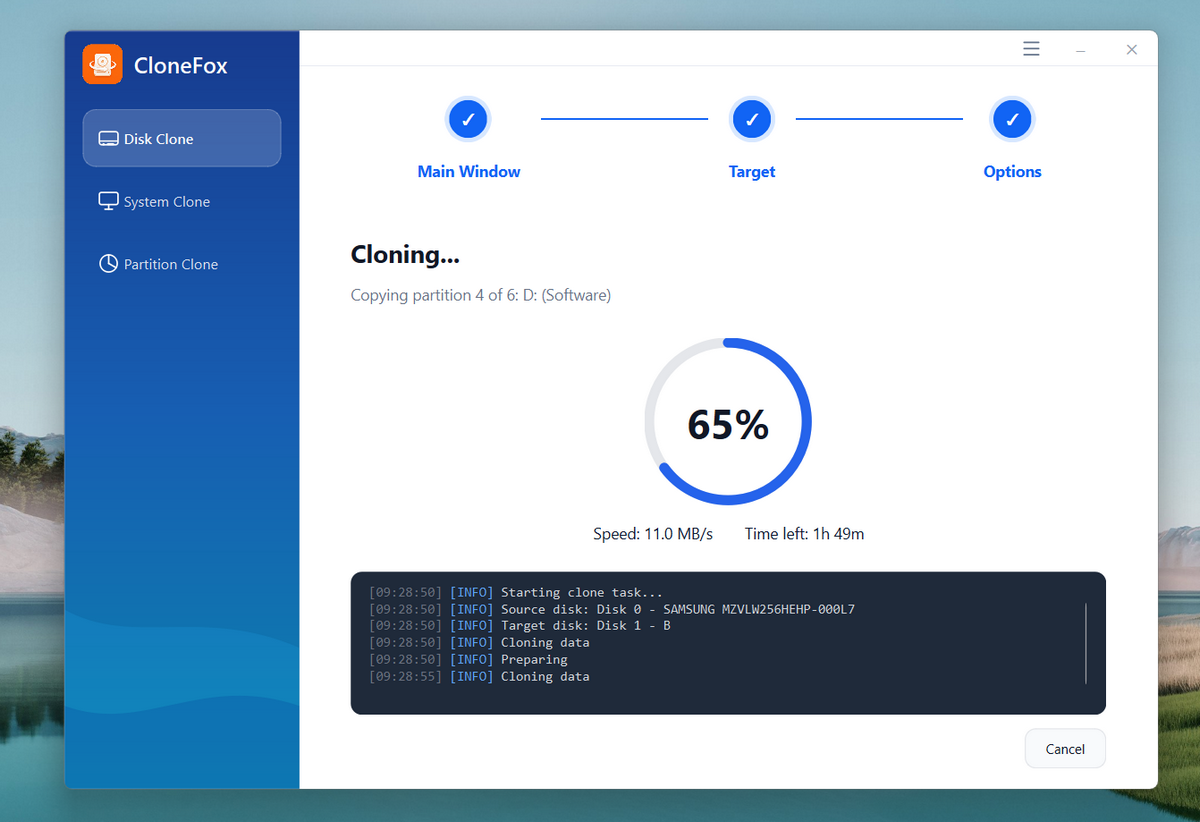
You will see a program bar at this time, including the speed, percentage and the logs.
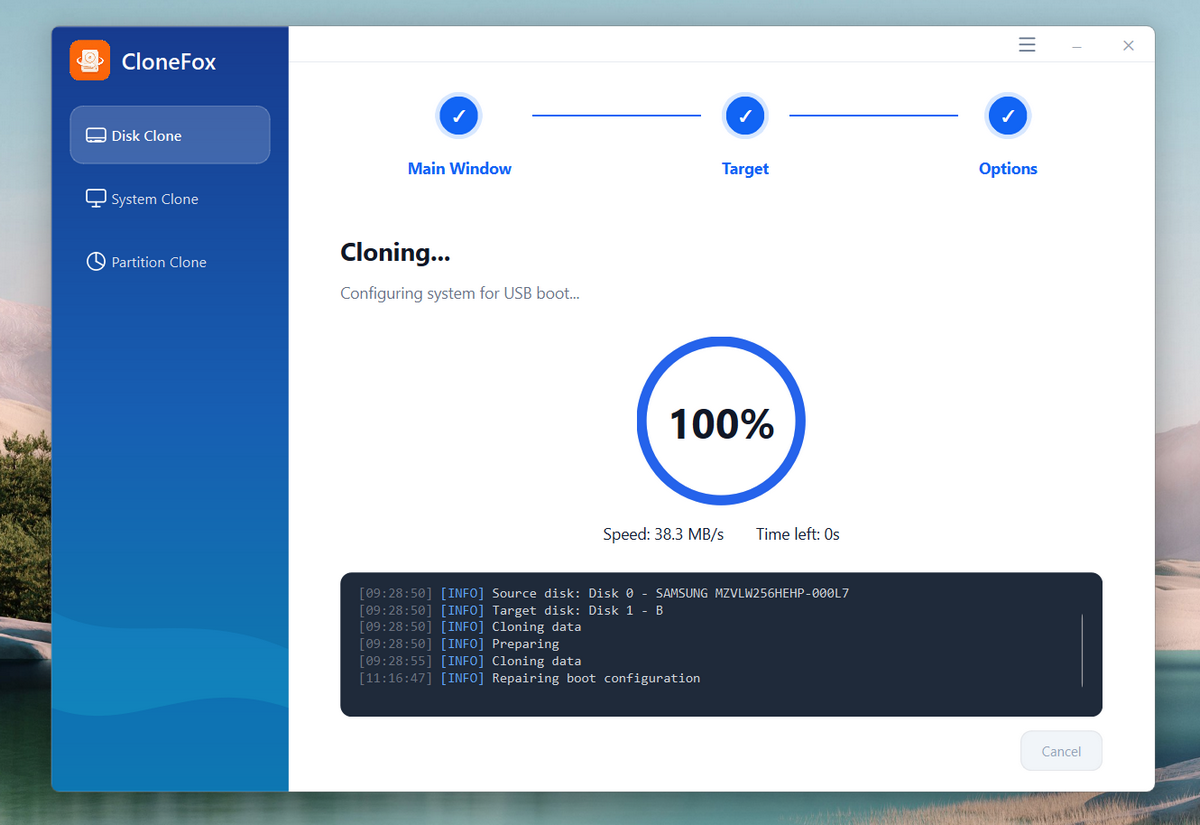
Once it is completed, you will see a notification about this.
Advantages of CloneFox Disk Clone Software
There are many disk cloning software available now. However, most of them are no longer working in Windows 11 or with poor design and functions. If you are looking for a powerful and easy-to-use disk clone software, then SysGeeker CloneFox is a pretty good option for Windows 11, Windows 10 and Windows 7!
1. Clone Windows to SSD Without Reinstalling
One of the most popular uses of CloneFox is Windows OS migration. CloneFox can transfer your Windows 11 or Windows 10 installation from an old HDD to a new SSD while keeping Windows OS, installed apps, system settings and user files.
2. Fast HDD to SSD Clone
Replacing an old mechanical hard drive with an SSD is one of the best ways to improve PC performance. After migration, Windows boots much faster and applications load significantly quicker.
3. Easy-to-Use Interface
Many cloning tools feel overly technical and complicated. CloneFox is designed with simplicity in mind. The interface is clean, beginner-friendly, and organized into clear features for system clone, disk clone and partition clone. Even first-time users can complete a disk migration in just a few clicks.
4. Intelligent Clone Technology
CloneFox uses intelligent cloning technology that copies only used sectors instead of cloning every empty space on the drive.
Benefits include:
- Faster cloning speed
- Better SSD compatibility
- Smaller destination drive support
- Reduced cloning time
This allows users to migrate from a larger HDD to a smaller SSD as long as the used space fits.
Final Thoughts
If you are searching for reliable and easy disk clone software for Windows 11 or Windows 10, CloneFox is an excellent choice.
It combines fast cloning speed, beginner-friendly design, and powerful migration features into one simple tool. Whether you want to migrate Windows to SSD, clone an entire hard drive, or duplicate partitions, CloneFox helps you complete the task safely and efficiently.
Instead of reinstalling Windows and spending hours configuring your computer again, CloneFox lets you upgrade or replace drives with minimal downtime.