

Microsoft Edge is deeply integrated into Windows 11, making it notoriously difficult to remove completely using the standard "Uninstall" button in Settings. For many users, Edge is not a preferred browser, or they need to remove it from specialized systems like digital signage or remote thin clients where it’s unnecessary . While the built-in uninstaller often leaves traces behind, Revo Uninstaller Pro offers a powerful solution. This guide will walk you through precisely how to scrub Edge from your system, including the stubborn residual files and registry entries, while also addressing the challenge of keeping it from reinstalling itself.
Why Revo Uninstaller Pro
Why choose Revo Uninstaller Pro over the standard Windows removal tool? The standard method often leaves behind "leftovers"—orphaned files, folders, and registry entries that can clutter your system. Revo Uninstaller Pro has several advantages for a task this complex:
Advanced Scanning Algorithms: It runs a program’s built-in uninstaller first, then performs a deep scan using refined algorithms to find and remove residual data in the Windows registry and file system .
Forced Uninstall Power: This is a critical feature for stubborn or broken programs. Even if Edge’s default uninstaller is missing or fails, Forced Uninstall can remove it by analyzing the program’s logs and traces on your drive .
Real-Time Installation Monitoring: If you install programs with this monitor active, it creates a log of every single system change. This allows for a truly complete, surgical removal later .
Multi-Level Safety Backup: Before every uninstall, Revo Uninstaller Pro can create a full system restore point and a registry backup. Deleted leftovers go to the Recycle Bin by default, providing a safety net if something goes wrong .
Hunter Mode: This unique feature lets you select a program by dragging a target icon onto its window or shortcut—useful for terminating and uninstalling programs you can’t identify by name.
How to Completely Uninstall Microsoft Edge Browser from Windows 11/10
Follow these steps carefully. Always ensure you have a fresh system backup before making significant changes to your operating system .
Before you start, make sure no Microsoft Edge processes are running in the background. You can check this by opening Task Manager (Ctrl + Shift + Esc), searching for "Microsoft Edge" under the Processes tab, and ending
any tasks you find. This prevents the uninstaller from failing due to an active process.
Step 1: Download and Launch Revo Uninstaller Pro
Download and install Revo Uninstaller Pro program on your computer and open the app after installation.

Step 2: Choose Windows Apps Menu
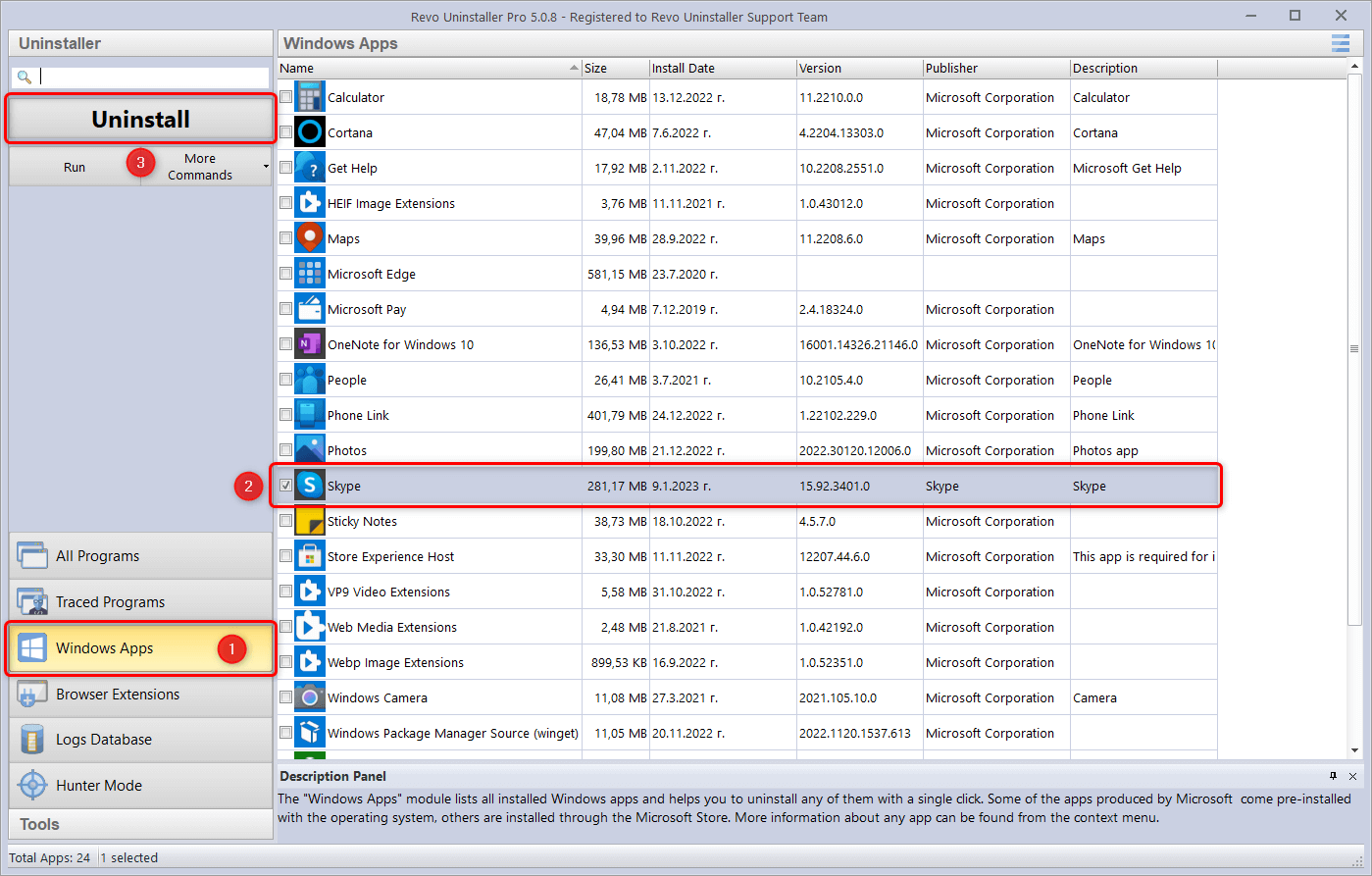
The main window will display a list of all installed programs on your system. Click Windows Apps on the left side. Find the Microsoft Edge app in the list, select it, and click Uninstall in the upper left corner.
Step 3: Create a Restore Point
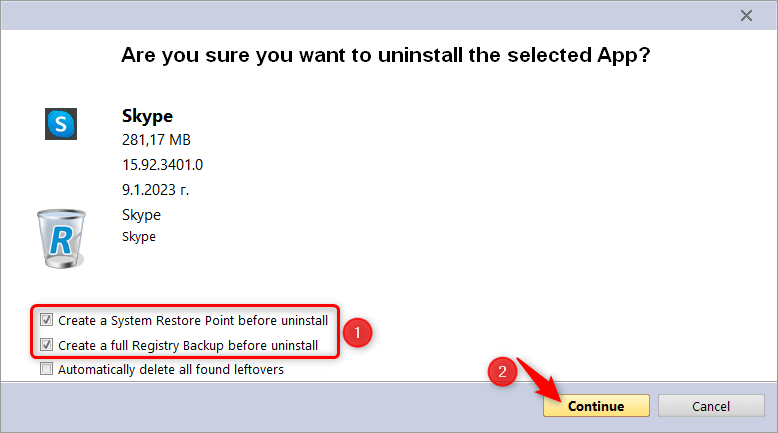
Revo Uninstaller Pro will present you with an overview window with basic information about the app and the option to enable or disable the creation of a System Restore Point and a full Registry backup for that particular uninstallation. If you prefer that a System Restore Point and/or a full Registry backup is/are not created, uncheck the corresponding option before clicking Continue.
Step 4: Scan Leftover Files
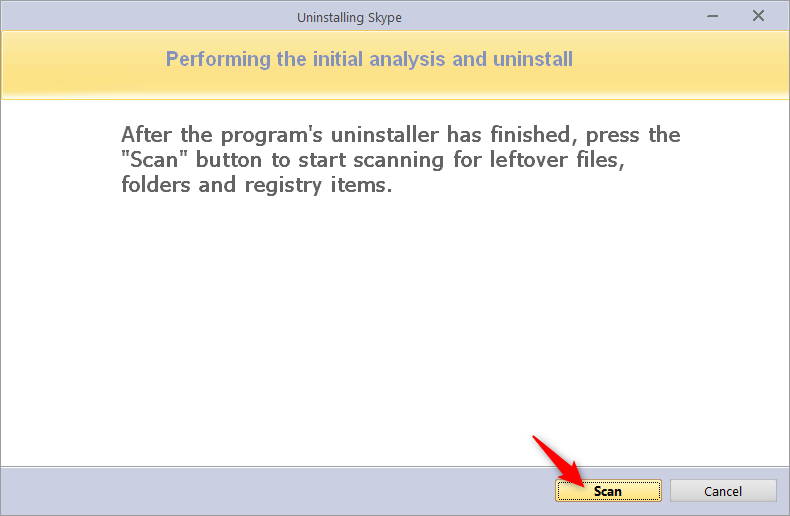
Revo Uninstaller Pro will then attempt to create the selected backups, will analyze the app’s uninstallation information, and launch a PowerShell script to uninstall it. It should appear on your screen as newly created window for a brief period, and should disappear on its own. No user interaction is required.
Step 5: Clean up the Registry
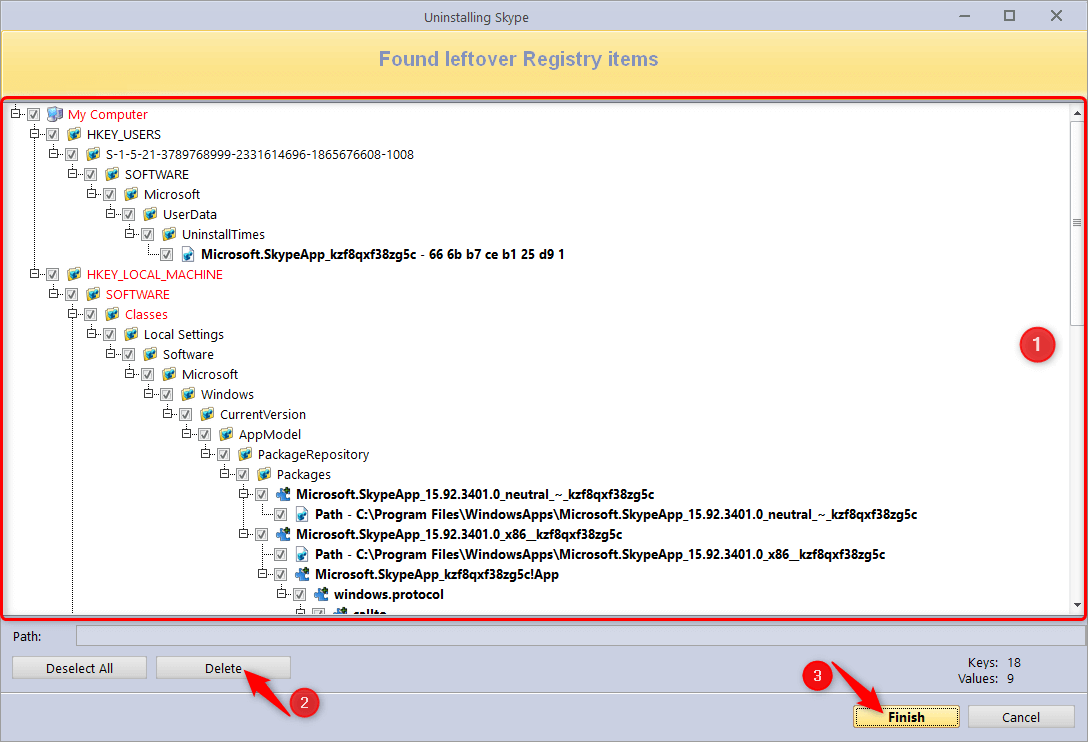
After the scan completes, you will be presented with a list of leftover Registry entries.
Select the leftovers you wish to delete, and click the Delete button. In most cases it should be safe to directly select all items (by clicking Select All), however, we still recommend that you review the items before selecting them.
When selecting Registry leftovers for deletion, please remember that only entries in bold will actually be deleted. All other entries (the ones not in bold, and the ones in red) are displayed only for information, so that users can get a better idea where the entries in bold are located in the Registry.
Summary
Using Revo Uninstaller Pro is one of the most thorough methods to uninstall Microsoft Edge from Windows 11. By not only running the uninstaller but also forcing a deep scan for leftover files and the persistent EdgeUpdate component, you take back control over your system. The process may require periodic maintenance to keep Edge from reappearing, but with the steps and troubleshooting tips in this guide—especially the use of Forced Uninstall and checking for the updater—you can achieve a cleaner, more customized Windows experience. Always remember to create a system restore point before you begin, so you can safely reverse any changes.