Few things are as frustrating as pressing the power button on your iPhone only to be met with a blank, black screen. Before you spiral into thoughts of expensive motherboard repairs or losing your unbacked photos, take a deep breath. In many cases, this "dead" iPhone is suffering from a common software glitch, not a hardware catastrophe.
While Apple’s official troubleshooting steps are helpful, they don’t always do the trick. That’s where a specialized tool comes in. In this post, we’ll explore a quick, reliable fix using iMyFone Fixppo—a software designed to resurrect bricked iOS devices without losing data. We’ll walk you through how this tool can bring your silent iPhone back to life in just a few clicks.
What is Fixppo?
Fixppo is a specialized software system tool developed by iMyFone to help iOS users resolve a variety of system-related issues without data loss. It is particularly useful for downgrading iOS and fixing iPhones, iPads, and iPods that are stuck in problematic states such as recovery mode, DFU mode, or on the Apple logo. The software can also assist with resolving issues like black screens, frozen devices, update failures, and even failed iOS downgrades. Fixppo offers a user-friendly interface with options to repair iOS, iPadOS, and tvOS issues while keeping your data intact.
How to Fix iPhone Won’t Turn on Issue with Fixppo
Before moving forward with the steps, please kindly back up your important data to iCloud or a local folder with iTunes. This is very important!
Step 1. Download and Install FixPPo
First thing’s first—head over to the FixPPo website and download the app. It works on both Mac and Windows, so no worries there. Install it like you would any other program. Super easy.


Step 2. Connect Your iPhone to the Computer
Once Fixppo is ready to go, grab a lightning cable and connect your iPhone to your computer. You’ll need to trust the computer if you haven’t done so before. Simple pop-up, hit "Trust," and you’re good.
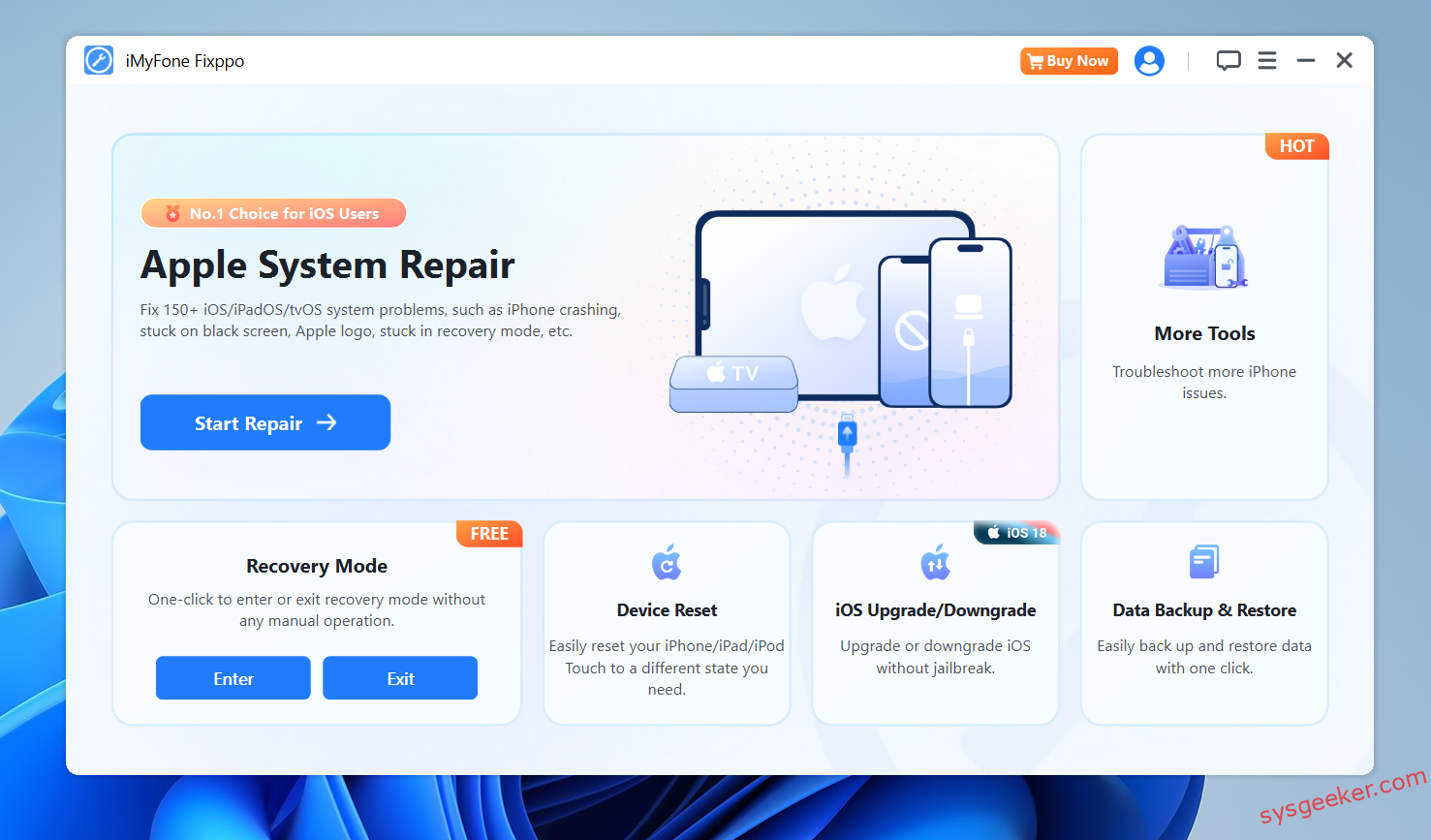
Step 3. Launch FixPPo and Enter Repair Mode
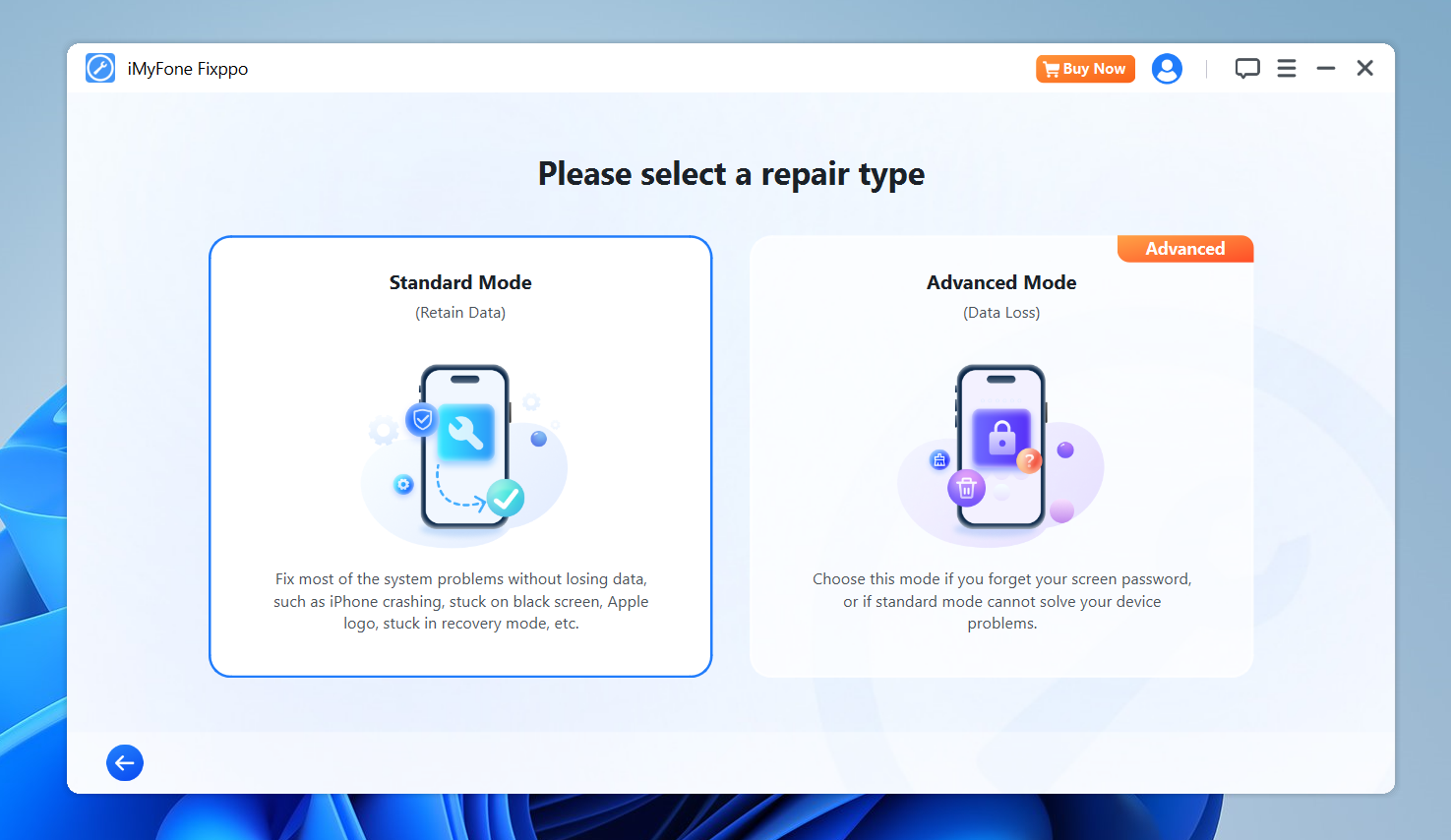
Open up FixPPo. It’s going to detect that your iPhone is in some serious trouble (stuck on that white screen). Choose "Standard Repair"—it’s less risky because it keeps all your data. You’ll thank me later for not having to restore everything.
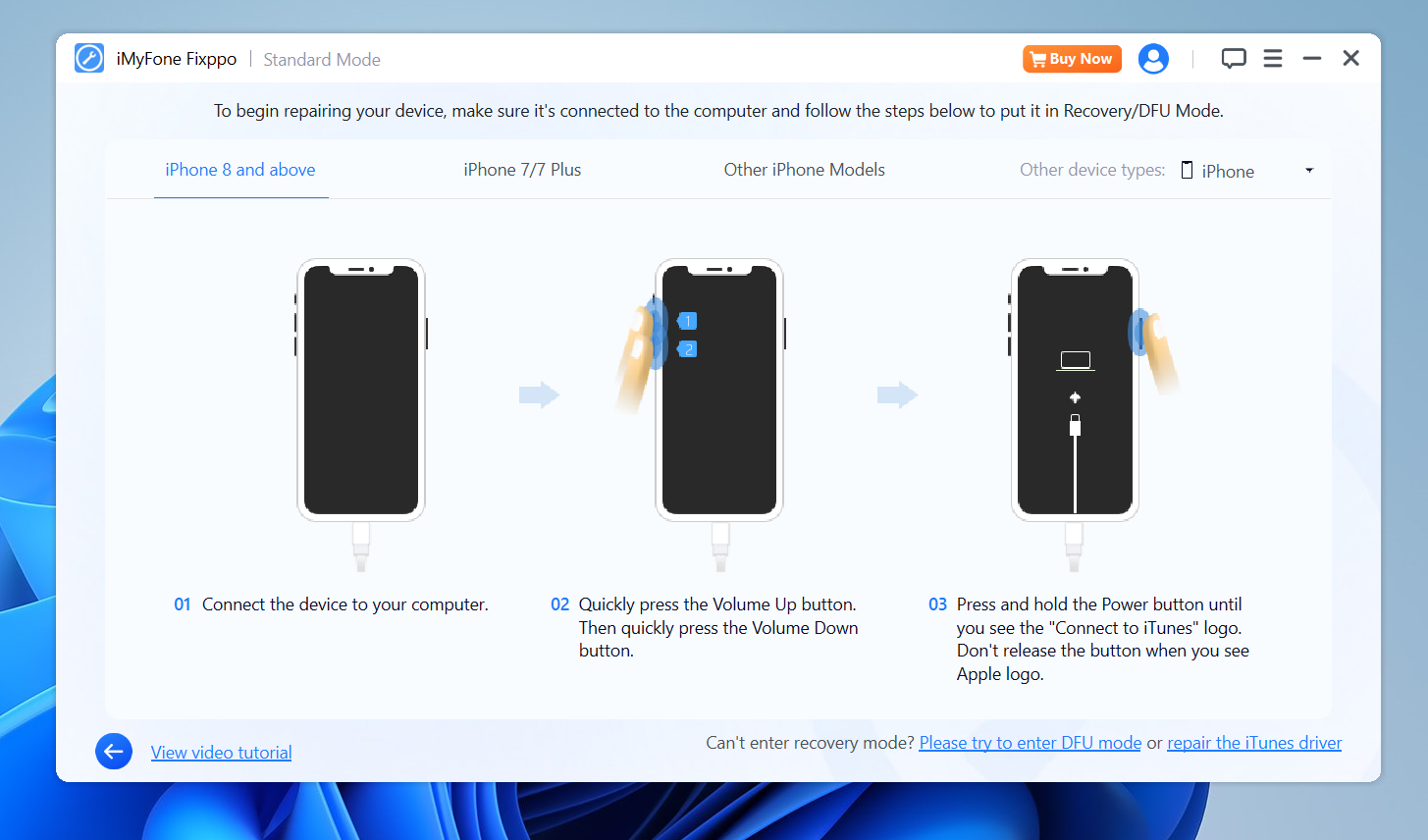
Step 4: At this point, please follow the screen instruction to put your iPhone in to Recovery mode.
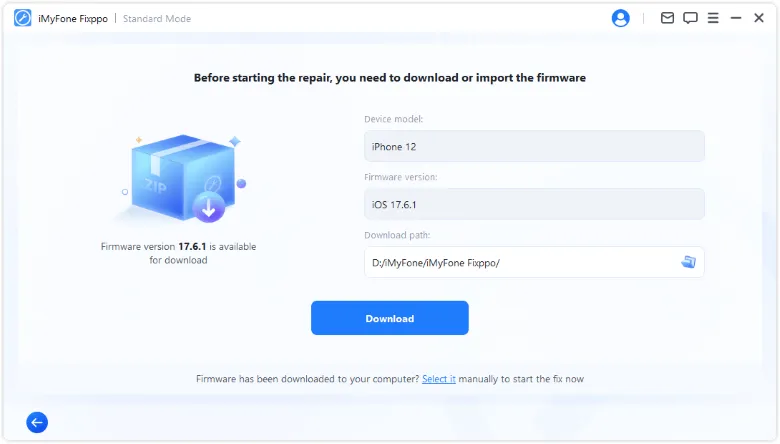
Step 5. Download the Firmware
Next, FixPPo is going to ask for your iPhone’s firmware. Don’t worry, it’ll show you the correct version for your iPhone model. Just click "Download" and let it work its magic.
Step 6. Start the Repair
Now for the fun part—hit "Start Standard Repair." Fixppo will do its thing and fix that white screen issue. This process might take a few minutes, but sit tight. You’ll soon see the Apple logo again, but this time, your iPhone will actually boot up properly.
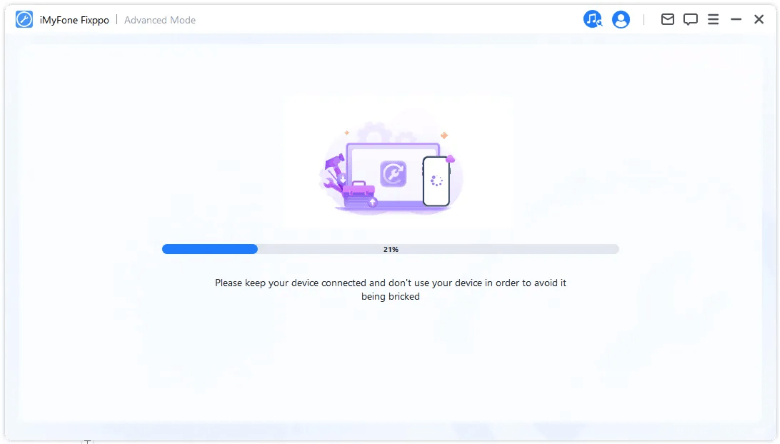
Step 7. Done!
Once the repair is complete, your iPhone should restart, and boom—you’re back in business! No more white screen, no more stress.
Summary
Getting the black screen of death on your iPhone doesn’t have to mean the end of the road for your device. While we always recommend trying a standard force restart first, persistent startup issues often require a deeper, software-level solution. iMyFone Fixppo bridges that gap effectively, offering a user-friendly way to repair iOS system issues without needing to be a tech expert. It’s a quick, affordable fix that can save you a costly trip to the repair shop. So next time your iPhone won’t turn on, remember: don’t panic, and don’t rush to replace it. A few minutes with the right tool, and you’ll likely see your lock screen light up again.