

Microsoft Copilot has quickly become a built-in feature in modern Windows systems, offering AI-powered assistance directly from the taskbar. While some users find it helpful for productivity, others prefer a cleaner, distraction-free desktop or have concerns about privacy, performance, or unnecessary background processes. As a result, many Windows 11 and Windows 10 users are now looking for ways to remove or disable Copilot completely.
However, deleting Copilot isn’t always straightforward. Since it’s integrated into the system, the removal process can vary depending on your Windows version and system configuration. In this guide, we’ll walk through practical methods to uninstall or disable Microsoft Copilot, whether you want a temporary solution or a more permanent removal.

Step 1. Download and install AppVero on your computer
Download and install SysGeeker AppVero on your Windows computer. Open the program to access the main dashboard.
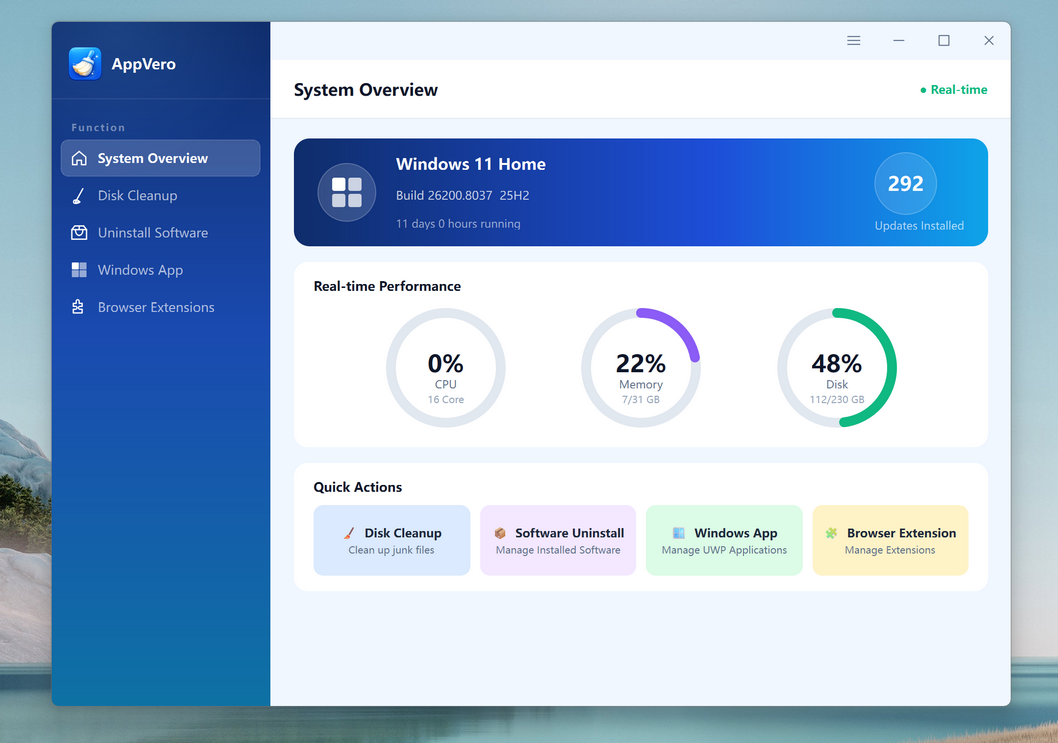
Step 2.Run AppVero on your computer
Launch SysGeeker AppVero on your computer. Select the "Windows App" section from the main interface. Wait for AppVero to scan and load the list of built-in Windows apps available on your device.
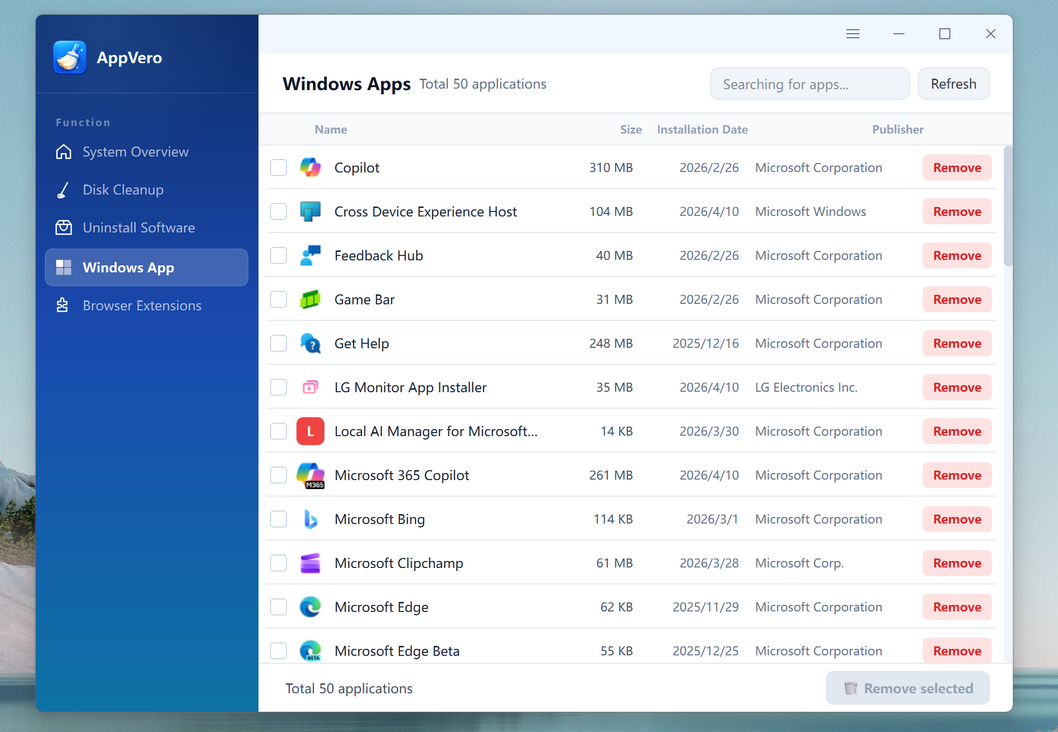
Step 3. Select the app you want to delete
Review the app list carefully and choose the system app you want to remove. In our case, it is Copilot and Microsoft 365 Copilot.
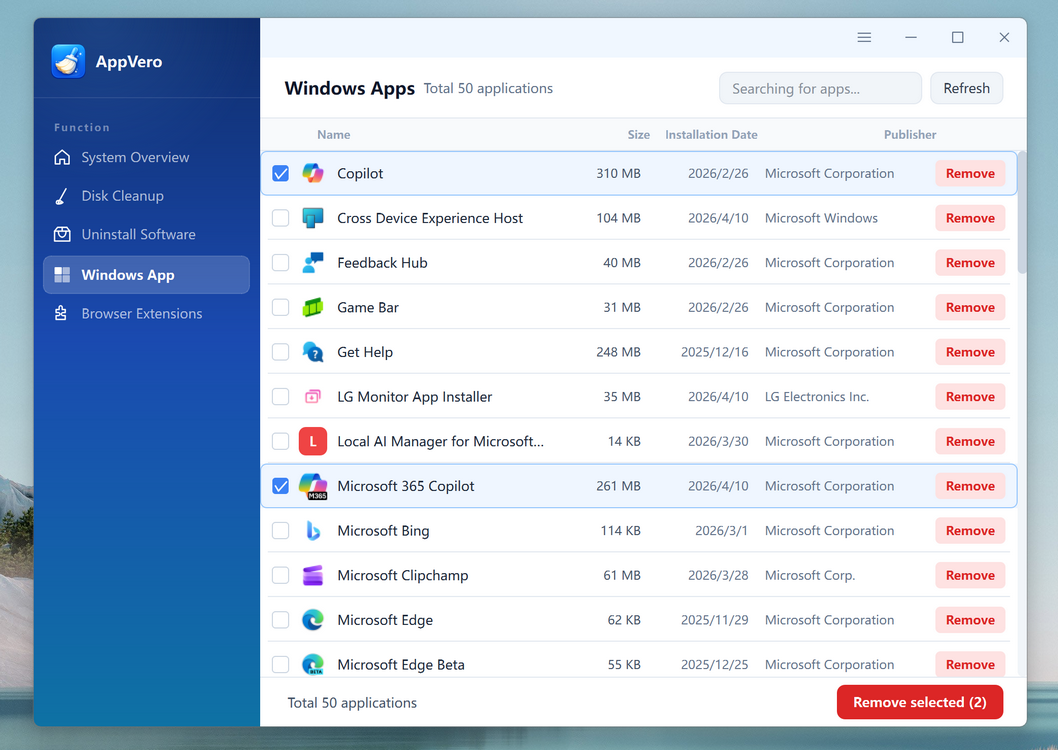
Step 4. Start uninstalling Windows apps from the computer
Click the "Remove Selected" button to continue. Confirm the action when prompted. AppVero will remove the selected system app from your PC.
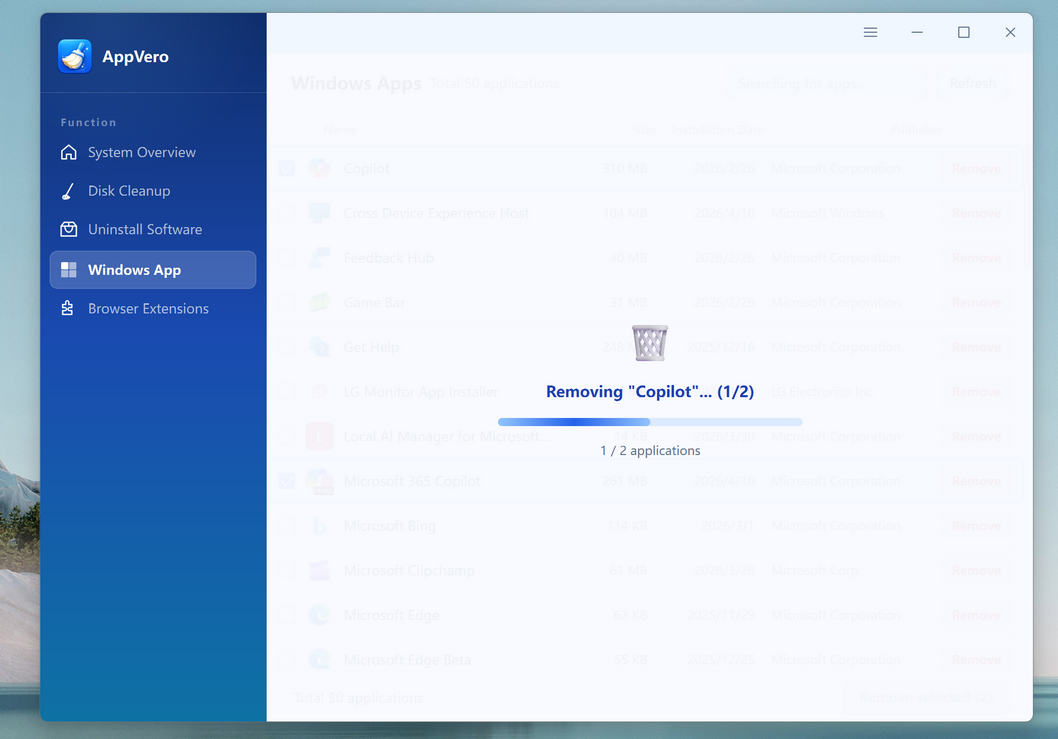
Step 5. Clean up the trace and leftover files
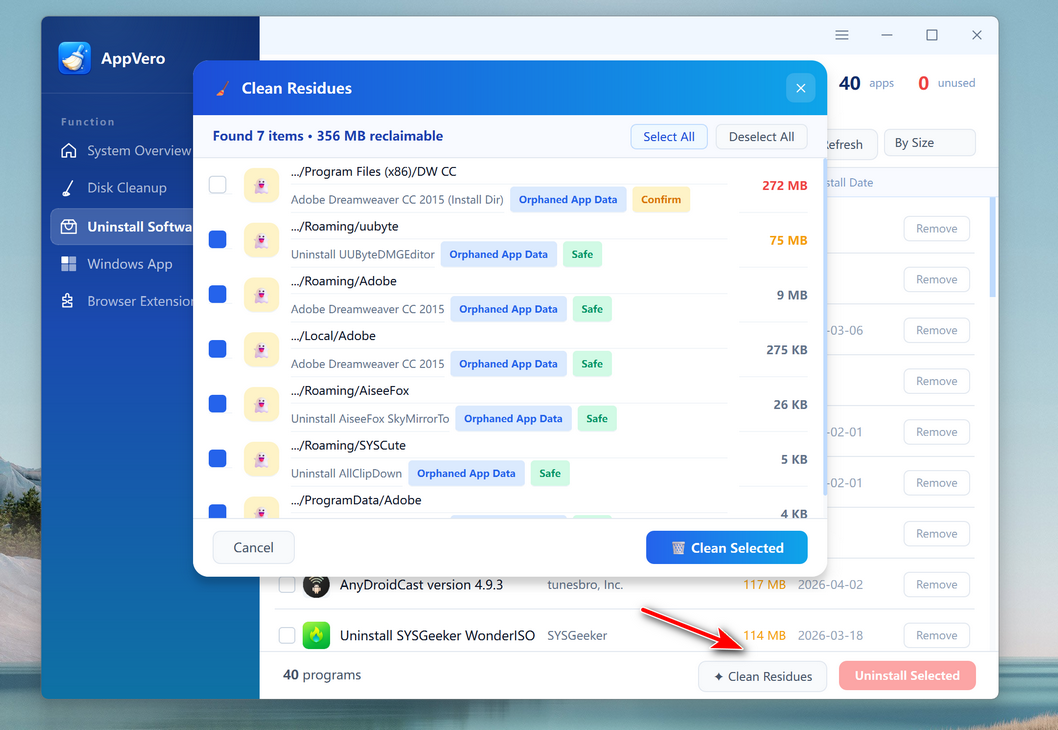
After the main uninstall is finished, click the "Clean Residues" button to scan for leftover files, folders, and other related traces.
What Else Can SysGeeker AppVero Do?
SysGeeker AppVero is designed as a powerful all-in-one app uninstaller and system cleanup tool for Windows PCs. Its main goal is to help users completely remove unwanted programs, including stubborn apps and built-in system components—while also freeing up disk space.
Uninstall Stubborn Third-Party Apps: Remove Windows System Apps Unlike basic tools, AppVero allows you to: Uninstall pre-installed Windows apps (like Xbox, Edge components, etc.) Gain more control over system-level software Clean up unnecessary built-in apps that Windows doesn’t normally let you remove.
Clean Up Disk Space: AppVero helps recover storage by detecting junk files, cache, and temporary data Removing app leftovers after uninstall Freeing up disk space to improve performance.
Remove Browser Extensions: It also manages browser add-ons across different browsers: Detects installed extensions in Chrome, Edge, Firefox, etc. Lets you remove unwanted or malicious extensions Helps improve browser speed and privacy.
Summary
Removing Microsoft Copilot from Windows 11 or Windows 10 can help streamline your system and give you more control over your desktop environment. Whether you choose to disable it through settings, use Group Policy, or rely on advanced tools for deeper removal, each method offers a different level of control depending on your needs.
Ultimately, the best approach depends on how completely you want Copilot gone. For casual users, disabling it may be enough, while more advanced users may prefer a full uninstall to eliminate leftover components. With the right method, you can customize Windows to better fit your workflow and preferences.