

Screen mirroring an iPhone to a Mac has become increasingly useful for presentations, app demos, gameplay recording, online teaching, and simply viewing mobile content on a larger display. While Apple offers its own limited mirroring features, many users still run into compatibility restrictions, connection issues, or missing advanced controls—especially on older Macs or mixed-device setups. That’s why dedicated screen mirroring software remains a popular choice for users who want a smoother and more flexible experience.
Among the available options, AiseeFox SkyMirrorTo stands out as one of the most practical solutions for mirroring an iPhone screen to Mac. It is designed to make the process fast, stable, and beginner-friendly, without the common limitations found in built-in tools or browser-based alternatives. Whether you need to mirror your screen for work, content creation, or entertainment, SkyMirrorTo provides a streamlined way to get started in minutes.
Why AiseeFox SkyMirrorTo is the Best Option for Mac
AiseeFox SkyMirrorTo makes the screen mirroring simple with stable wireless mirroring, broad compatibility, and an easy setup process.
- Stable Wireless Connection – Delivers smooth and responsive screen mirroring with minimal lag.
- Work on More Devices – Support Macs and iPhones beyond the limitations of Apple’s built-in mirroring feature.
- Audio and Video Sync – Streams both iPhone display and audio together in real time.
- Easy Setup – Connects quickly without complicated configuration or extra hardware.
- Privacy Friendly – Uses local network connection for secure screen mirroring.
How to Screen Mirror iPhone to Mac with SkyMirror App
If you’re looking for a hassle-free way to mirror your iPhone or iPad to your computer, SkyMirrorTo is honestly one of the best tools out there. I’ve tried a bunch of different methods before, but they either had annoying lag or were just too complicated to set up. When I stumbled upon MirrorTo, it was a total game changer—super easy to use, and it just works without any of the usual headaches.
Here’s a step-by-step guide to using SkyMirrorTo for screen mirroring:
Step 1. First, visit the official SkyMirrorTo website and download the SkyMirrorTo software on your Windows or Mac computer. Follow the instructions to install it.


Step 2. Also make sure both your iPhone/iPad and your computer are connected to the same Wi-Fi network. This will ensure smooth and stable screen mirroring.
Step 3. Open the SkyMirrorTo software on your computer. You’ll see the interface ready to start mirroring. Now, click the Start to Mirror button on the home screen.
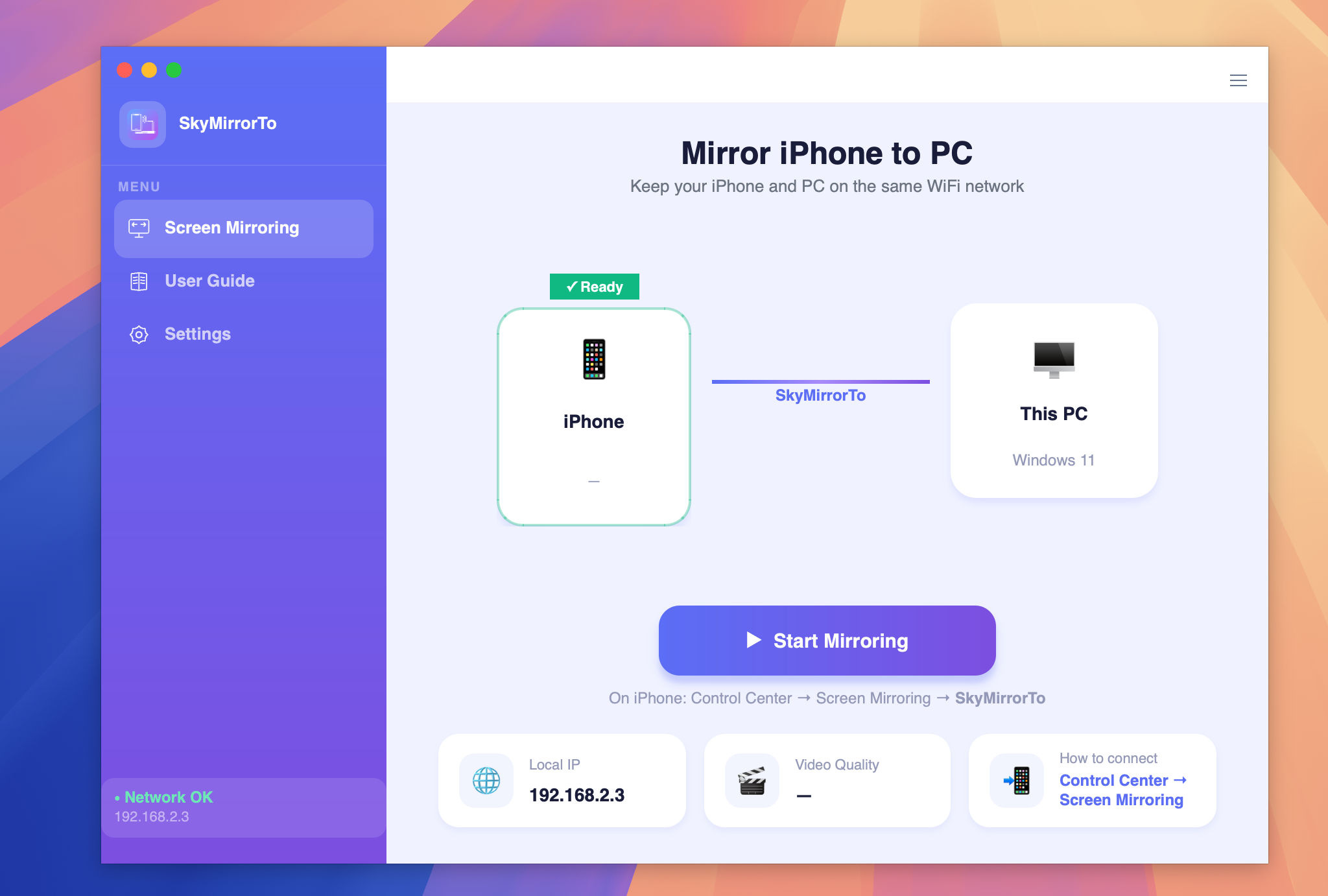
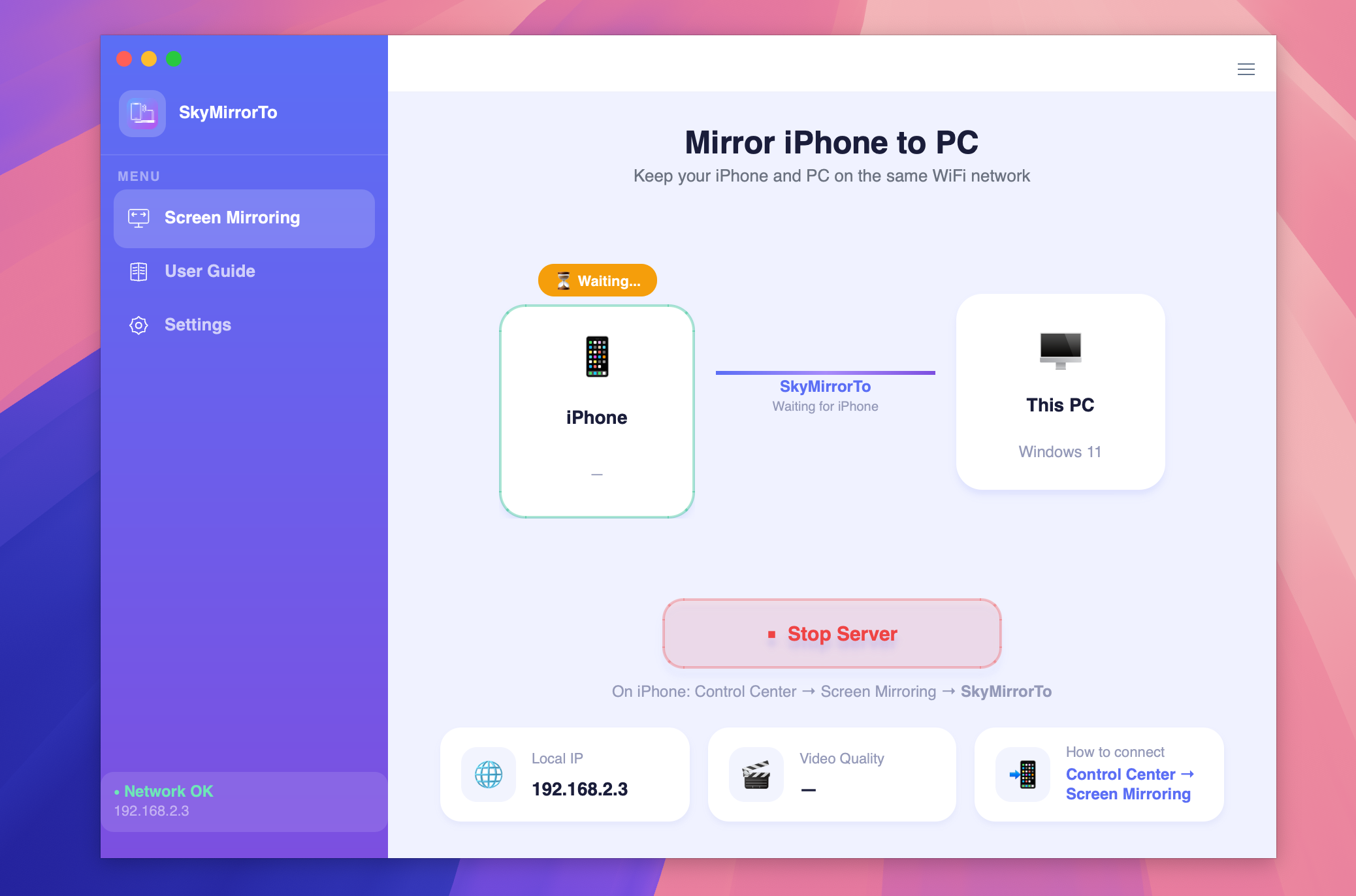
Step 4: Wait a few seconds, you will see the iPhone is connected for mirroring.
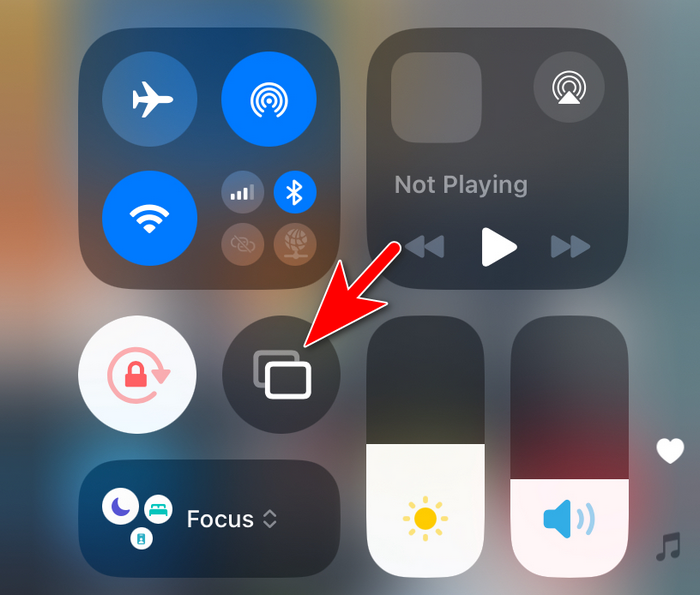
Step 5. The mirror feature is disabled on iPhone by default. You need to turn it on manually.
Step 6. Choose the mirroring device from the list. In here, it is SkyMirrorTo.
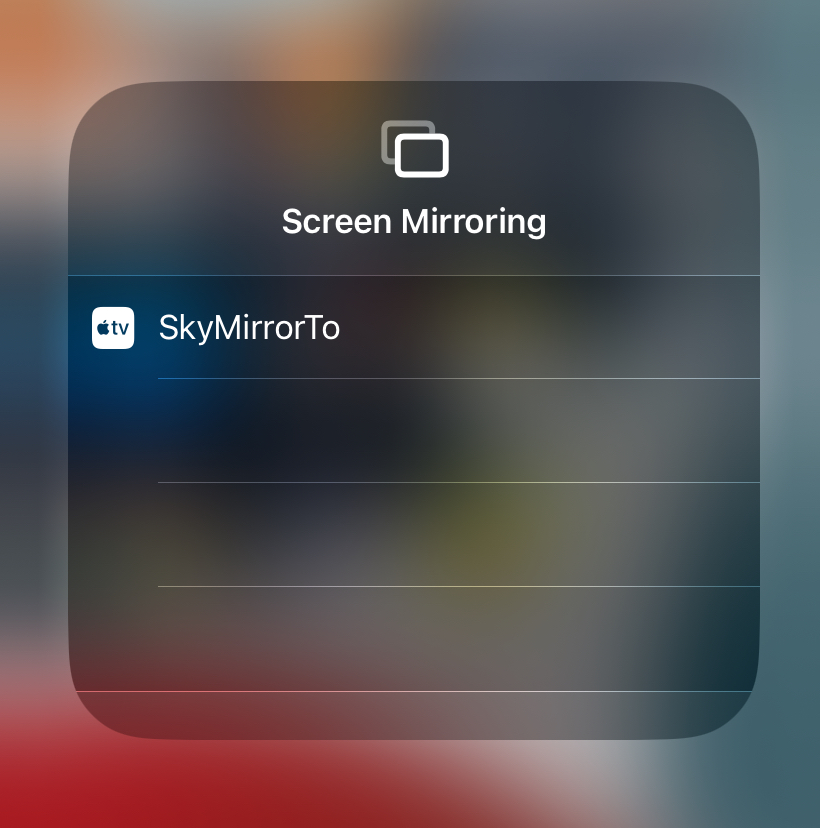
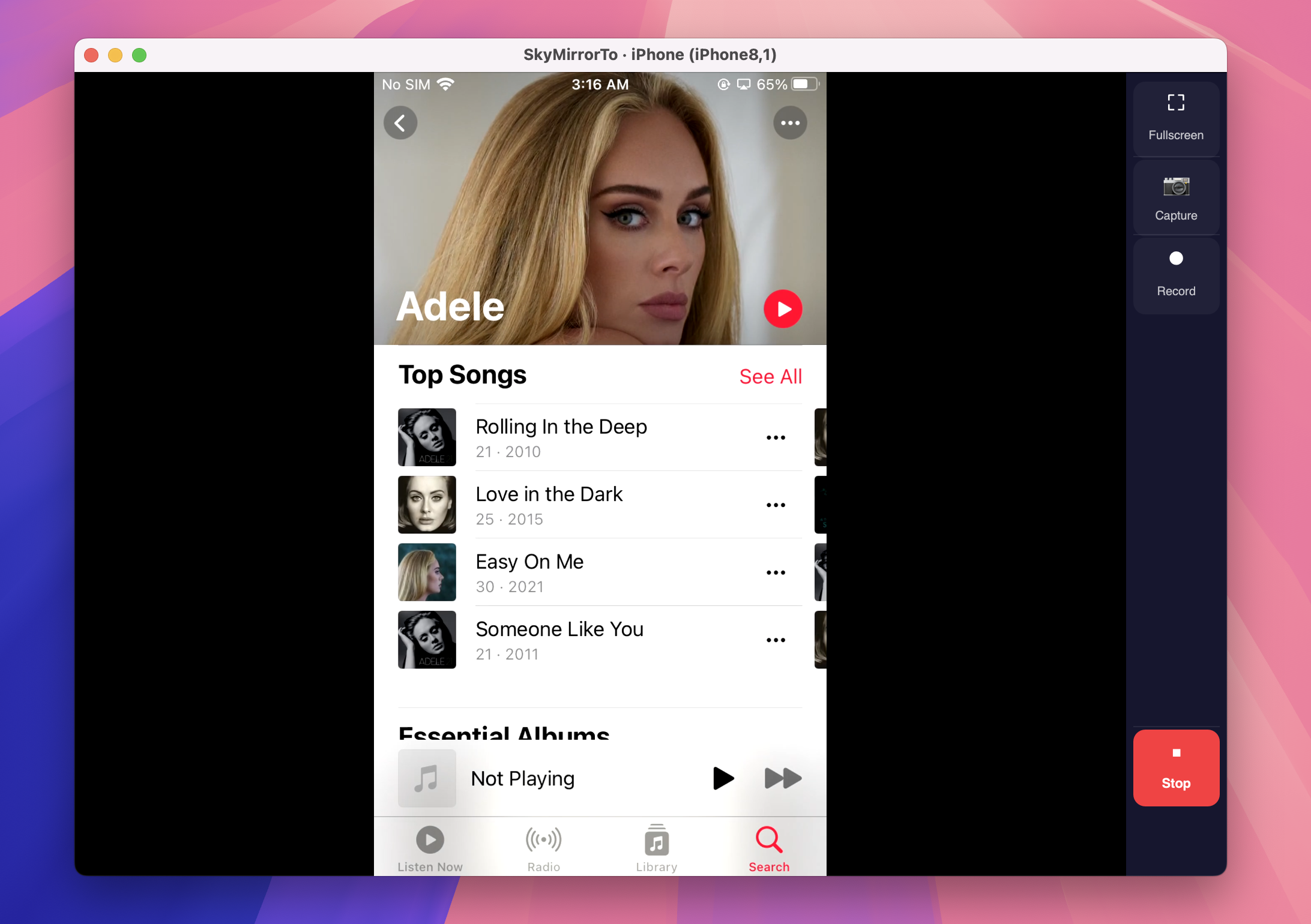
Step 7. The iPhone screen will be casted to the computer screen automatically after tapping on the SkyMirrorTo name. You can now see the iPhone screen being mirrored to a big screen.
Conclusion
iPhone mirroring is a great feature, but it can occasionally run into problems. If the mirroring function isn’t working, start by checking the basics like Wi-Fi connectivity and AirPlay compatibility. If those are all in order, try the more advanced troubleshooting steps like restarting devices, updating software, or resetting network settings. In most cases, these fixes should resolve the issue, and you’ll be back to sharing your iPhone screen in no time.
Remember, if all else fails, Apple Support is always there to help!