

So, you’ve got an Android phone and a Windows PC — wouldn’t it be great to see your Android screen right on your computer? Whether you want to share photos, play games on a bigger screen, or run a presentation, screen mirroring makes it effortless. And the best part? No tech skills required.
One tool that makes this incredibly simple is AnyDroidCast — a dedicated mirroring app that gets you up and running in minutes, with no complicated setup.
How to Mirror Your Android Phone to Windows 11/10 PC
Alright, let’s get into the step-by-step process of how you can mirror your Android device to Windows 11//10 using AnyDroidCast. Don’t worry, it’s pretty straightforward.
Step 1: Download and Install
First, click the below button to download AnyDroidCast. The software is compatible with both Windows and Mac, so make sure you get the right version for your setup. The installation process is simple—just follow the on-screen prompts and you’re all set.


AnyDroidCast supports two connection modes: USB and Wi-Fi. For first-time setup, a USB connection is required — simply plug your Android phone into your PC with a data cable. Once connected via USB, the app will automatically prepare your device for wireless use, so future sessions can be started over Wi-Fi without needing the cable.
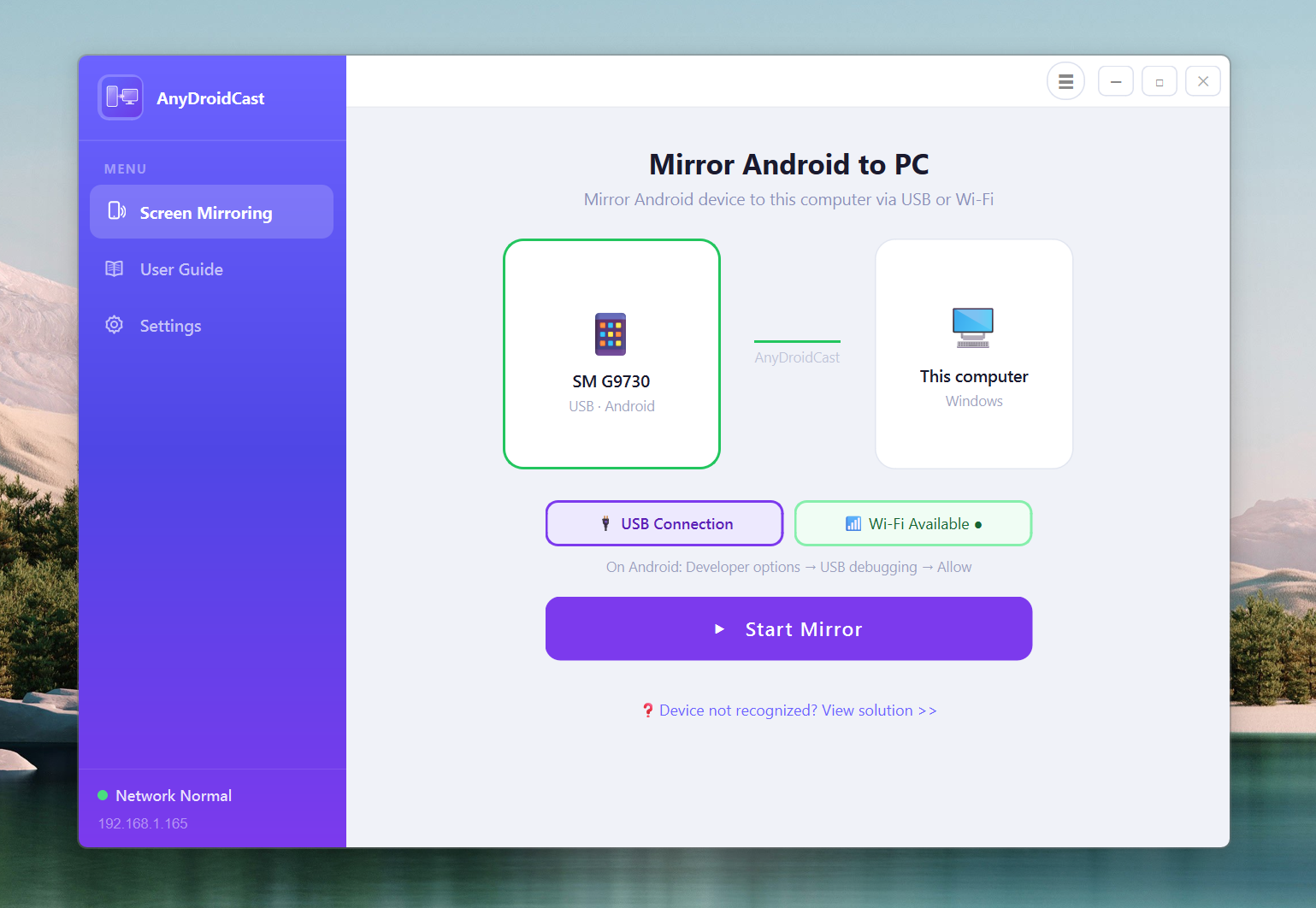
Step 2: Enable Developer Options and USB Debugging on Android Phone
If you’ve never done this before, don’t stress. It’s just a few quick settings adjustments.
- Go to Settings on your Android device.
- Tap on “About Phone” at the bottom.
- Find “Build Number” and tap it 7 times to unlock Developer Options.
- Once you’ve done that, go back to the main Settings menu, scroll down, and select "Developer Options".
- Enable USB Debugging by toggling it on.
This step is necessary so the computer can communicate with your Android device through AnyDroidCast.
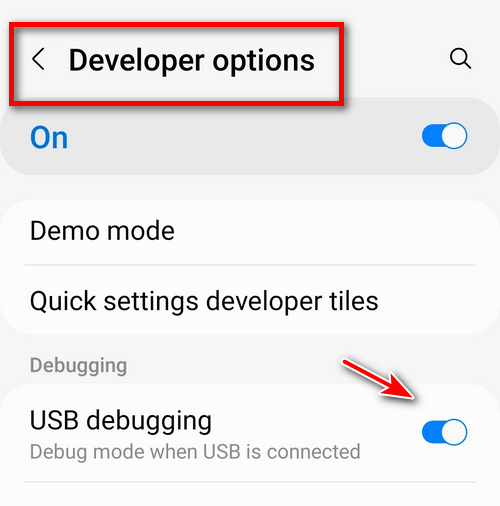
Step 3: Connect Your Android Device to Computer
Now, connect your Android device to your computer using a USB cable. Once connected, AnyDroidCast should automatically recognize your device. If it doesn’t, just check if USB Debugging is enabled and try again. In some cases, you might need to accept a prompt on your phone that asks for permission to connect with your computer.
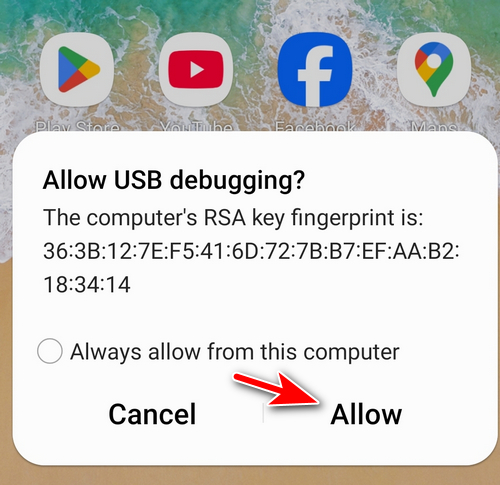
Step 4: Start Mirroring via USB or Wi-Fi
Once your phone is connected and recognized by the software, just double click the device name to start mirroring. Your Android screen will appear on your computer. It’s that simple.
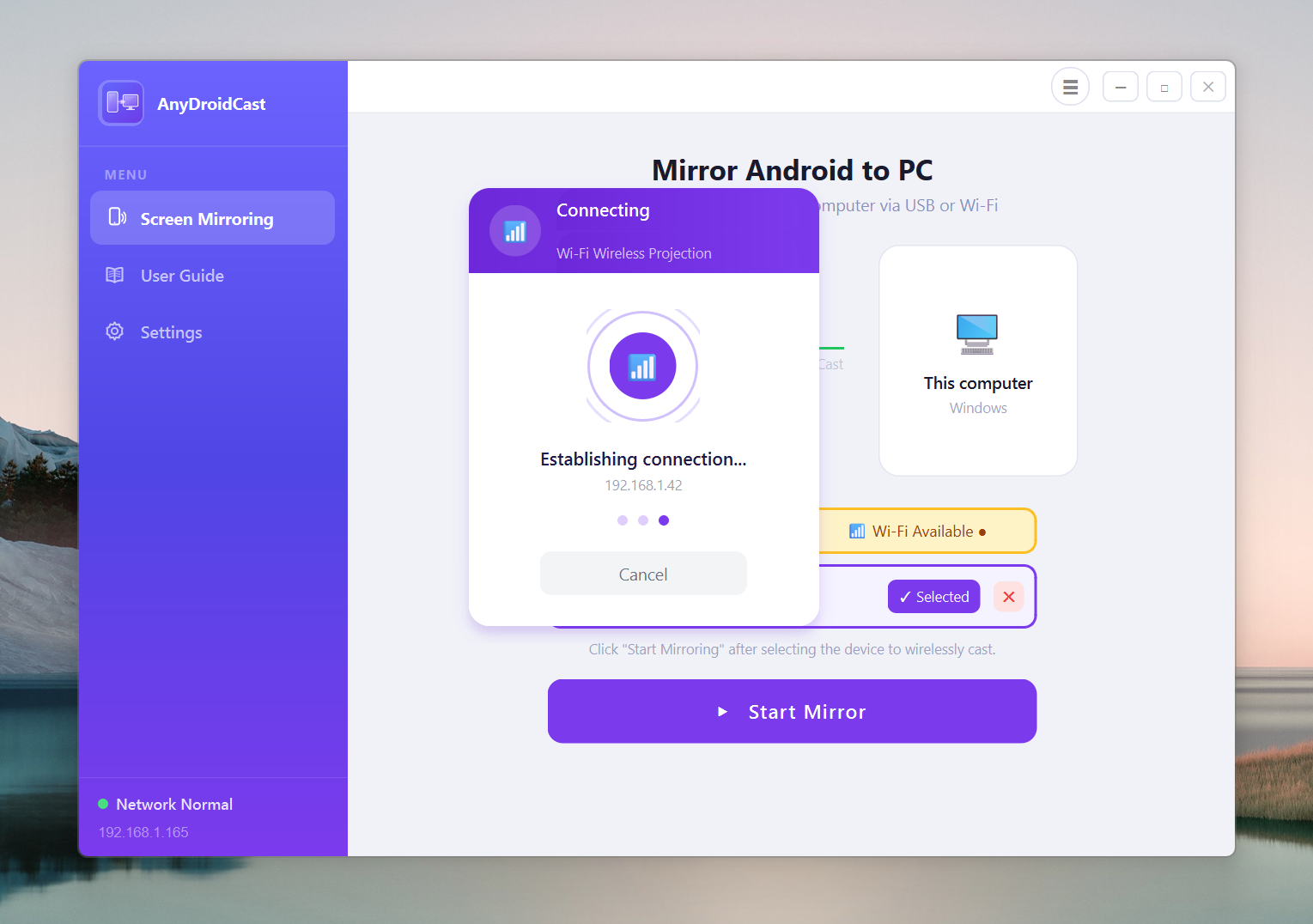
Now, you can see your apps, notifications, games, and everything else on the computer. At this time, you can remote control Android screen from the computer. Plus, there’s almost no lag, so everything feels pretty responsive.
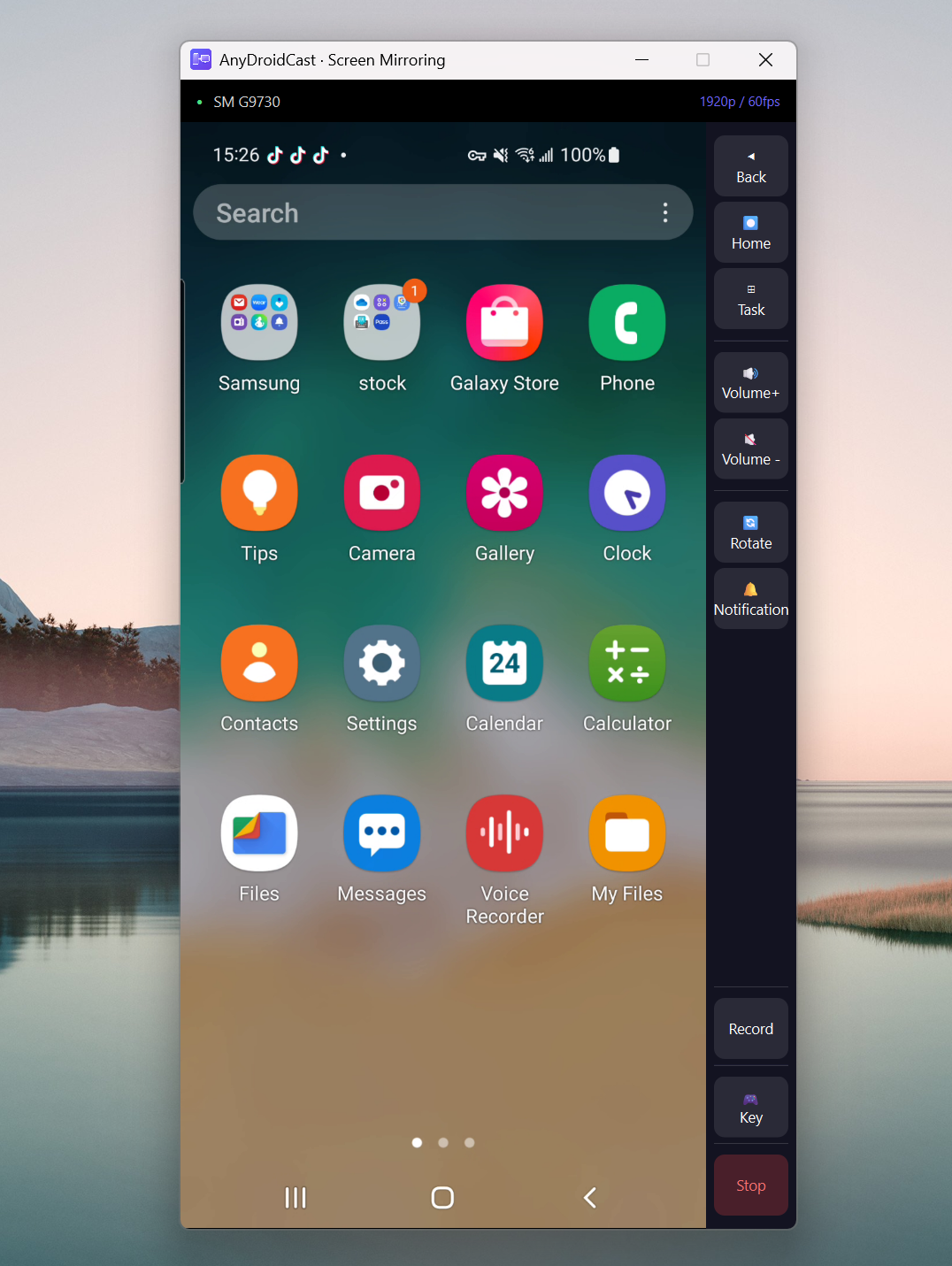
Toolbar Guide
- Back / Home / Task — Simulate Android navigation buttons to go back, return to home screen, or switch between recent apps.
- Volume + / − — Adjust the device volume remotely from your PC.
- Rotate — Rotate the device screen orientation (works for apps that support auto-rotate).
- Notification — Pull down the Android notification panel.
- Record — Start or stop screen recording. Click once to begin recording; the button turns red while active. Click again to stop. The recorded file is saved as an MP4 to the path configured in Settings → Screen Recording Path. Audio from the device is included if Audio Forwarding is enabled.
- Key — Open the game keyboard overlay for mapping keyboard keys to on-screen touch controls. Right-click to add or remove key bindings. Use the Edit button to adjust positions.
- Stop — End the current mirroring session and return to the main window.
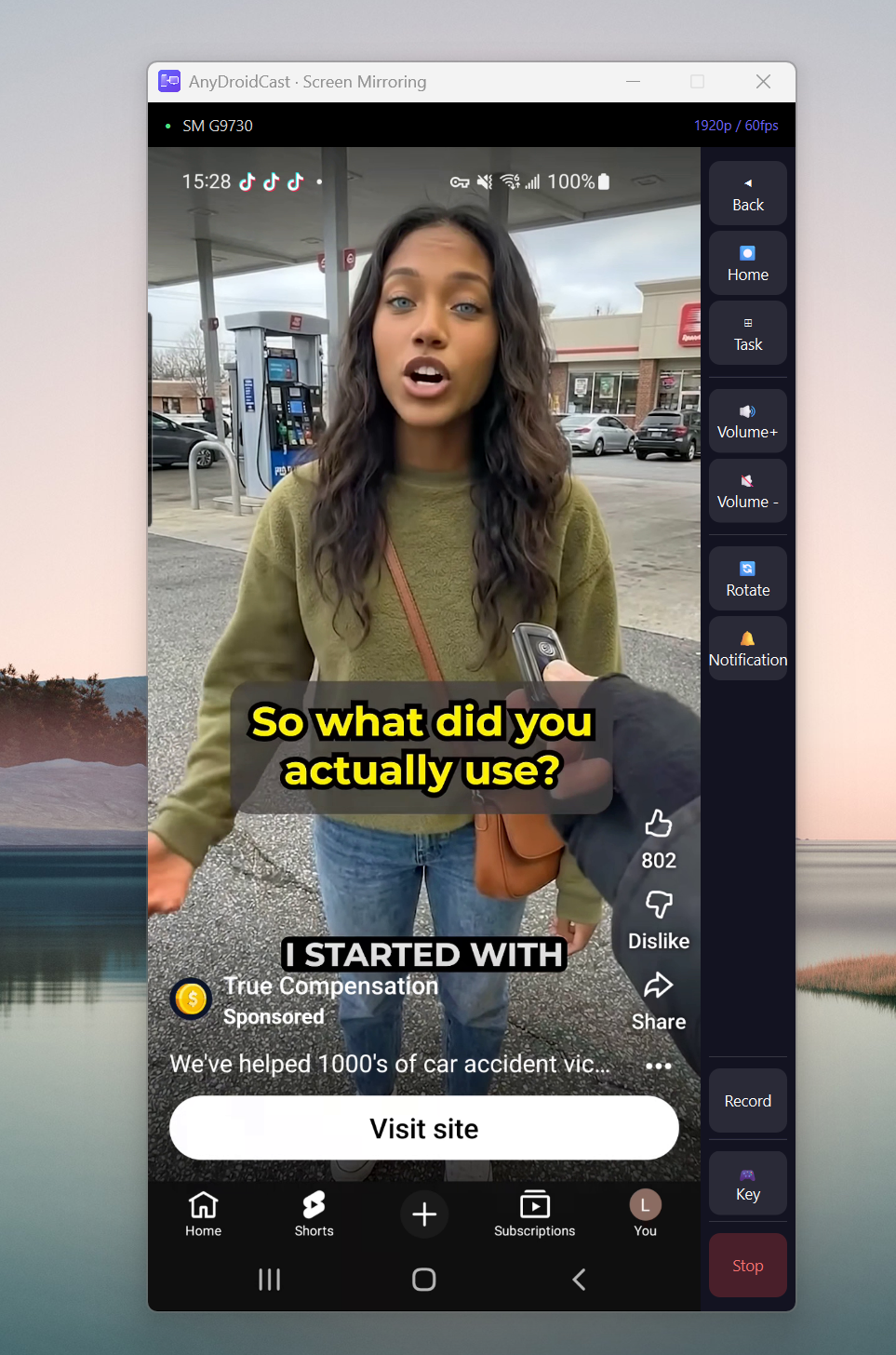
Watch Movies on a Big Screen
Mirror your Android phone to your PC and enjoy your favorite movies on a much larger display. Simply start mirroring, then double-click the video area to enter fullscreen mode — the phone screen fills your entire monitor for a true big-screen experience.
Bonus Features of AnyDroidCast
Okay, now that you know how to get started with screen mirroring, let’s take a look at some cool features that AnyDroidCast brings to the table:
- Control Your Android from Computer: Not only can you see your Android screen, but you can also interact with it. You can use your mouse and keyboard to control your Android apps directly from Windows. Super handy for typing, browsing, or gaming.
- High-Quality Display: AnyDroidCast offers a high-definition display, so your mirrored screen looks sharp. Whether you’re showing off your photos or playing a game, the visuals are clear and crisp.
- No Root Required: Unlike some other screen mirroring solutions, you don’t need to root your Android phone. So, no worries about messing with your phone’s system settings.
- Multi-Device Support: AnyDroidCast isn’t just limited to one Android device. If you’ve got multiple devices, you can switch between them as needed.
- Recording & Screenshot: You can take screenshots or record your Android screen right from your computer, making it useful for tutorials, presentations, or just capturing moments.
Final Thoughts
If you’ve ever tried to mirror your Android screen to your computer using other tools, you probably know it can be a bit of a headache. But with AnyDroidCast, the whole process is simple, quick, and smooth. Whether you’re looking to use your Android apps on a bigger screen, need to play games with better controls, or just want a better way to share your phone’s content, AnyDroidCast gets the job done with minimal effort.
So, why not give it a shot? It’s one of the easiest ways to bring your Android world to your computer—and I think you’ll be pretty impressed with how it works.
Tried the recording just out of curiosity and ended up using it a lot. Super simple, no setup, just click and go. Quality is good enough for quick clips and demos.
I’ve tried a few Android mirroring tools before and honestly most of them were kind of annoying to set up. This one was surprisingly simple. Installed it, plugged my phone in, and it just worked. The screen quality is pretty sharp too, no weird lag when scrolling or opening apps. For basic stuff like presentations or just checking messages on PC, this does the job really well.
Tried scrcpy and a couple other apps before, but they either lagged or needed too much setup. This one feels smoother overall. I can even control my phone from my PC which is pretty nice when typing.
I use this mostly for showing mobile apps during meetings. The screen looks clean and responsive, and I like that you can record or take screenshots directly from the PC.
It’s been pretty reliable so far, no major issues.
Didn’t expect much from the recording feature, but it turned out really solid. I’ve been using it to record short tutorials from my phone and the quality is pretty clean, audio sync is fine too. No complicated setup, just hit record and it works.
I mainly got this to mirror my phone games to PC, and I was surprised you can actually use keyboard controls like direction keys. Makes a big difference for games that need precise movement.
There’s a tiny bit of delay sometimes, but overall it’s totally playable and way more comfortable than using a touchscreen for long sessions.
I’ve tried a dozen mirroring apps to stream Genshin Impact to my PC, and most of them had lag that made the game unplayable. AnyDroidCast is a game changer. The USB connection mode is incredibly stable with almost zero input lag!
I use this app daily for my remote workshops. It allows me to mirror my tablet directly onto my Zoom or Microsoft Teams sessions without any technical hiccups. The audio sync is actually impressive. My students can hear the educational videos I play from the device perfectly
What I love most about AnyDroidCast is that it’s ‘no root required.’ I’m not interested in voiding my warranty just to check my notifications on my desktop. The interface is intuitive, and I can control my phone entirely with my mouse while it sits on the charger across the room. It’s become an essential part of my dual-monitor workflow.
I started using this to record tutorials for my social media channels. The built-in screen recording feature captures everything in high definition without slowing down my phone. I used to have to record on the device and then transfer files, which was a pain. Now, I record directly to my PC hard drive. It has saved me hours of editing and file management!
I use AnyDroidCast primarily for live-testing my apps. Instead of squinting at a small device all day, I can see my work on a 27-inch monitor. Being able to use my PC keyboard to type into search fields on the phone saves me so much time during data entry tests. It’s an essential tool for my dev stack.”